

Create a Campaign from a Template
Pick a template, set up your escalations, decide who gets called, and turn it on, step by step.
Templates are the fastest way to get a campaign running. Each one comes with a script that's already been through thousands of calls, a cadence of calls and texts, and (for a lot of them) an automation that adds the right members on its own. You pick it, make a few choices, and turn it on.
TL;DR
- Pick your template(s) from **Campaigns
Create Campaign > Voice AI campaign**.
- Review the script in the Employees tab.
- Set up your escalations: where transfers go and which calendar gets booked.
- Review the cadence in the Pulse tab.
- Decide who gets called: an automation, people you add, or both.
- Test it and turn it on.
Not sure which template you want?
Browse the Template Library. Every template has a brief that walks through exactly what it says, when it calls and texts, and who it picks up.
Step 1: Pick your template(s)
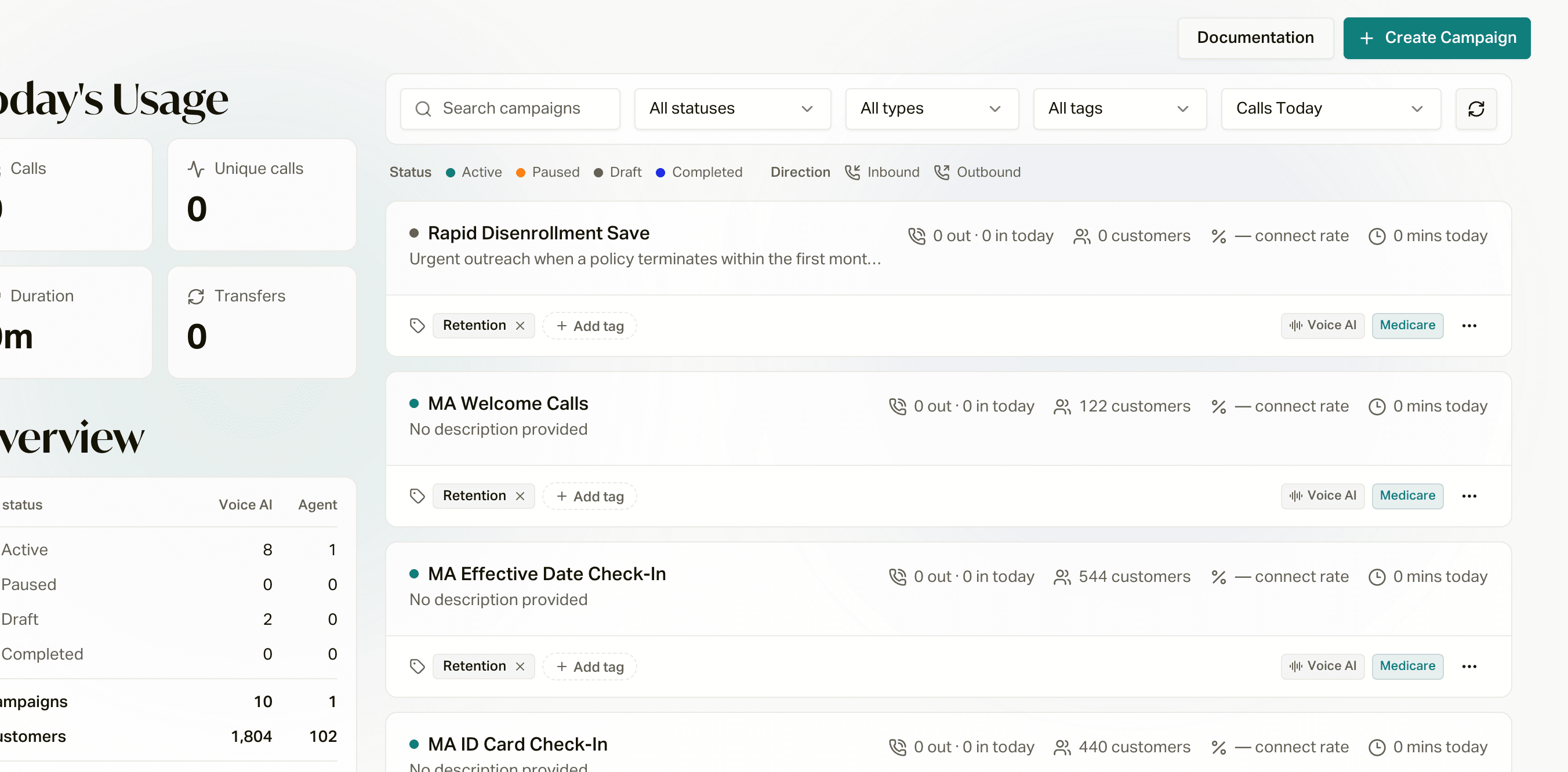
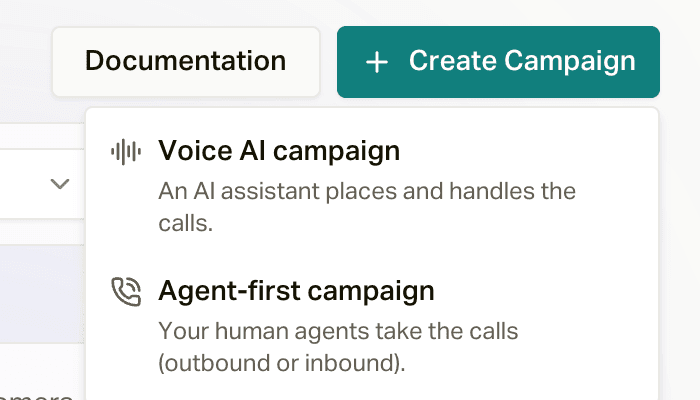
Open the template picker
Go to Campaigns, click Create Campaign, and choose Voice AI campaign.
Find your vertical
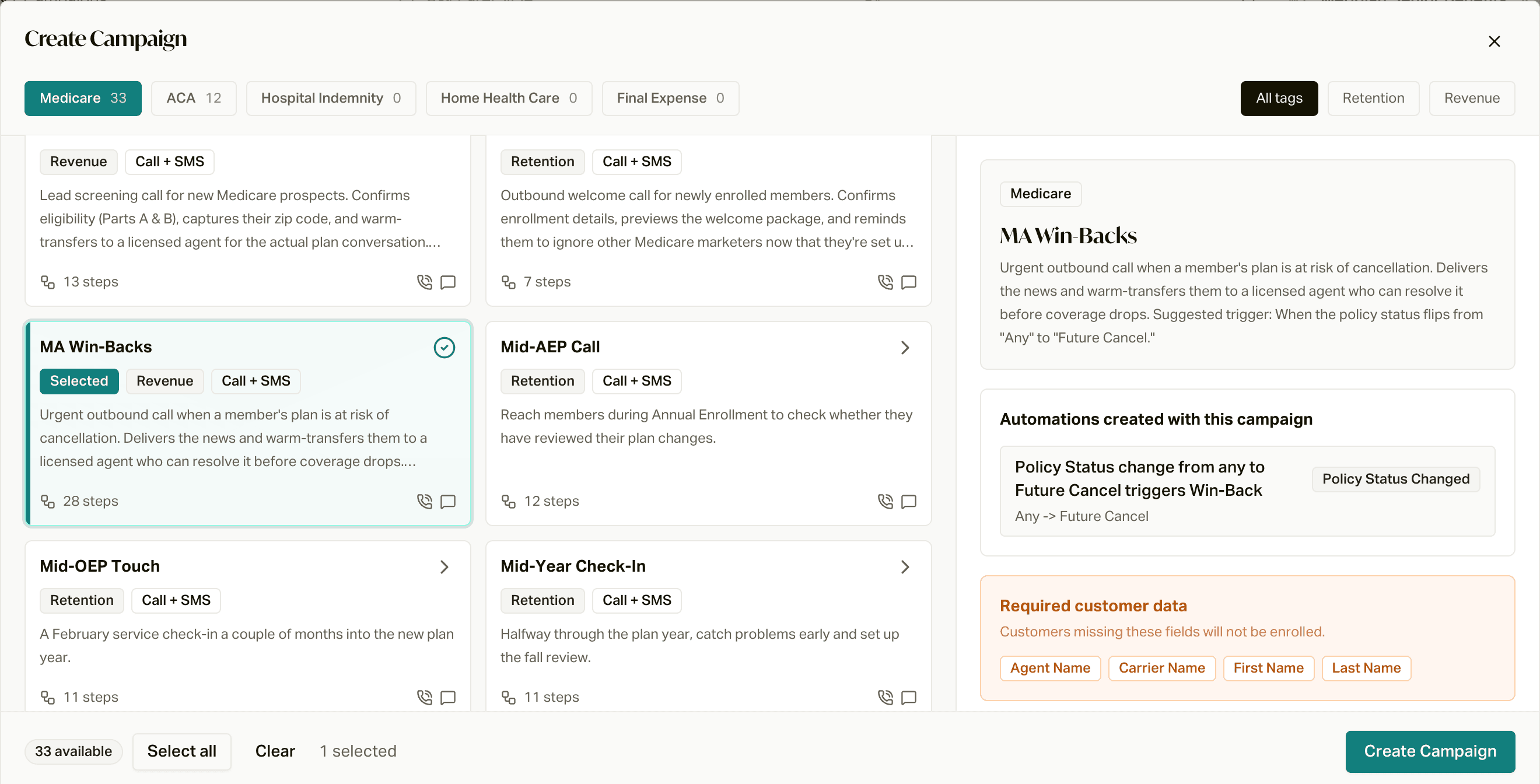
Templates are grouped by line of business across the top: Medicare, ACA, and so on. Use the tag chips (like Retention or Revenue) to narrow it down.
Preview before you pick
Hover or click a card and the right side shows you what you're getting:
- Example conversation: how a typical call goes.
- Automations created with this campaign: the rule that adds members on its own, if it has one (for example "30 days after Effective Date").
- Required customer data: fields a member has to have, or they get skipped.
Create it
Click Create Campaign. You can select more than one card to create a few campaigns at once (the button changes to Create 3 Campaigns, for example). Each template becomes its own campaign.
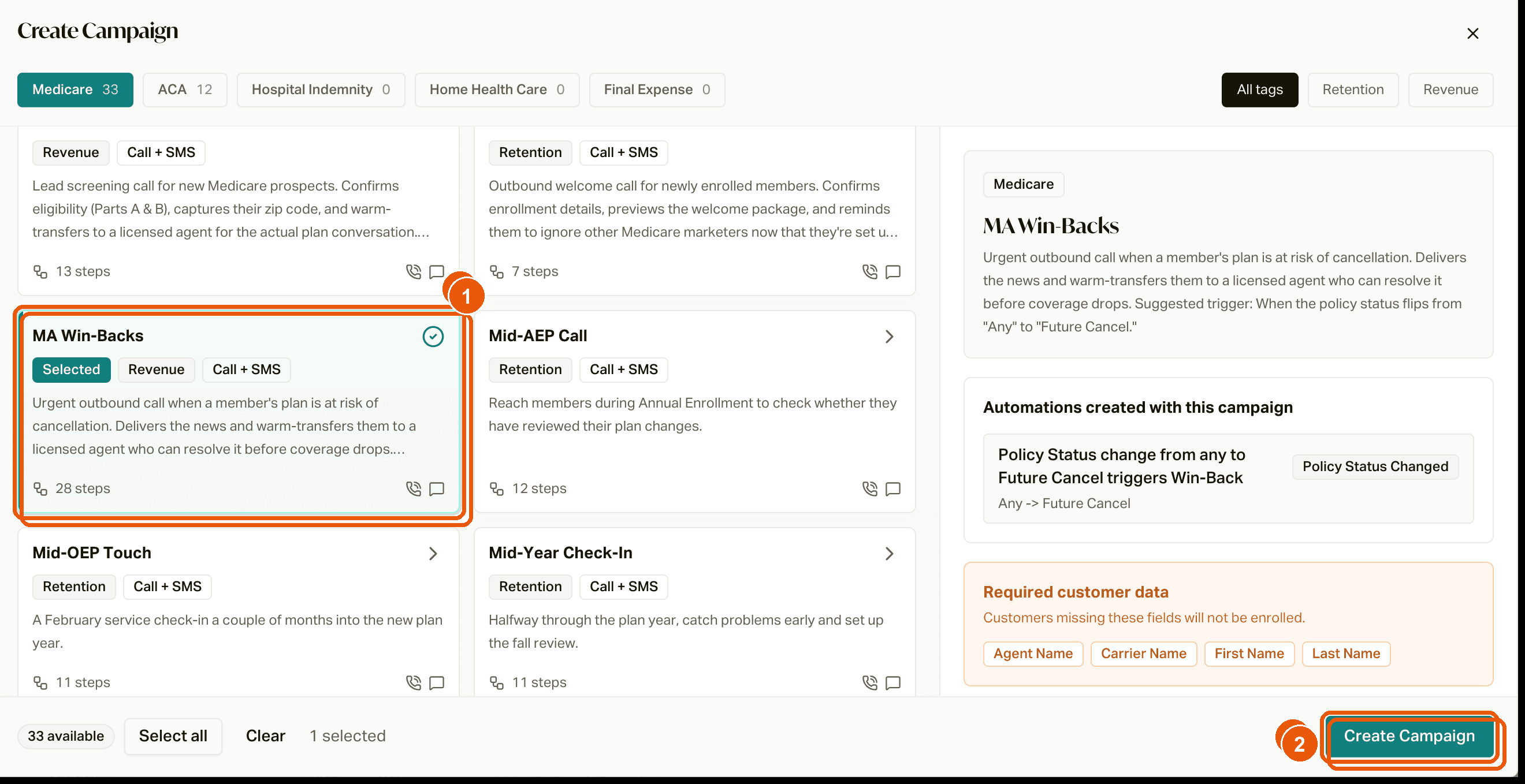
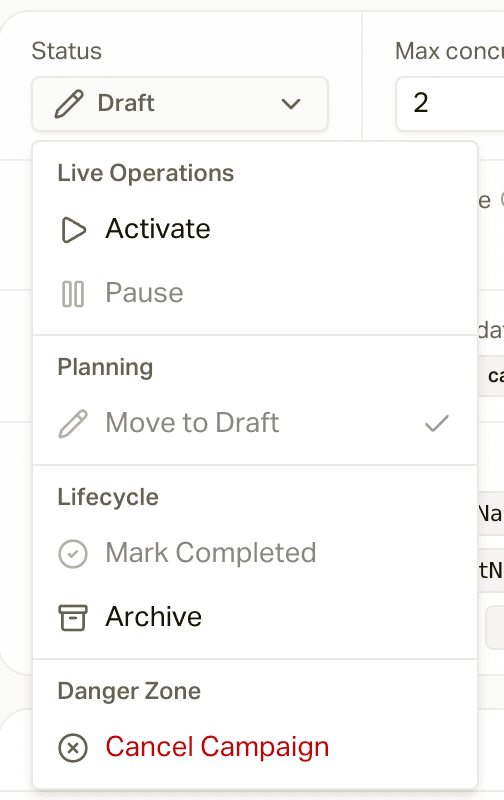
Your new campaign starts as a Draft. Nobody gets called or texted until you click Activate.
What you get
Creating from a template sets up everything the campaign needs:
- The AI employees with their scripts (usually one for daytime calls, one for after hours, and one for appointment callbacks).
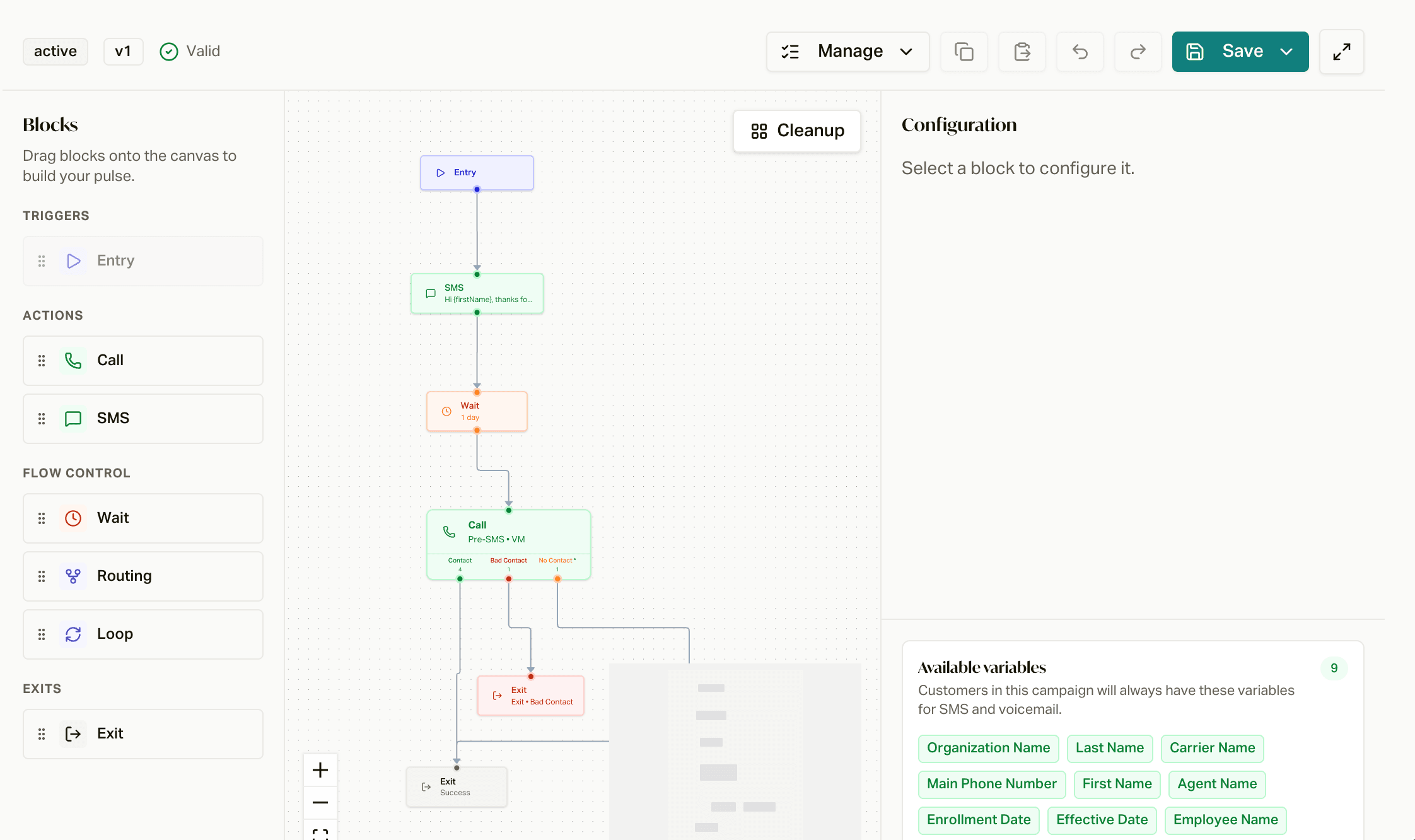
- The Pulse, the cadence of calls and texts, already published.
- Any text messages the Pulse sends.
- The automation that adds members, if the template has one. It's switched on right away (more on why that matters in Step 5).
- Dispositions, the call outcomes the Pulse routes on.
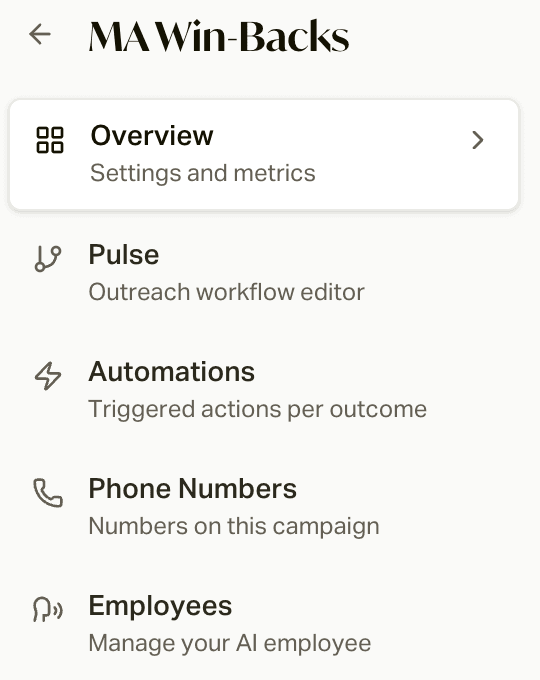
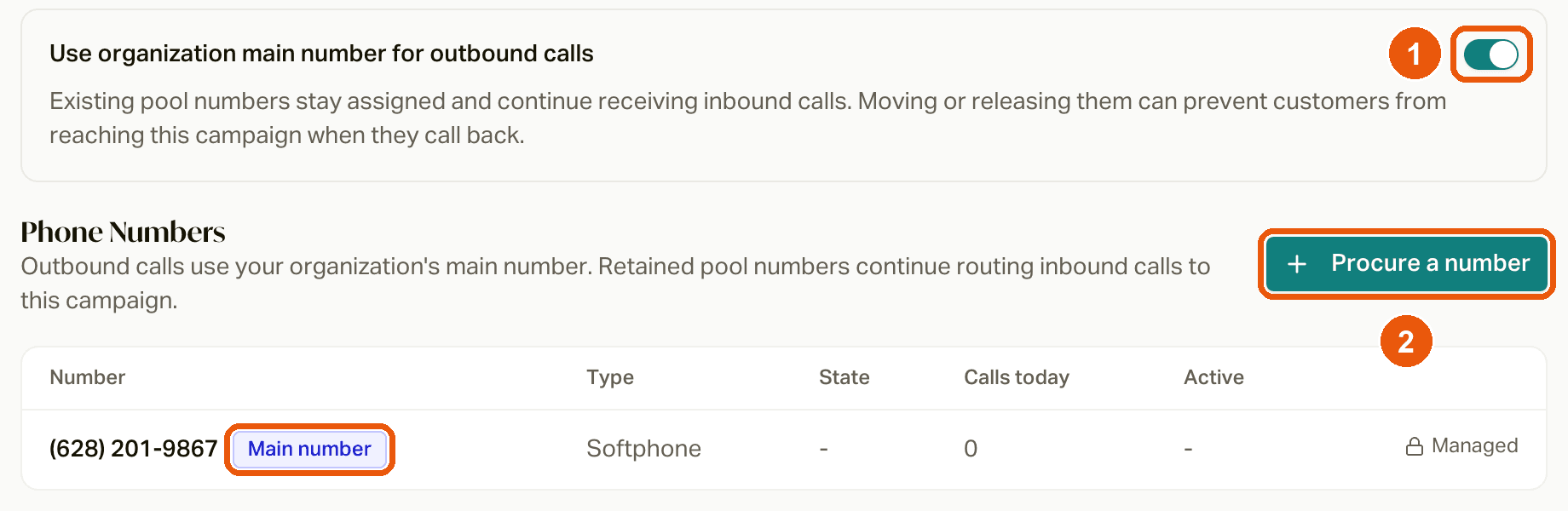
- Caller ID. Most templates call from your agency's main number (the one your Receptionist answers). You can switch a campaign to its own number on the Phone Numbers tab while it isn't active.
What it doesn't set up is anything that's specific to your agency: where transfers go and which calendar gets booked. That's Step 3.
Step 2: Review the script
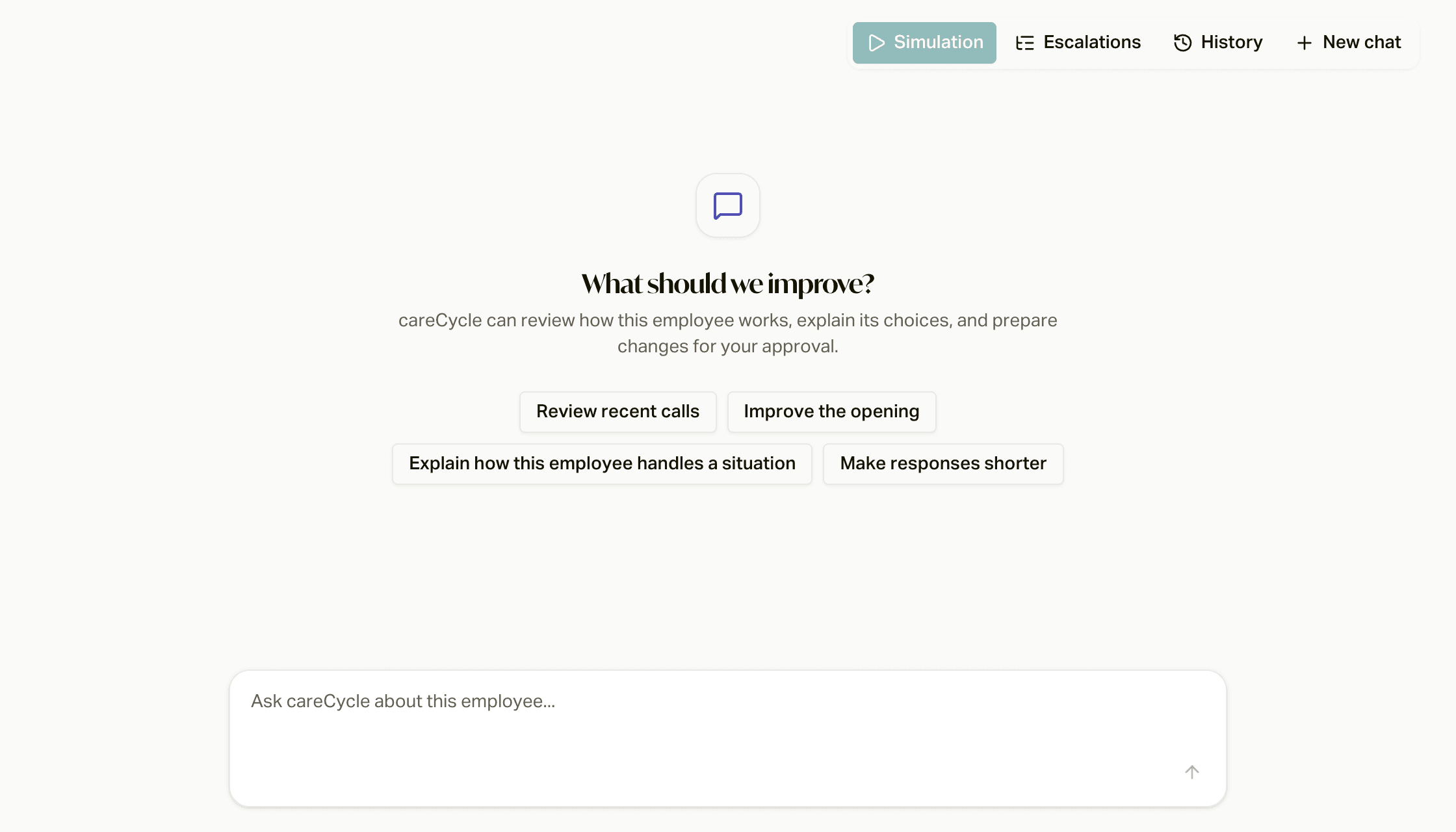
Open the campaign's Employees tab and ask careCycle to walk you through the call: "What's the happy path?" "What does it say if they're busy?" If you want it to sound different, just tell it.
Not sure what the template says? The brief for every template in the Template Library has it all written out.
See Edit Your AI with Employees.
Step 3: Set up your escalations
Escalations are what the AI does on a call: transfer the member to your team, book an appointment, or log an inquiry for follow-up. In the Employees tab, click Escalations and point each one somewhere:
- Transfer Call rows need a transfer destination: who picks up when the AI hands off a call.
- Book Appointment rows need an appointment configuration: your calendar, and whether the AI or your agent makes the call at the booked time.
- Log Inquiry needs nothing. Inquiries land in your Inbox and on the Inquiries page, and the member's assigned agent gets notified. See Handle Inquiries and Assign Customers to Agents.
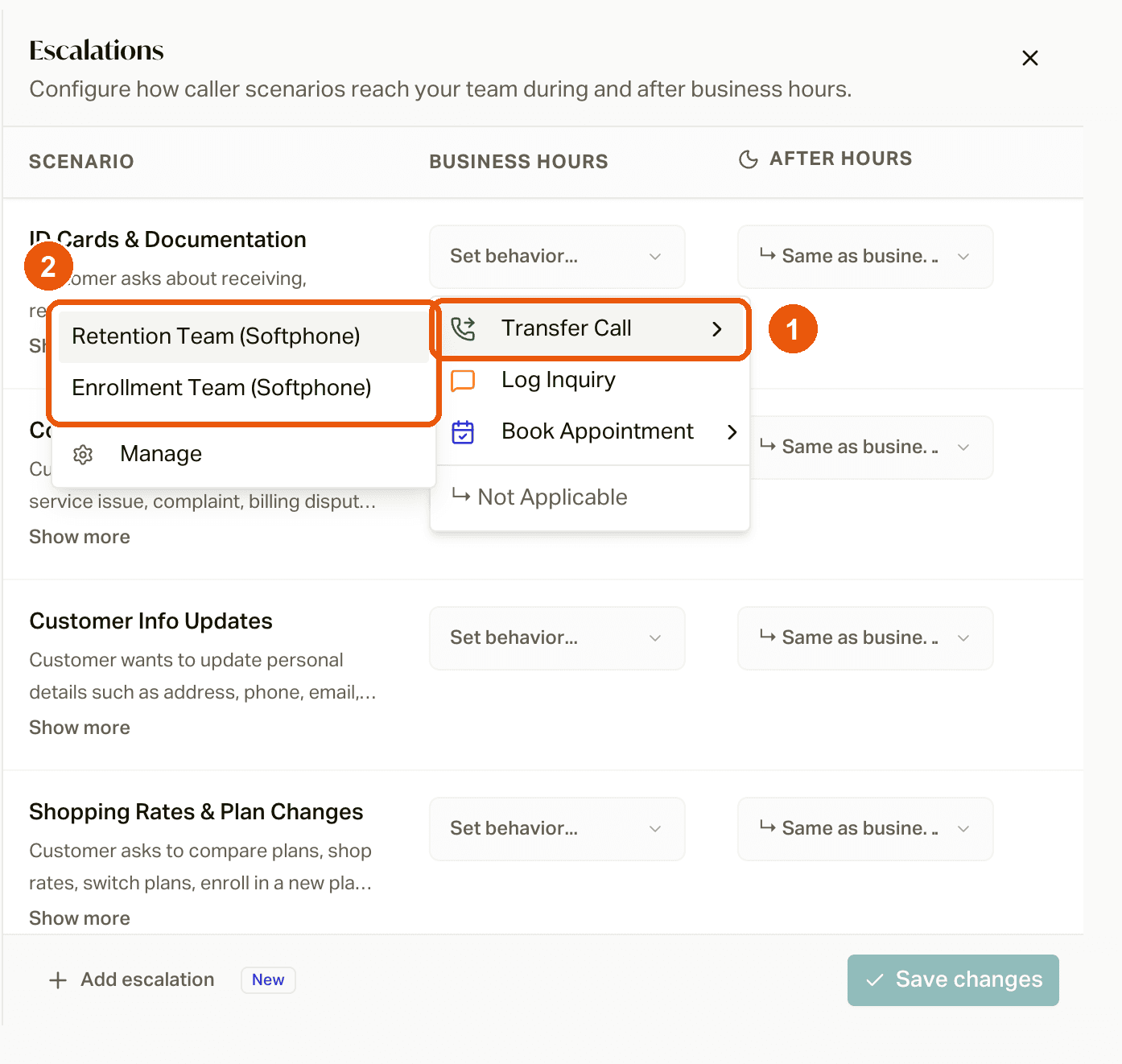
Click Save changes. The campaign won't activate until every Transfer Call and Book Appointment row points somewhere. See Escalations.
Step 4: Review the cadence
Open the Pulse tab to see when the campaign calls and texts, what the texts say, and what the voicemails say. Change anything you want: add a call, change a wait, reword a text. When you're done, click Save, then Publish. Save Draft only saves your work in progress. New members get the published version right away. People already in the campaign switch over between steps, so a step that's already scheduled may still go out the old way. To move them over now, check Move in-progress customers to this version when you publish.
See Pulse, or have Claude or ChatGPT do the heavy lifting with Edit Your Pulse with an LLM.
If the campaign sends texts, make sure your SMS registration is done.
Step 5: Decide who gets called
This is the part that takes the most thought. A campaign only calls the people who are in it, and there are two ways in.
Let the automation do it
Lots of templates come with an automation, like "every active member, 30 days after their effective date" or "whenever a policy moves to Future Cancel." Check the campaign's Automations tab to see exactly what yours does, and change it if you want. Before you turn it on, think through what it'll do to your book:
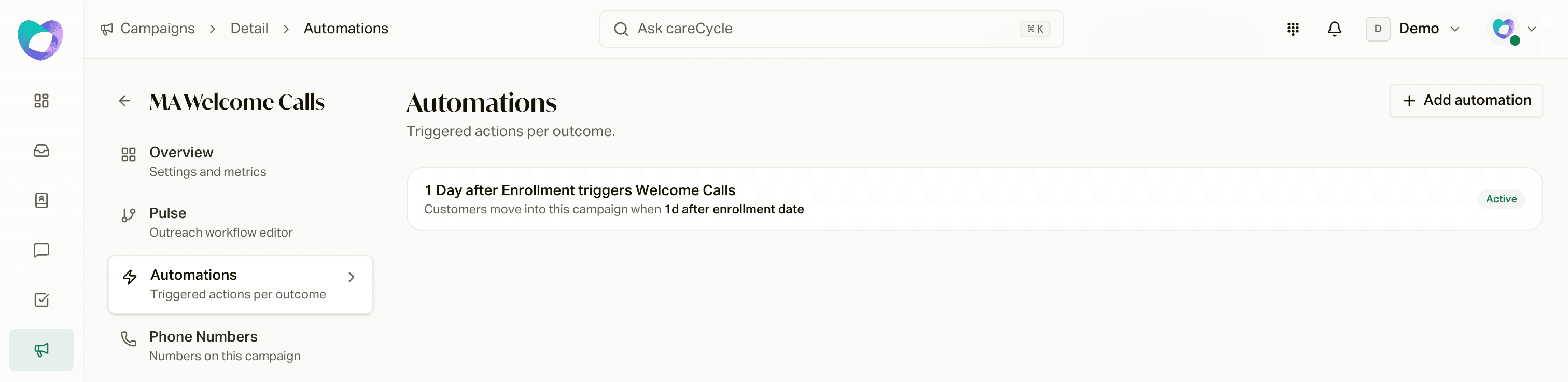
- Date automations look forward, not back. They check once a night and pick up the people whose date lands on that day. Members whose date already passed won't be picked up. So if you want your existing book to get the campaign too, add them yourself (below).
- Yearly automations hit everyone at once. A "September 8 every year" automation adds every matching member on September 8. That can be your whole book.
- Status automations only catch changes. "When a policy moves to Future Cancel" fires when an existing policy changes to that status. It won't pick up policies that are already in that status, or brand-new policies that arrive already marked that way.
See Automations Explained for the details on every trigger.
Activate before your automation fires
A template's automation is switched on the moment you create the campaign, but the campaign itself is still a Draft. If the automation adds someone before you activate, their first call or text gets dropped and they're marked Skipped ("Campaign was not active"). Turning the campaign on later doesn't bring them back. So either finish setup and activate quickly, or switch the automation off in the Automations tab until you're ready.
Add people yourself
Some templates (like Payment Errors or Silent Client Reconnect) don't have an automation at all, because only you know who should get them. And even with an automation, you'll often want to add your existing book. Do it from the Customers page: filter down to the right people, select them, and click Add to campaign. People you add to a Draft campaign just wait there safely until you activate.
See Add Customers to a Campaign.
Step 6: Test it and turn it on
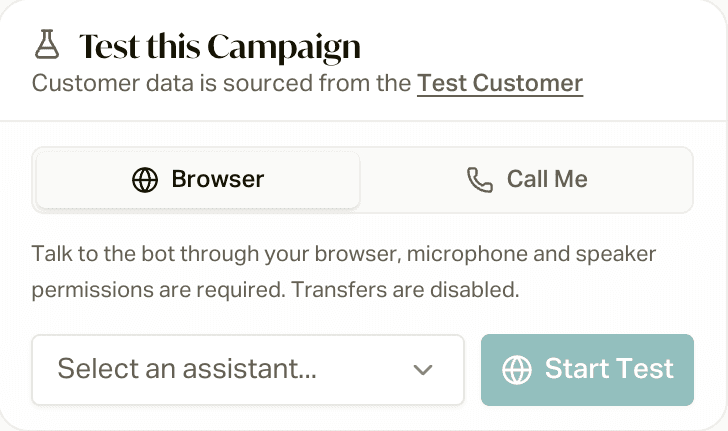
Test it
On the campaign's Overview tab, use Test this Campaign to talk to the AI in your browser, or have it call your phone. See Test Your Campaign.
Activate
On the Overview tab, open the status menu, click Activate, and confirm with Yes, activate campaign.
During your business hours, people in the campaign start getting calls and texts within minutes. Outside your hours, they wait until you open. See How Campaigns Run for everything that happens next.
Common questions
Activate isn't working. What's missing?
You'll see a message telling you. Usually it's an escalation with no transfer destination or calendar picked, no main number set up for your agency (or no number on the Phone Numbers tab if the campaign uses its own), or billing. See How Campaigns Run.
I turned it on but nobody's getting called.
Check that people are actually in it (the status counts on the Overview tab). If the template's automation is date-based, it might just not have anyone hitting their date yet. Add people yourself if you don't want to wait. See Why Wasn't My Customer Called?
Why are people showing as Skipped?
Usually missing info: no phone number, no time zone or state, or a field the script needs (the Required variables on the Overview tab). The other common one is "Campaign was not active", which means an automation added them before you turned the campaign on.
Can I create the same template twice?
Yep. Each one is its own campaign with its own settings. Just watch out for both of their automations adding the same members.
Can I build a campaign from scratch?
The Custom Campaign and Custom SMS Campaign templates are blank starting points. That said, starting from the template closest to what you want and tweaking it is almost always faster, and you get all the edge cases we've already worked out for free.