

Add Customers to a Campaign
Filter your book, pick the people you want, and add them to a campaign yourself, plus how to restart, stop, or remove people.
Automations are great for "everyone who hits day 30." But a lot of the time, you just want to say "call these people." Maybe it's a template with no automation (like Payment Errors), maybe you want your existing book to get a campaign that only catches new people going forward, or maybe you've got a list of folks you want to work this week. This is how you do it.
From the Customers page (best for groups)
Filter down to the right people
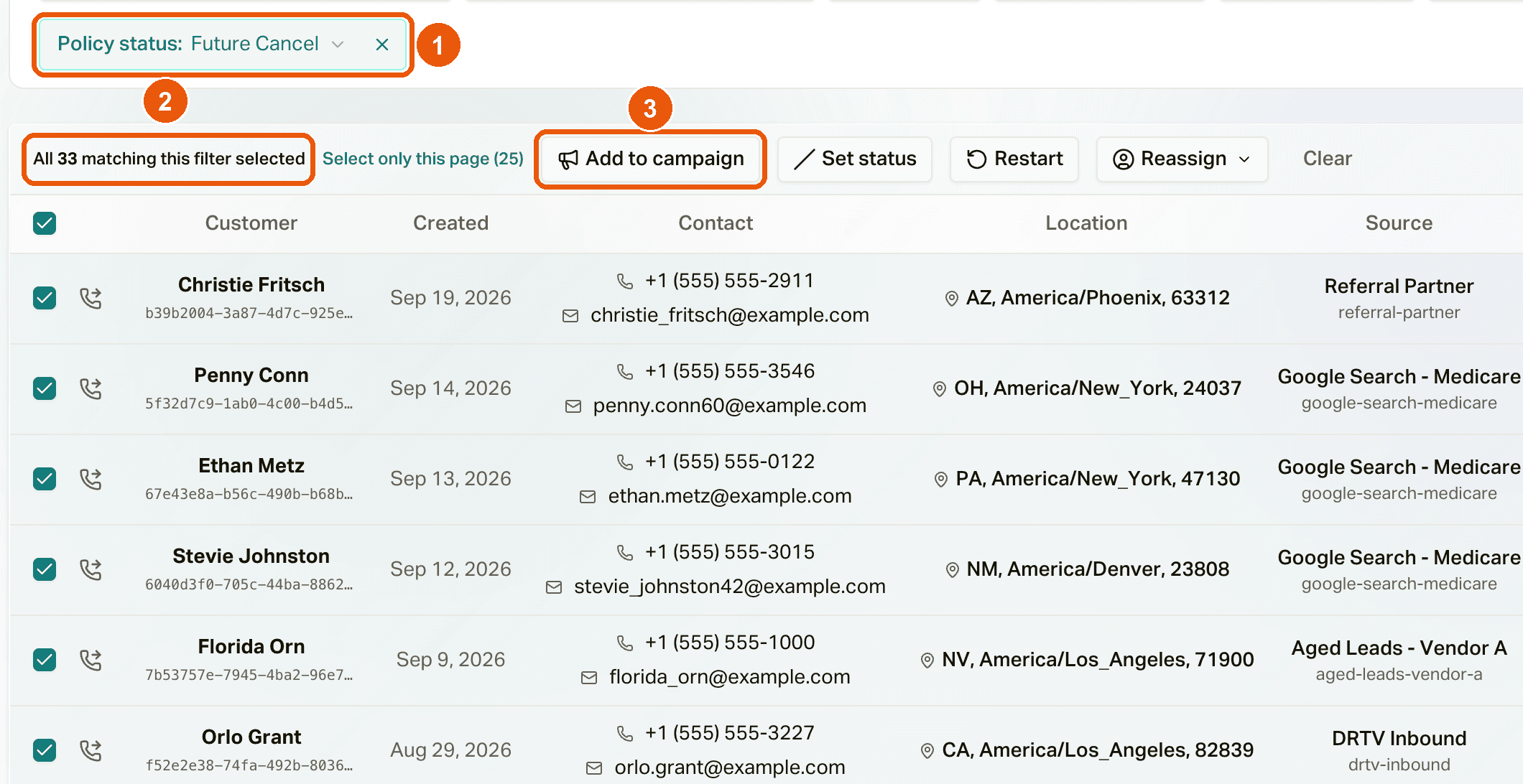
Go to Customers and use the filters to get your list. You can filter by things like policy status, policy type, carrier, state, tags, and your own custom fields. For example: Policy status is Future Cancel to find everyone who's cancelling.
Select them
Check the boxes next to the people you want, or use the checkbox at the top to select the whole page. To grab everyone who matches your filters (not just this page), click Select all [number] matching this filter.
Click Add to campaign
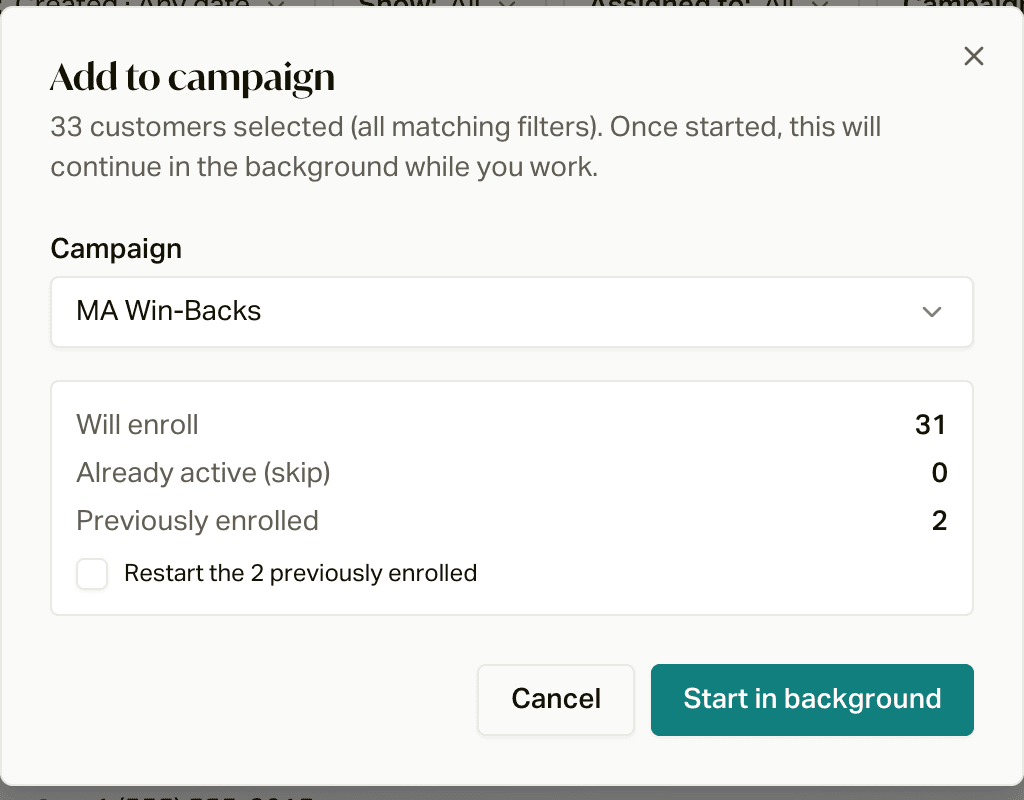
Pick your campaign from the list. You'll see a preview before anything happens:
- Will enroll: people who'll be added.
- Already active (skip): people already in it. They're left alone.
- Previously enrolled: people who were in it before and finished. They're left alone too, unless you check Restart the [number] previously enrolled.
Start it
Click Start in background. It keeps running while you work, and a little progress box tells you when it's done.
You can add up to 10,000 people at a time. Only people with permission to manage campaign enrollment see these buttons.
Draft campaigns are fine here
People you add to a Draft or Paused campaign just wait there. They start as soon as the campaign is Active. So it's totally fine to load people up first and turn the campaign on when you're ready.
From a customer's profile (best for one person)
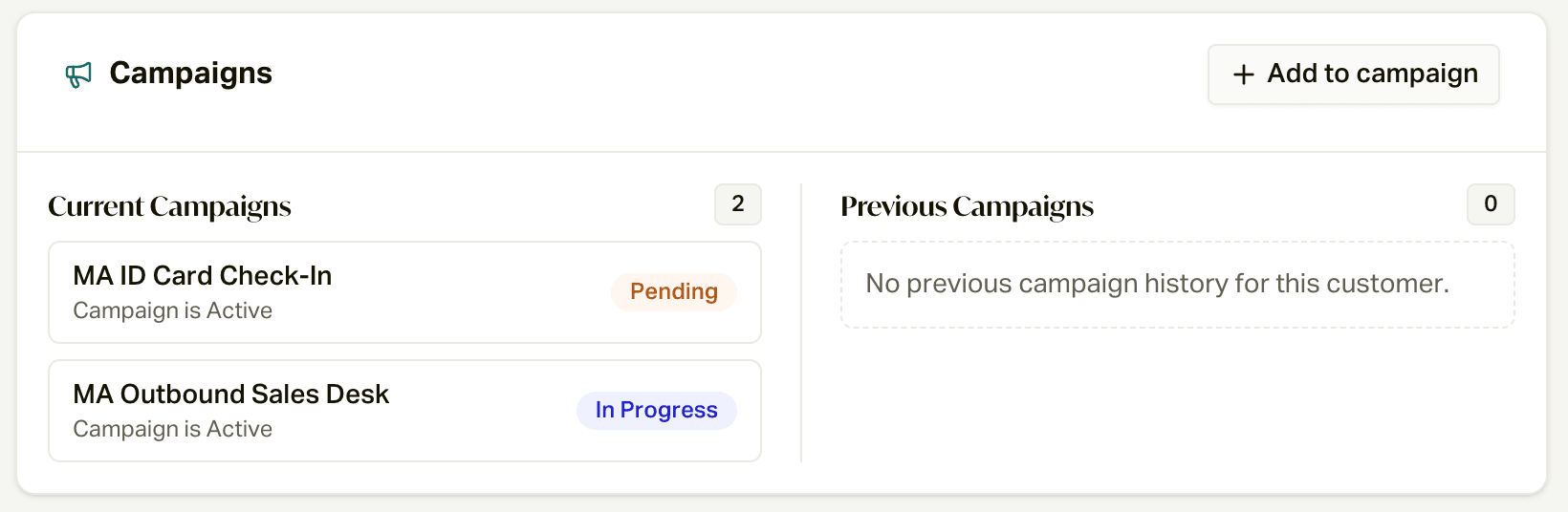
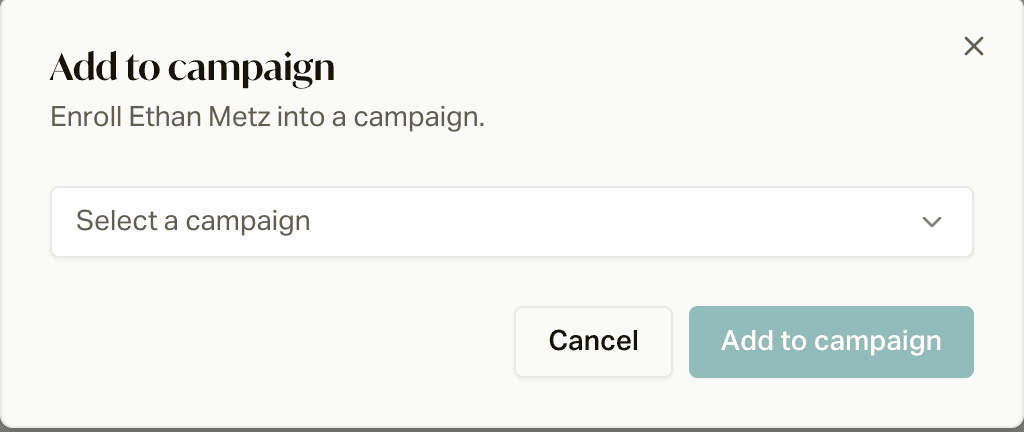
Open the customer, find the Campaigns card, and click Add to campaign. Pick the campaign and click Add to campaign again.
If they already finished that campaign, you'll see Customer previously completed this campaign with a Restart button. Click it to run them through again from the start.
From an import
When you import a file, you can add everyone in it to a campaign at the same time:
- Map the columns myself: pick a campaign in Add to campaign (optional) on the mapping step.
- Let the assistant do it (the import assistant): tell it which campaign, and it can also tag everyone in the file. If you want different groups in different campaigns, tell it, and it'll split the file and run them separately.
Only import into a campaign that's already on
Adding people through an import works a little differently than the Customers page: their first call or text gets lined up right away. If the campaign is still a Draft when that first step comes due, it gets dropped and they're marked Skipped ("Campaign was not active"), and turning the campaign on later doesn't bring them back. So turn the campaign on first, or import without a campaign and add them from the Customers page afterward.
People who already finished the campaign aren't restarted by an import. Use Restart from the Customers page if you want them to go again.
Who gets skipped
Whichever way you add people, careCycle skips anyone it can't (or shouldn't) call:
- No valid phone number on file.
- No time zone or state on file, so we can't tell what time it is for them.
- Missing information the script needs. The campaign's Overview tab lists these under Required variables. If you fill in the missing info later, careCycle notices and starts them automatically.
- Do Not Call or suppressed numbers.
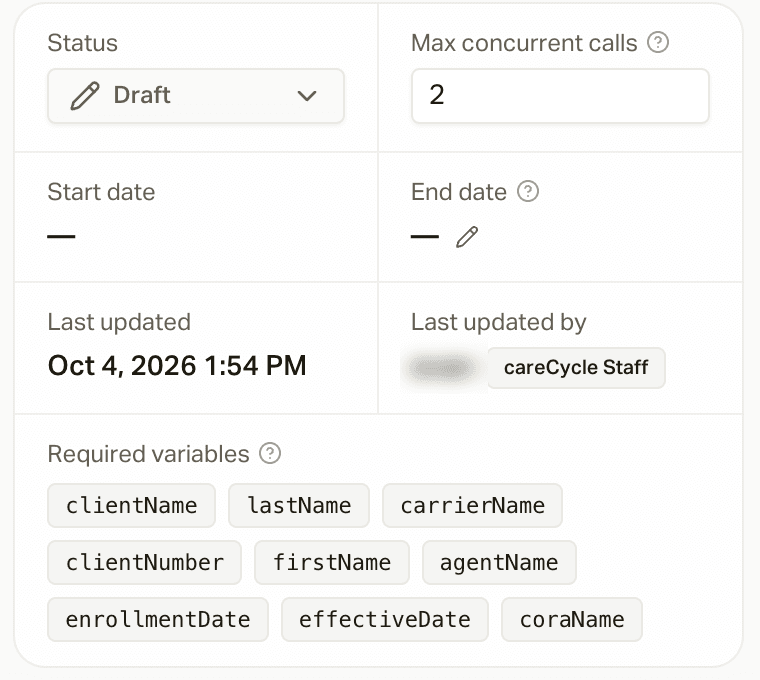
You'll see these people in the campaign's Skipped count on the Overview tab, with the reason on each customer's campaign badge.
Restarting people
Restarting runs someone through the campaign again from the very beginning. Use it when someone finished but you want another go (for example, their situation changed).
- A group: on the Customers page, select them and click Restart, or check Restart the [number] previously enrolled when adding.
- One person: click their campaign badge on their profile and choose Restart in campaign.
Restart only works for people who've been in that campaign before. Nobody new gets added.
Stopping or removing people
There isn't a separate "remove" button. Instead, you change their status in the campaign, which stops their journey and clears anything that was lined up:
- A group: on the Customers page, select them, click Set status, pick the campaign, and choose Cancelled, Completed, or Failed. This only touches people already in that campaign.
- One person: click their campaign badge on their profile and pick a status.
If a call is in progress, it finishes, but nothing else goes out.
Want people removed automatically, like when their policy status changes? Use an exit automation. See How Campaigns Run.
Common questions
What if someone's already in another campaign?
No problem. People can be in more than one campaign at once, and adding them to a new one doesn't stop the others.
Can I add my whole book?
Yep, filter however you want and use Select all matching this filter. Big lists are added 10,000 at a time, and once the campaign is on, careCycle paces the calls so it doesn't fire them all at once.
Will an automation add someone back after they finish?
No. Once someone has finished a campaign, its automations won't add them again. Only a Restart does that.