

Save Cancelling Members
Automatically call members the moment their policy moves to Future Cancel, Terminated, or Cancelled, and work the ones already cancelling.
When a policy flips to Future Cancel, the clock is ticking. Maybe the member got poached, maybe a payment bounced, maybe they just got confused by a carrier letter. Either way, the sooner someone from your team talks to them, the better your shot at saving it.
careCycle has two templates built for exactly this, and once they're set up, you don't have to lift a finger: a policy changes status, and the AI is on the phone with that member within minutes (during your business hours), trying to get them to your team.
The two campaigns
| Campaign (name in the picker) | Starts when a policy... | The conversation |
|---|---|---|
| MA Win-Backs | Moves to Future Cancel, and started more than 30 days ago | "Your plan's showing as cancelled, let me get you to someone who can sort it out." |
| Rapid Disenrollment Save | Moves to Future Cancel, Terminated, or Cancelled, and started 30 days ago or less | Same urgency, for brand-new members who are already dropping, which usually means something went sideways at onboarding. |
Both skip anyone marked Deceased. careCycle looks at that policy's effective date to decide which campaign it goes to, so a member never lands in both from the same change. If you want everyone covered, turn on both.
Want Win-Backs to catch Terminated and Cancelled too?
Out of the box, MA Win-Backs only starts on Future Cancel. If you also want it to catch policies that go straight to Terminated or Cancelled, open its Automations tab, click the automation, and add those statuses to To. Then click Save Changes.

Most agencies' cancellations are on policies that have been around a while, so if you're only going to start with one, start with Win-Backs.
Set it up
Plan on about 20 minutes. Do these in order.
Create the campaign
Go to Campaigns, click Create Campaign, choose Voice AI campaign, and pick MA Win-Backs (and Rapid Disenrollment Save if you want both). Click Create Campaign. Already have a Win-Backs campaign? Use that one, no need to make another. See Create a Campaign from a Template.
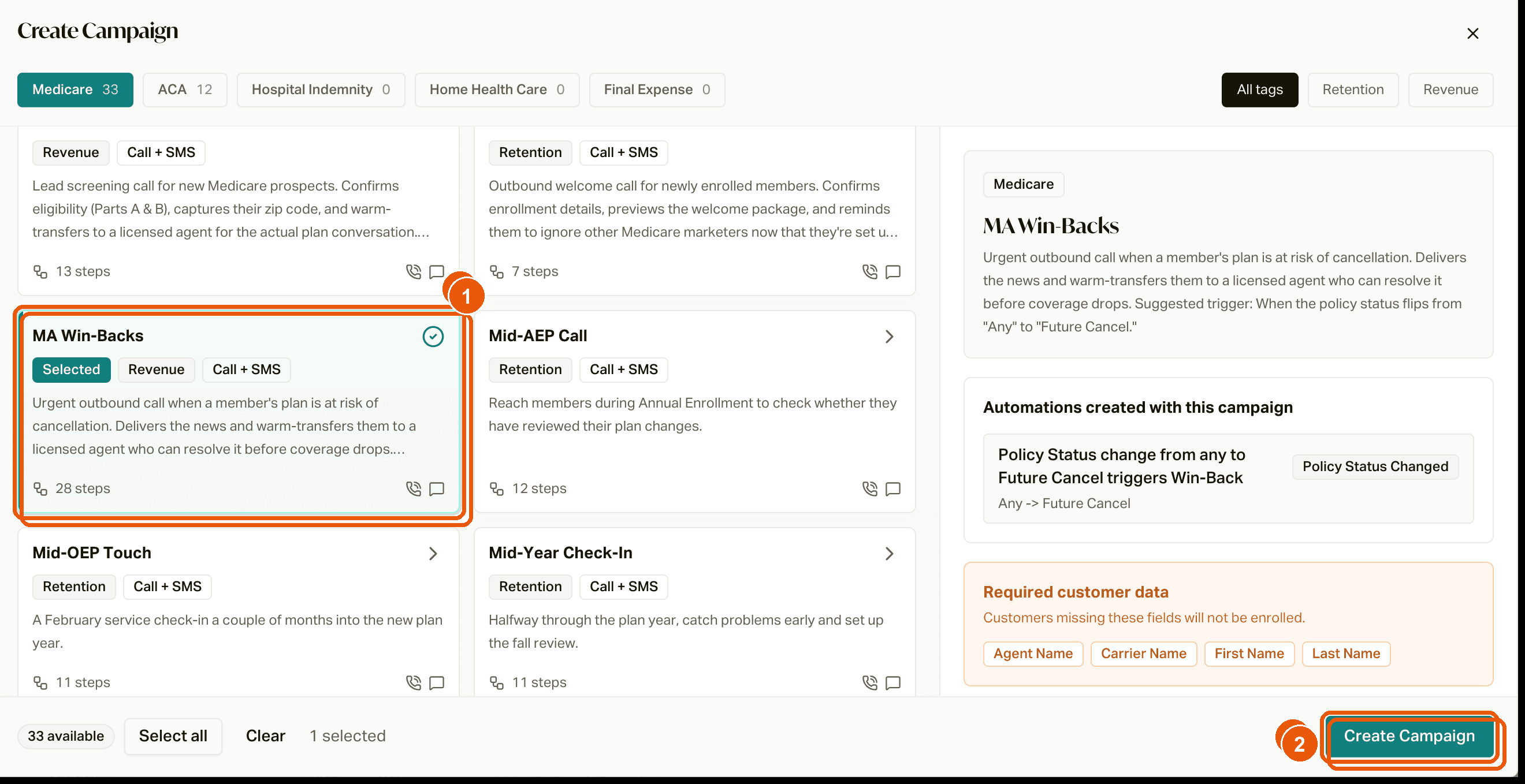
Switch the automation off for now
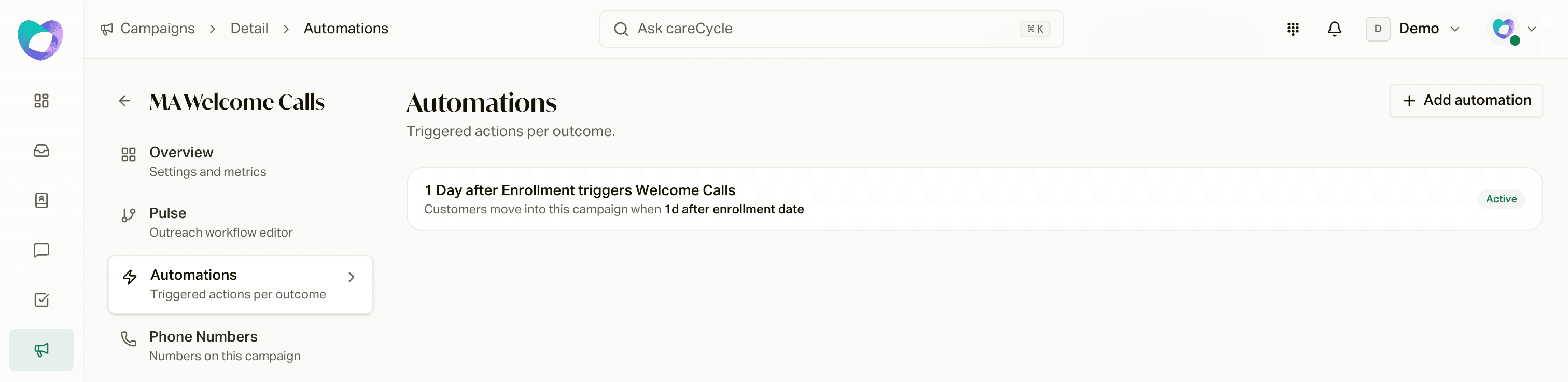
Your new campaign starts as a Draft, but its automation is already on. Anyone it catches before you activate gets skipped for good. So open the Automations tab, click the automation, switch Active off, and click Save Changes. You'll turn it back on at the end.
Set up your escalations
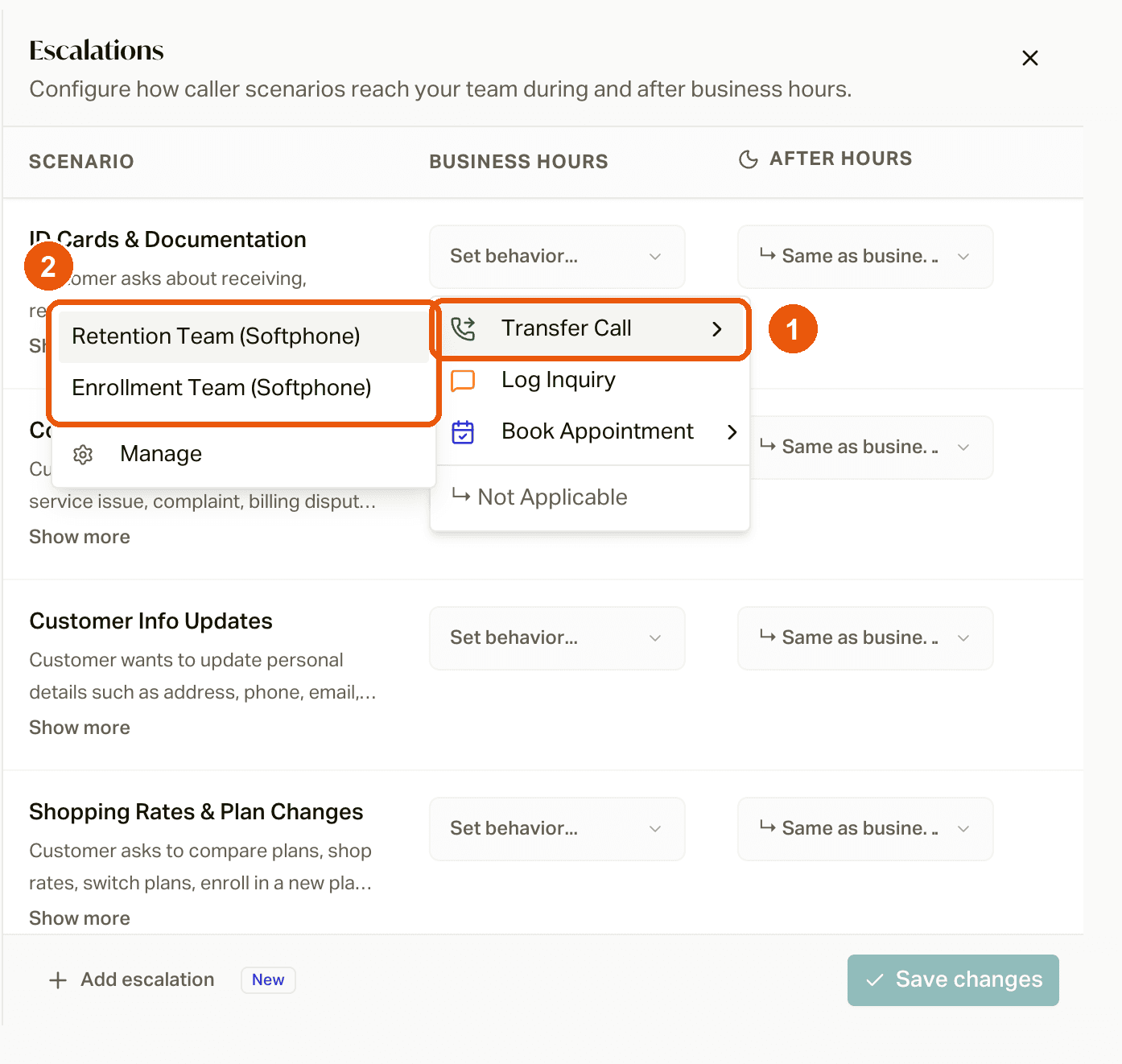
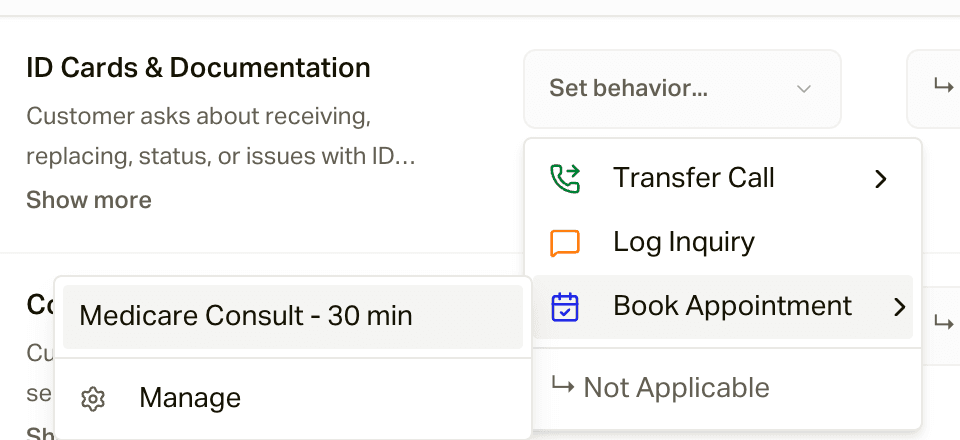
The whole point of this campaign is getting the member to a person. Open the Employees tab and click Escalations (top right):
- On the Transfer Call rows, pick the transfer destination your saves team answers.
- On the Book Appointment rows, pick an appointment configuration. This is for after hours and anyone who can't talk right now. Double check its date range: a calendar you set up for AEP might stop taking bookings soon.
Don't have a transfer destination or calendar yet? Click Manage in either menu to make one right there. Click Save changes when you're done. The campaign can't be activated until both are picked.
Check your caller ID and texting
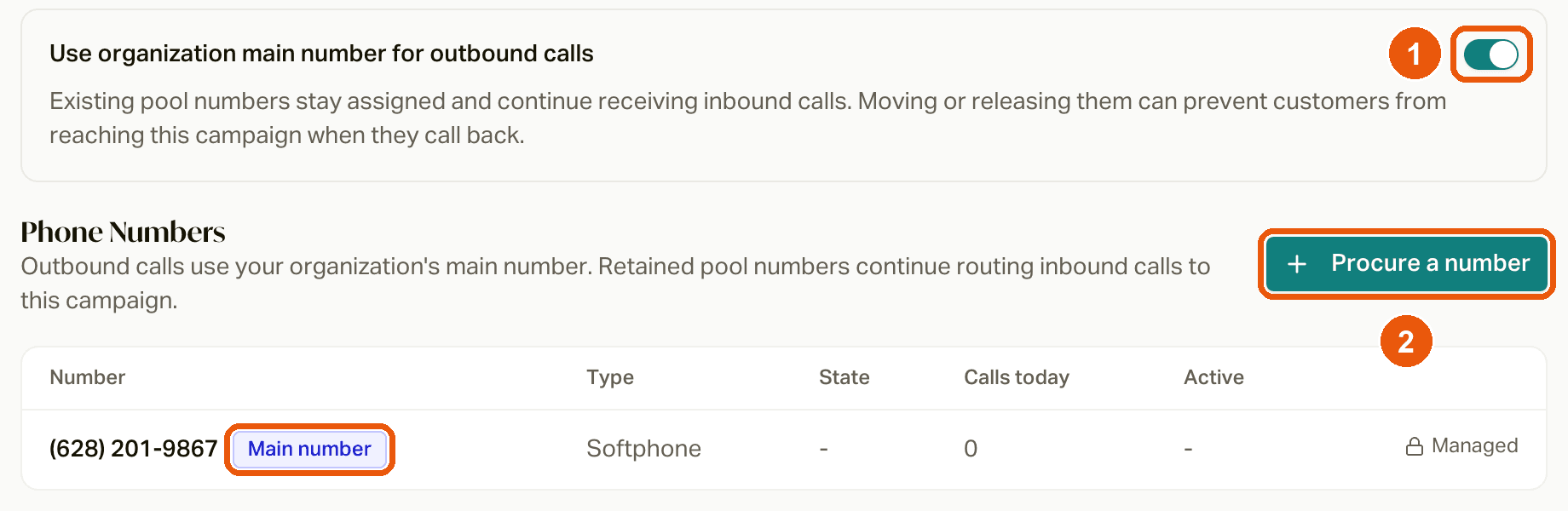
Win-Backs calls from your agency's main number (the one your Receptionist answers) and texts from your registered texting number. Make sure you have both: see Managing Your Phone Numbers and SMS and RCS Registration.
Check your member data
The AI uses each member's first and last name, their carrier, and their agent's name on the call. Anyone missing one of those gets skipped. The agent's name comes from the customer record, or from the writing agent or agent of record on their policy, so as long as your imports or sync fill one of those in, you're good. People also need a phone number and a state or time zone. If you fill in missing info later, careCycle picks them up automatically.
Read the script and cadence
Read the Win-Backs brief so you know exactly what members hear and read, and when. Want to change something? Use the Employees tab for the script and the Pulse tab for texts and timing.
Test it
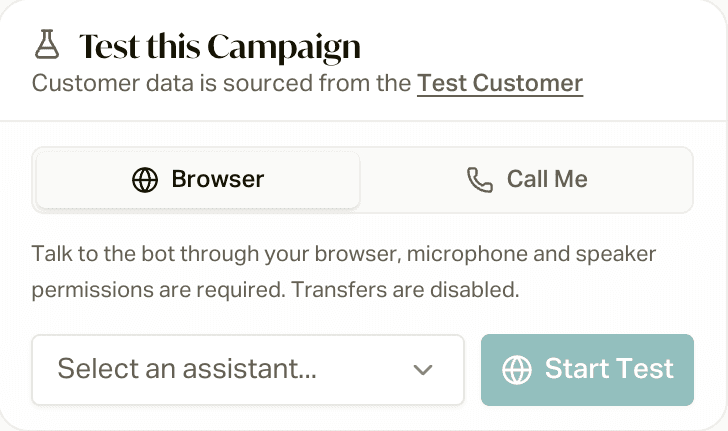
On the Overview tab, use Test this Campaign to hear the call in your browser, or have it call your phone. Test calls use your Test Customer record, so fill in a carrier and agent name there first. See Test Your Campaign.
Activate, then turn the automation back on
On the Overview tab, open the status menu, click Activate, and confirm. Then go back to the Automations tab, click the automation, switch Active back on, and click Save Changes. From here on, every policy that moves to a cancelling status gets worked automatically.
Work the ones already cancelling
The automation only catches policies that change status from now on. It won't go back and pick up the members who were already in Future Cancel before you turned it on. Add those yourself:
Filter your book
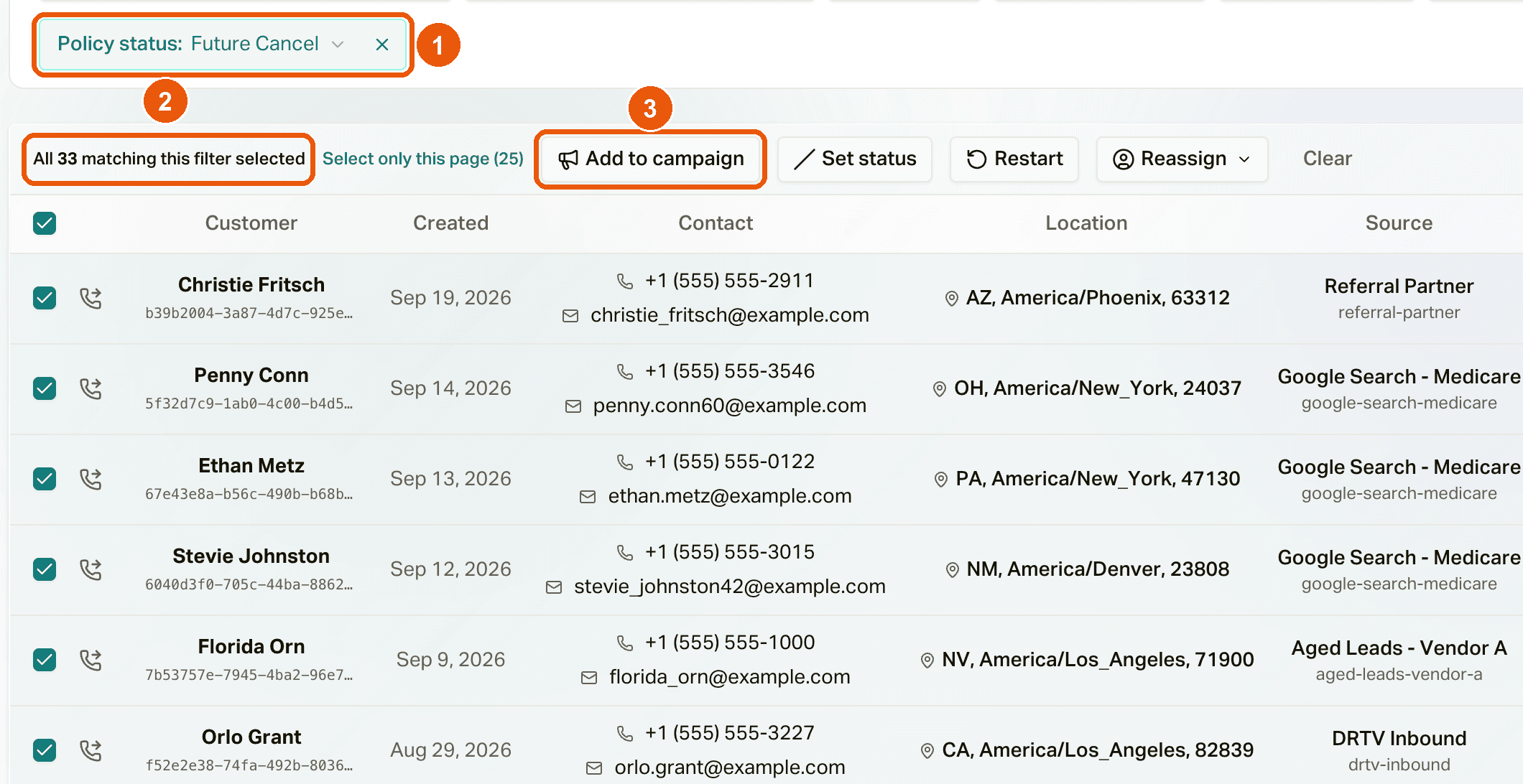
Go to Customers and filter Policy status to Future Cancel (and Cancelled and Terminated, if you want those too).
Select everyone
Click Select all [number] matching this filter.
Add them to the campaign
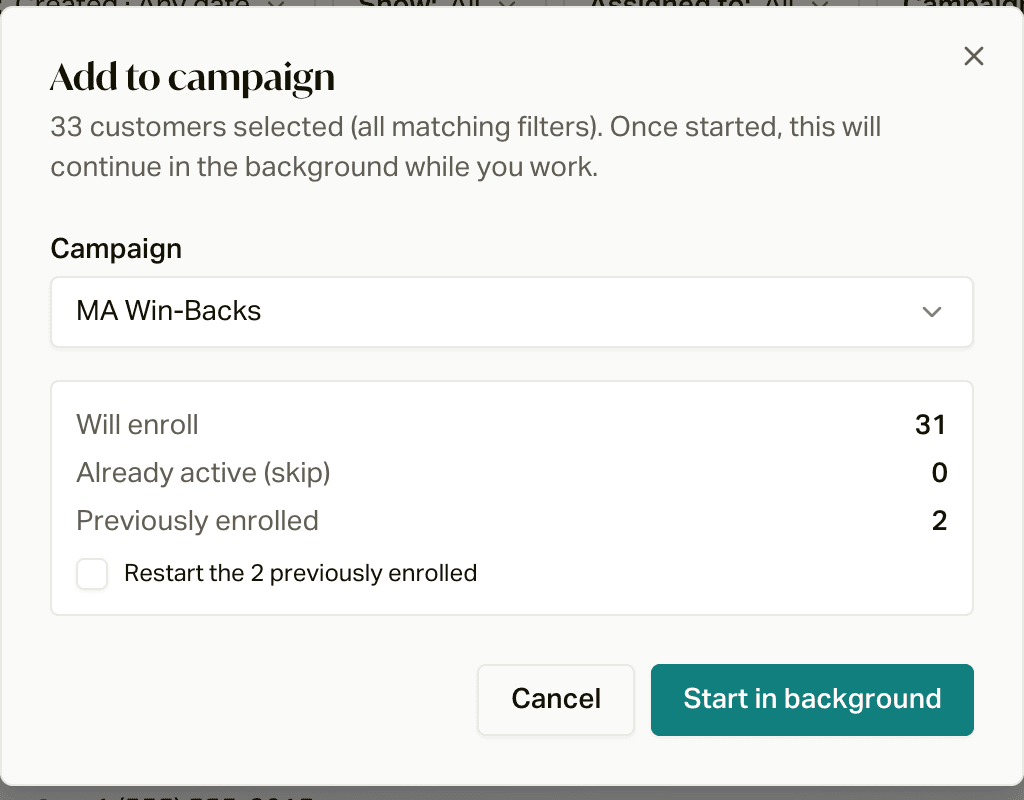
Click Add to campaign, pick Win-Backs, and check Restart the [number] previously enrolled if anyone was in it before. Click Start in background.
Members on Do Not Call won't be dialed. See Add Customers to a Campaign for more.
How to tell it's working
Open the campaign's Overview tab. The status counts show where everyone is: Waiting to Enter, Waiting for Next Call, Active Now, Success Condition, Skipped, and Exit Condition. Click See customers on any of them to see exactly who.
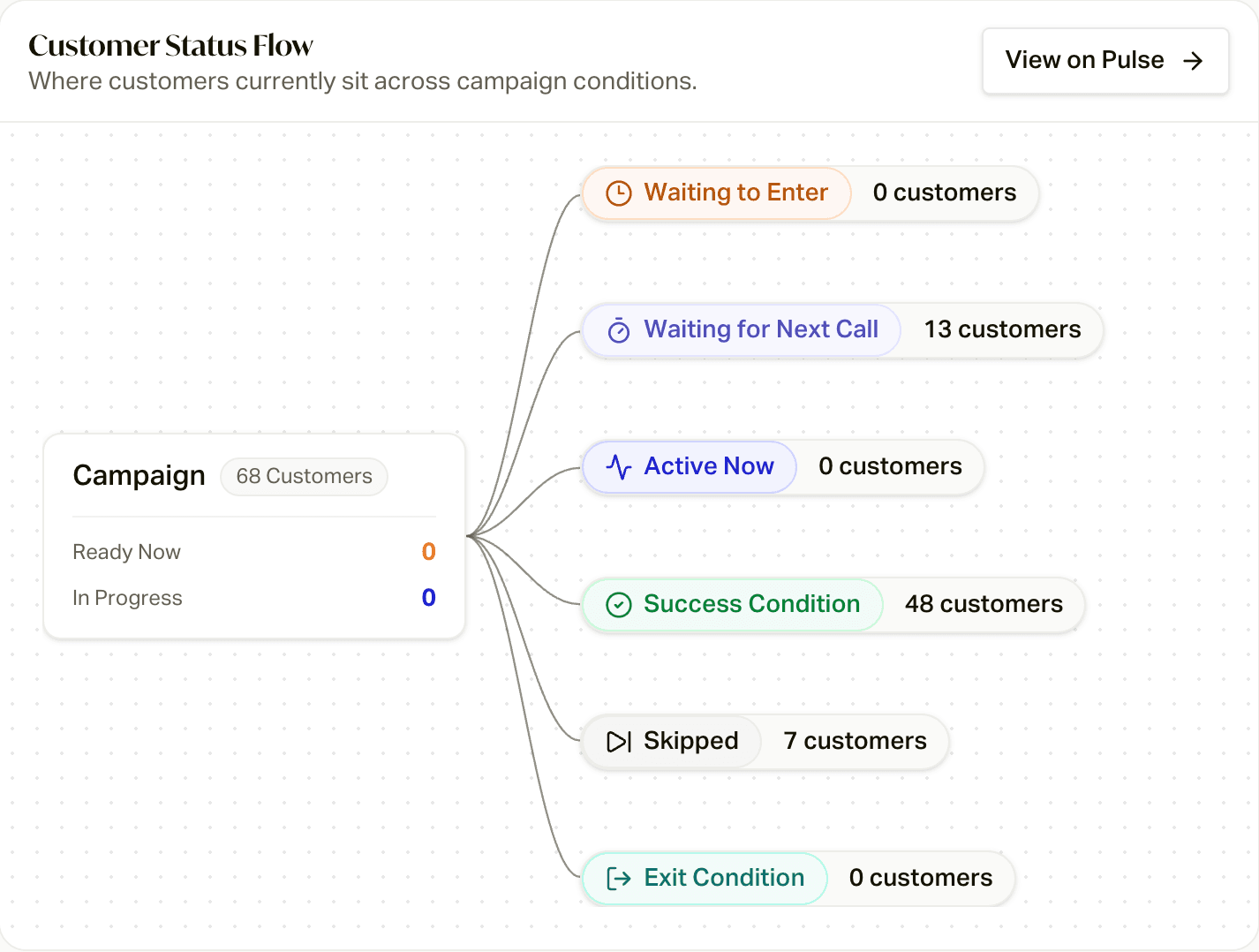
- People showing up and moving along? You're good. You can also watch the calls come in on the Calls page.
- People in Skipped? Hover the campaign badge on a customer's profile to see why. It's usually missing info (like no agent name), and filling it in starts them automatically.
- Nobody at all? The automation only fires when a status changes. If no policies have changed since you turned it on, there's nothing to catch yet. Add your existing cancellers (above) to get going.
Sending cancellations from your CRM or system
If your policies come into careCycle through the API, a CRM sync, or a file you re-import, the automation fires whenever an existing policy's status changes to Future Cancel, Terminated, or Cancelled. That's the normal case, and it just works.
The one thing to know: a brand-new policy that shows up already marked Future Cancel isn't a status change, so the automation doesn't fire for it. If that's how your system sends them, you've got two options:
- Have your system create the policy in its earlier status first (like Active), then update it to Future Cancel.
- Or add a second automation to the campaign with the trigger Policy Created, filtered to Policy status is any of Future Cancel, Terminated, Cancelled. Reach out to your careCycle representative if you want a hand with this one.
Good to know
- Each policy only triggers it once. If the same policy goes Future Cancel, then back to Active, then Future Cancel again, the automation won't add the member a second time. Use Restart if you want another round.
- The 30-day line is adjustable. Open the campaign's Automations tab and change the Policy date filter. If you change it on one campaign, change it on the other too, so they still split cleanly with no gaps or overlap.
- Future effective dates don't count. If a policy is cancelled before it even starts, its effective date is in the future, so neither campaign picks it up. Add those members yourself if you want to reach them.
- Booking ends everything. If the member books an appointment, careCycle ends all of their active campaigns, so they won't keep getting save calls once they've got time on the books.