

Scripts
Build the guided script and form your agents follow during live calls.
A script is the script your agents see during a call: what to say, what to capture, and in what order. Build it once, and every agent runs the same compliant conversation, with the member's details woven into the wording and everything they type saving straight to the customer record.
You manage scripts from Configure in the sidebar, under the Scripts tab.
Call forms are shared building blocks. One form can serve as your default for every campaign, so the list shows where each form is used before you edit. The default form cannot be deleted, and forms in use must be unassigned first.
Create a Script
Click New Script and choose:
- Blank Script to build it from scratch.
- Import from Document to start from the script you already use. Upload a Word document (.docx) or a text-based PDF under 15 MB, and careCycle turns it into a script with pages and fields that you can review and edit.
Your first script is automatically marked as the org default; any script can later be promoted with Set as default from its row menu.
The Editor
The editor is a document: type your script, then press / for blocks and
{{ for personalization variables. Changes save automatically (the cloud
icon confirms it), and Jump to page in the toolbar moves between pages.
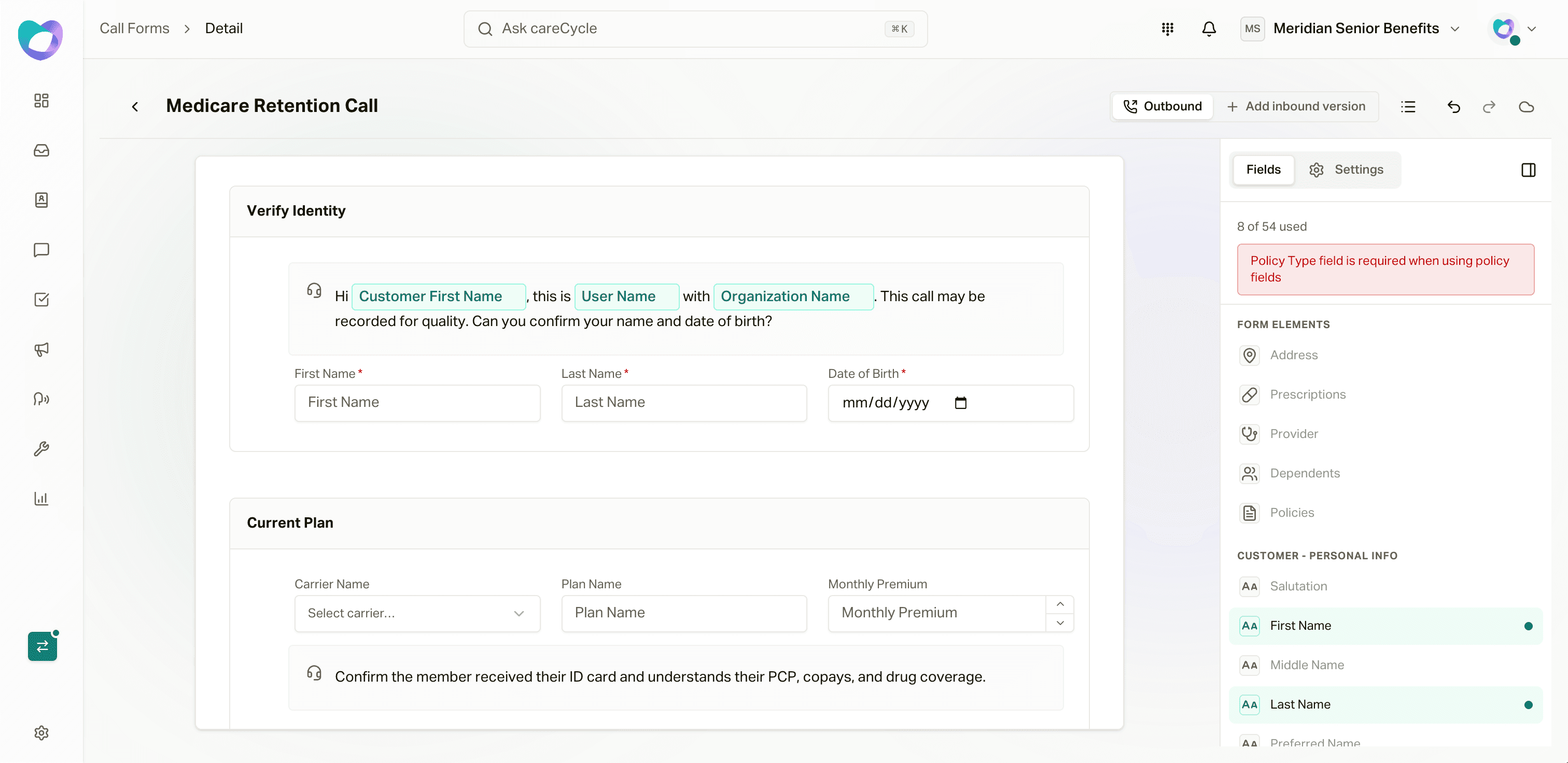
Blocks you can insert:
- Script Block: text the agent reads aloud. Drop in variables like the member's first name or your organization name and they render filled-in for the agent.
- Audio Clip: a recorded disclosure in a voice you pick. Type the wording and click Generate to create the audio (with preview). On the call, the agent clicks Play to play it to the customer, so the disclosure comes out word-perfect whenever they use it. Turn on Required for a consent the agent must play: they can't move past that page until the clip has played all the way through to the customer (not while the customer is on hold).
- Form fields: any customer field, plus your custom fields, inserted where the conversation naturally captures them. Required fields block the agent from advancing without them.
- Smart form elements: Address (lookup with autocomplete), Prescriptions (medication, dosage, and frequency), Provider (search by doctor or practice name), Dependents, and Policies (create and manage one or more policies in place). Policy details are captured through the Policies block, and the editor warns if policy fields are used without a Policy Type.
- Policies block fields: the block always asks for the basics (policy type, subtype, carrier, enrollment date, and effective date, plus plan code and election period on Medicare policies). A new Policies block starts with only these basics, and blocks added before you could choose fields keep every field until you change them. Click Add Field for a list of extra fields grouped by Policy Details, Dates, Financial, and more, with hints like "Medicare only" for fields that only show on some policy types. Click Required on an added field to make agents fill it in, or the X (Remove field) to take it off. Add All and Remove All do every field at once. On the call, Add Policy in the Policies panel uses the same fields as the script, so agents see one consistent form.
- Structure: headings, lists, quotes, and dividers, plus Jump Link, which takes the agent to a heading on any page.
Add fields
The Add to Script panel on the right lists every field you can use and marks the ones already placed with In Script. Click one to insert it at your cursor, or drag it into place. ZIP, city, state, and county are listed on their own too, for when you don't need the whole Address block.
Use Search fields to find one fast. If the field you need doesn't exist yet, click Create "your search" Field right from the empty search (or New Custom Field), and it's added to your custom fields and the script at once.
A field can go in more than one place, like a date of birth you capture early and confirm again at the end. Every copy shares one value, so filling one fills them all. Click In Script to step through the copies. Smart blocks like Address and Policies go in once.
Field settings
Click a field to edit its Helper Text and whether it's Required in the sidebar. You can also change its Label unless it's a built-in field. Type and Options are read-only here. Change pick-list options in Custom Fields.
Arrange fields side by side
Put up to three fields on one row, like City, State, and ZIP. Drag a field next to another one, or use the field's Layout options: Move Left, Move Right, Place Beside Field Above, or Move to Own Row.
Preview your draft
Click Preview to fill out the script exactly like an agent would, with your unsaved changes. Click Back to Editing when you're done.
Script settings
The Script settings menu holds two switches:
- AI Auto-Fill Fields lets the AI fill fields from the live call transcript. It never overwrites values that already exist or that the agent typed.
- Add Inbound Version (see below).
On a call, a 5-digit ZIP also fills in an empty City, State, and County for the customer's address automatically. County is filled only when the ZIP sits in a single county.
Sections and Branching
Scripts are built from pages, and agents see one page at a time with Previous and Next. Click Add a new page (the +) to add one.
At the bottom of every page, After this page decides where Next goes:
- Click Add rule, then set an If rule about answers on this page or an earlier one (equals, not equals, contains, is filled, or is empty, plus greater than and less than for numbers and dates). Type a date as mm/dd/yyyy or yyyy-mm-dd. Combine several with And or Or.
- Pick the page to Go to when the rule matches.
- Set Otherwise go to for everyone else: the next page or any page you pick.
Rules are checked top to bottom, and the first one that matches wins. That is how one script can send an existing customer down one path and a new one down another, or handle both the interested caller and the quick decline.
Older scripts may still have show/hide conditions on their pages. They keep working until you change any page's After this page routing, either by adding a rule or by pointing Otherwise go to somewhere other than the next page. That replaces all of the old conditions at once. careCycle tells you when that happens, and you can undo it.
The Inbound Version
A script can carry a separate inbound version: choose Add Inbound Version in Script settings to start it as a copy of your outbound script, then tailor it. Inbound calls render the inbound version automatically; outbound calls keep the original. Remove it and inbound calls fall back to the outbound script.
Which Form an Agent Sees
When a call connects, careCycle resolves the form in this order:
- The routing group's assigned form, for softphone destinations whose screen behavior is set to Script. This is how a complaint line and a sales line show different scripts.
- The campaign's assigned form (used when the customer is a Lead).
- Your default form.
- No form: the agent sees the customer details page instead.
Inbound or outbound direction then picks the matching version of whichever form won.