

Your Inbox
How texts, tasks, and inquiries reach you, how to find the most urgent work, and how to work each thread to done.
The Inbox is your home base. Every member text, follow-up task, and inquiry lands here, one thread per customer, organized so the most urgent work is always easy to find.
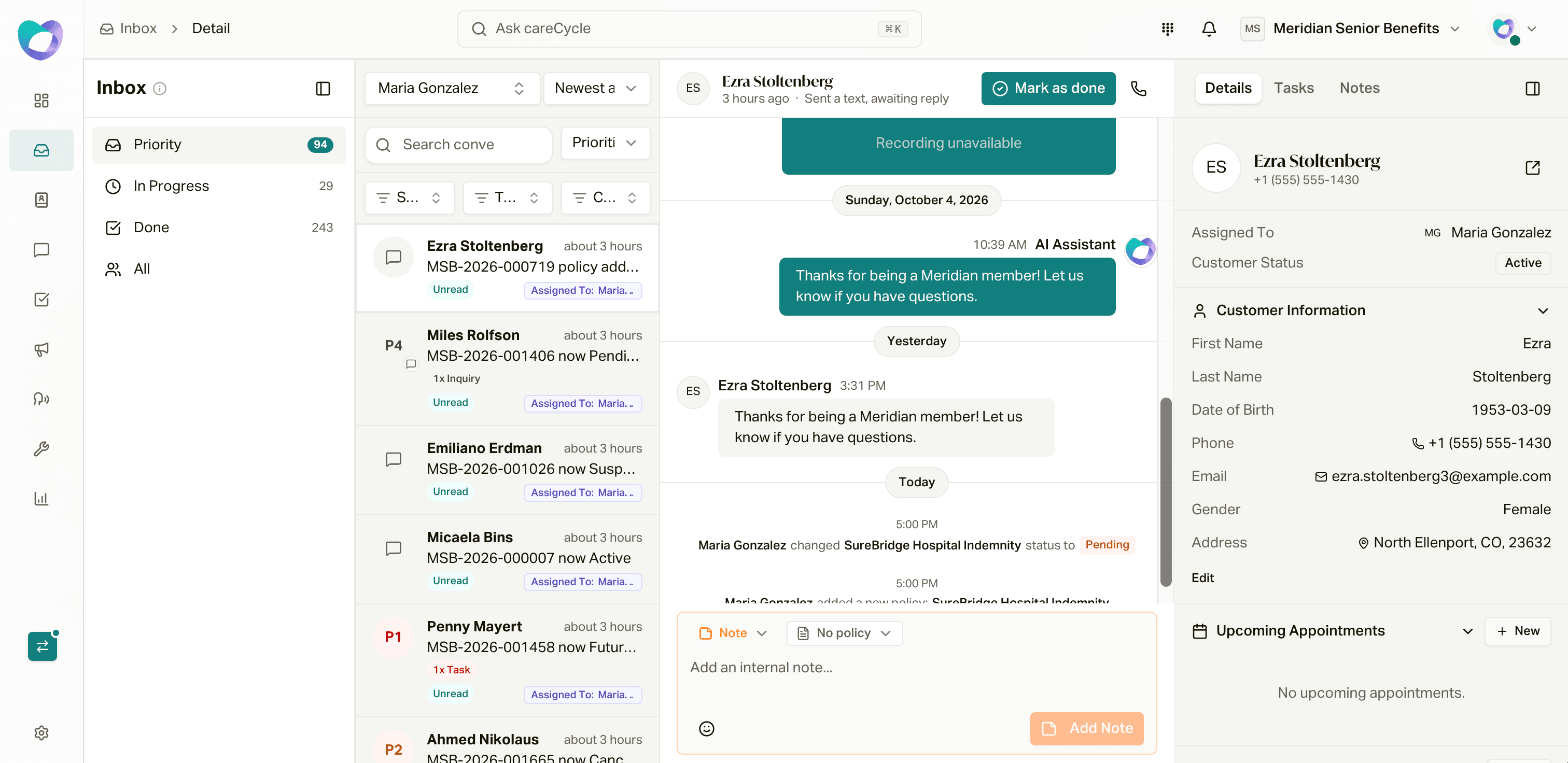
The screen has three columns: your lanes and thread list on the left, the conversation in the middle, and the customer's record on the right. Drag the dividers to resize them; careCycle remembers your layout.
The Four Lanes
The left side has four lanes. A customer shows up in the most urgent lane that anything on their record qualifies for:
| Lane | What puts a customer here |
|---|---|
| Priority | A text nobody has answered yet, a new or unresolved inquiry, or a task due today or earlier |
| In Progress | An inquiry that's pending or has an appointment scheduled, or only tasks due after today |
| Done | No open inquiries or tasks, and no text waiting on a reply |
| All | Every customer with a thread, whatever their state |
A few details worth knowing:
- Tasks without a due date count as due today, so they land in Priority.
- Requirements (paperwork you're tracking) show on the thread, but they don't decide which lane a customer is in.
- Each lane shows a count of the customer threads in it that match your assignment and policy filters (a customer with several open items counts once). Hover the info icon next to Inbox for a quick reminder of how the lanes work.
- STOP replies don't create work. careCycle handles opt-outs on its own.
Finding the Right Threads
The controls above the list help you narrow things down.
Whose threads you see
The assignment picker defaults to My Threads: customers assigned to you, plus anyone with an open inquiry assigned to you. Switch to All Threads to see the whole team, or tick one or more teammates to see their threads (handy for covering for someone who's out). If your role only lets you see your own customers, you won't see this picker.
Sort
| Sort | What it does |
|---|---|
| Most urgent | Groups threads by priority: Urgent, High, Medium, Low, Routine, then Upcoming (tasks due later) and Nothing open |
| Newest activity / Oldest activity | By the most recent thing that happened on the thread |
| Newest created / Oldest created | By when the thread started |
Most urgent ranks each thread by its most pressing item: the inquiry's priority (P1 to P5), the task's priority and due date, and an unanswered text counts as High. It's the best way to work a busy inbox. See Inquiry Prioritization for how inquiries get their priority.
Your admin sets the sort everyone starts with under Settings > Organization > Inbox Settings. You can change it any time while you work, and it resets when you reload the page.
Prioritize, search, and filters
- Prioritize floats one kind of work to the top: Inquiries first, Tasks first, or Requirements first.
- Search conversations... finds a customer by name or phone number.
- Status, Type, and Carrier filter by the customer's policies. For example, only Future Cancel policies, or only a single carrier's members.
Your lane, assignment, and policy filters are saved in the page link, so you can bookmark a view or send it to a teammate.
Reading the list
Each row shows the customer's name (bold if there's something you haven't seen), when the last thing happened, and a preview of it. The circle on the left shows the most urgent priority (P1 to P5) when there's an open inquiry or task. Pills under the name count open Tasks, Reqs, and Inquiries, and show Assigned To when the customer belongs to someone else.
Working a Conversation
The thread shows everything about the customer in one timeline: texts, calls (with the recording, summary, and transcript), inquiries, tasks, notes, appointments, and changes like a policy status update or being added to a campaign. Texts and calls from your AI employees are labeled AI Assistant.
The line under the customer's name tells you why the thread is here, like "Raised a new inquiry", "Sent a text, awaiting reply", or "Waiting on Call back about ID card, overdue".
Hover any message to:
- Add reaction with an emoji.
- Comment on it. This starts an internal note tied to that message, so your team sees exactly what you're talking about.
Click the call button in the header to call the customer from your softphone. While you're on the call, the call controls take its place.
The Composer
The composer at the bottom has three modes. Switch with the tabs or the shortcuts ⌘S, ⌘N, and ⌘T (Ctrl on Windows).
SMS
Text the member from your organization's number. Press Enter to send and Shift+Enter for a new line.
- Undo. Every text waits 10 seconds before it goes out. Click Undo to pull it back into the composer, or Send now to skip the wait.
- Templates. Type / (or click the template button) to insert a saved
message. Templates under Everyone are shared with your team; Mine
are just yours. Inside a template, type
{to add a variable like the customer's first name. - Images. Attach up to 4 images (JPEG, PNG, GIF, or WebP), 5 MB total.
- Length. The counter shows when a long message will go out as more than one text. Emoji and a few special characters use up space faster.
If the member texted STOP to their carrier, the composer says so and you can't text them until they text START back. If you only see Note and Task, your organization hasn't finished SMS registration yet.
Note
An internal note your team can see but the member never does. Type @ to mention a teammate, and link the note to one of the customer's policies if it's about a specific one.
Task
Create a follow-up without leaving the conversation: a title, an optional description, a priority (P1 Urgent to P5 Routine), a due date (Tomorrow, End of this week, In one week, or a custom date), and who it's assigned to.
Once a task is on the thread, click its status icon to move it to In Progress, Done, or Cancelled, or use its menu to edit it, reassign it, or attach it to a policy.
Resolving an Inquiry
Inquiries show up as cards in the thread with their priority, category, and what the member asked. You can assign one to yourself or a teammate right from the card.
Click Resolve Inquiry to switch the composer into resolve mode:
- Manual: you took care of it. Write a note on how you resolved it and click Resolve.
- AI Callback: write the answer, click Schedule Callback, and an AI employee calls the member back to deliver it. The inquiry shows Callback scheduled until the call happens. See Automate Inquiry Callbacks.
You can also change an inquiry's status from the card (for example, Mark as duplicate).
The Context Panel
The right panel keeps the customer's record beside the conversation. It has three tabs:
- Details: contact info and any Do Not Call or Do Not SMS flags, who the customer is assigned to, upcoming appointments (click + New to book one), policy details, and Medicare information. You can change a policy's Status right here. Cancelled and Not Approved ask for a reason.
- Tasks: every open task and requirement, grouped by policy. Click + Add for a new task or requirement. Requirements track paperwork as Not Captured or Captured.
- Notes: every note on the customer, including ones added during calls.
Click Open Customer Page for the full record, or Hide panel to give the conversation more room.
Marking a Thread Done
Click Mark as done when there's nothing left to do. It stays disabled until every open task, requirement, and inquiry on the customer is resolved, so nothing gets buried with work still attached.
Marking a thread done also clears an unanswered text. The thread comes back the moment the member texts again, or you can click Reopen to bring it back yourself.