# The Wallboard (/docs/guides/know-your-numbers/wallboard)
The Wallboard is your contact-center floor view, built to run on a big screen
or a supervisor's second monitor. It requires the **Wallboard > View**
permission, and it has three tabs: **Live**, **Productivity**, and **Sources**. The queue
and callback view lives on the Calls page (the **View queues & callbacks**
button takes you there).
 Live [#live]
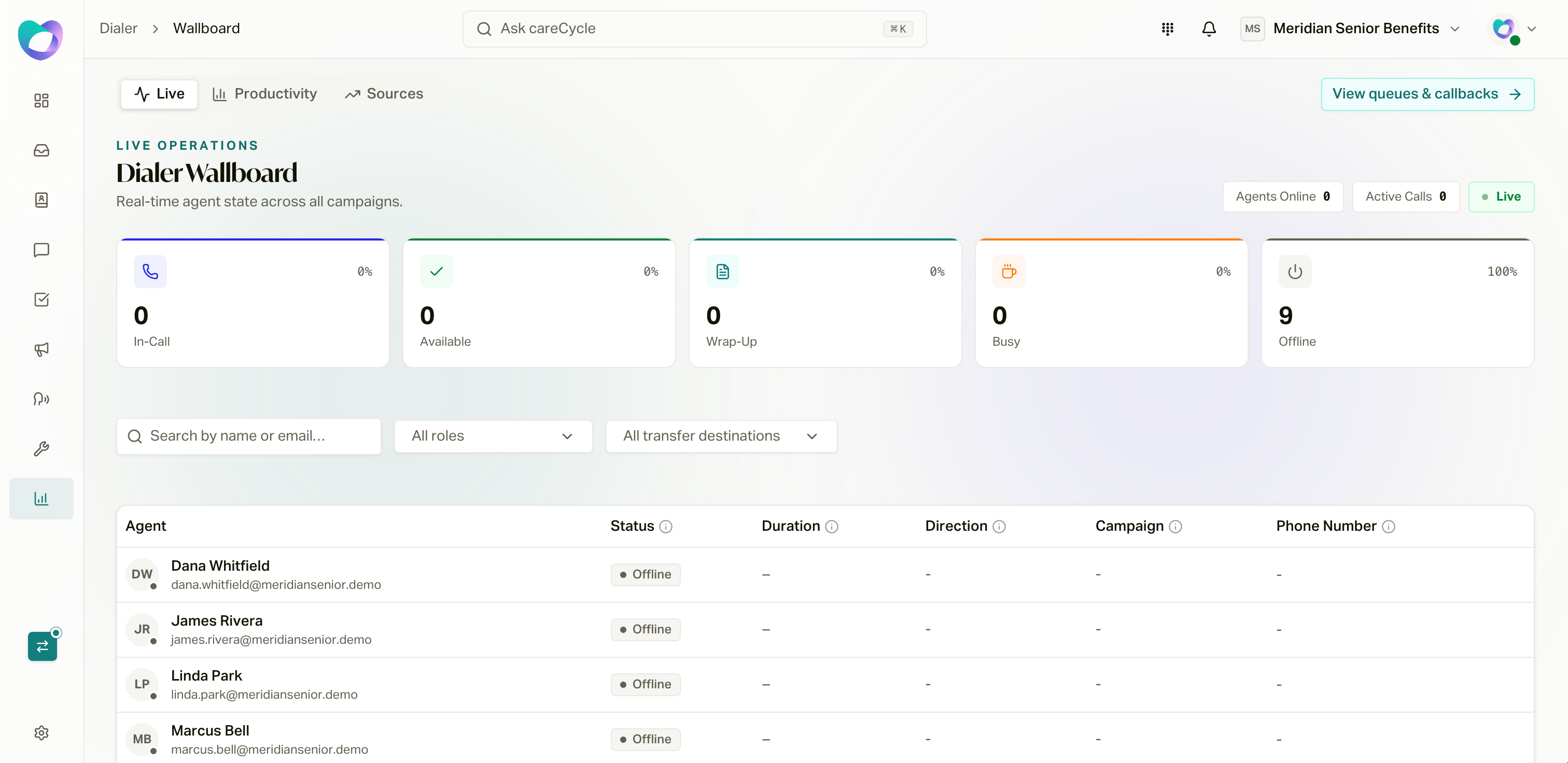
The Live tab refreshes every few seconds. Five state cards across the top
count agents who are **In-Call**, **Available**, **Wrap-Up**, **Busy**, and
**Offline** (click a card to filter the table). Below, each agent row shows
their status, a live timer in that status, and, while they are on a call, the
campaign and the customer's number.
Busy rows also show the organization's configured reason, such as Lunch or
Coaching. Timed reasons show when the agent returns to Available. Owners,
administrators, and managers can set an online Available agent to a Busy
reason, change an agent's Busy reason, or return a Busy agent to Available.
Custom roles need the agent-status override permission. See [Agent Availability
and Auto-Answer](/docs/guides/run-your-team/agent-availability-and-auto-answer)
for configuration and timer safety.
For agents on a call, the row menu offers **Monitor** actions: **Listen in**
(silent), **Whisper** (only the agent hears you), and **Barge** (join the
call). Use them for coaching and escalations. **Listen in** needs the Listen
permission; **Whisper** and **Barge** both need the Barge permission. See
[Advanced Softphone Settings for
Admins](/docs/guides/run-your-team/advanced-softphone-settings).
The Air Status Board [#the-air-status-board]
Below the live table, the air-status matrix crosses your agents against your
campaigns. Each cell shows whether that agent is **On air** or **Off air**
for that campaign, with per-campaign headers showing how many are on air and
available right now.
From any cell you can take an agent off air with a preset (**30 minutes**,
**2 hours**, **Rest of day**, or **Until I restore**) and put them back
early, and the **Sources** submenu blocks specific sources from ringing that
agent, which is the fastest way to stop one vendor's traffic from reaching
one person without touching the campaign.
Queues & Callbacks [#queues--callbacks]
Open **Calls > Queues & Callbacks** (or click **View queues & callbacks** on
the wallboard). It's the live workload view for Agent Queue outreach.
It combines customers waiting for outbound calls with inbound callers who
accepted a callback offer. The summary refreshes every 15 seconds.
Live [#live]
The Live tab refreshes every few seconds. Five state cards across the top
count agents who are **In-Call**, **Available**, **Wrap-Up**, **Busy**, and
**Offline** (click a card to filter the table). Below, each agent row shows
their status, a live timer in that status, and, while they are on a call, the
campaign and the customer's number.
Busy rows also show the organization's configured reason, such as Lunch or
Coaching. Timed reasons show when the agent returns to Available. Owners,
administrators, and managers can set an online Available agent to a Busy
reason, change an agent's Busy reason, or return a Busy agent to Available.
Custom roles need the agent-status override permission. See [Agent Availability
and Auto-Answer](/docs/guides/run-your-team/agent-availability-and-auto-answer)
for configuration and timer safety.
For agents on a call, the row menu offers **Monitor** actions: **Listen in**
(silent), **Whisper** (only the agent hears you), and **Barge** (join the
call). Use them for coaching and escalations. **Listen in** needs the Listen
permission; **Whisper** and **Barge** both need the Barge permission. See
[Advanced Softphone Settings for
Admins](/docs/guides/run-your-team/advanced-softphone-settings).
The Air Status Board [#the-air-status-board]
Below the live table, the air-status matrix crosses your agents against your
campaigns. Each cell shows whether that agent is **On air** or **Off air**
for that campaign, with per-campaign headers showing how many are on air and
available right now.
From any cell you can take an agent off air with a preset (**30 minutes**,
**2 hours**, **Rest of day**, or **Until I restore**) and put them back
early, and the **Sources** submenu blocks specific sources from ringing that
agent, which is the fastest way to stop one vendor's traffic from reaching
one person without touching the campaign.
Queues & Callbacks [#queues--callbacks]
Open **Calls > Queues & Callbacks** (or click **View queues & callbacks** on
the wallboard). It's the live workload view for Agent Queue outreach.
It combines customers waiting for outbound calls with inbound callers who
accepted a callback offer. The summary refreshes every 15 seconds.
 Outbound Agent Queue Queue [#outbound-agent-queue-queue]
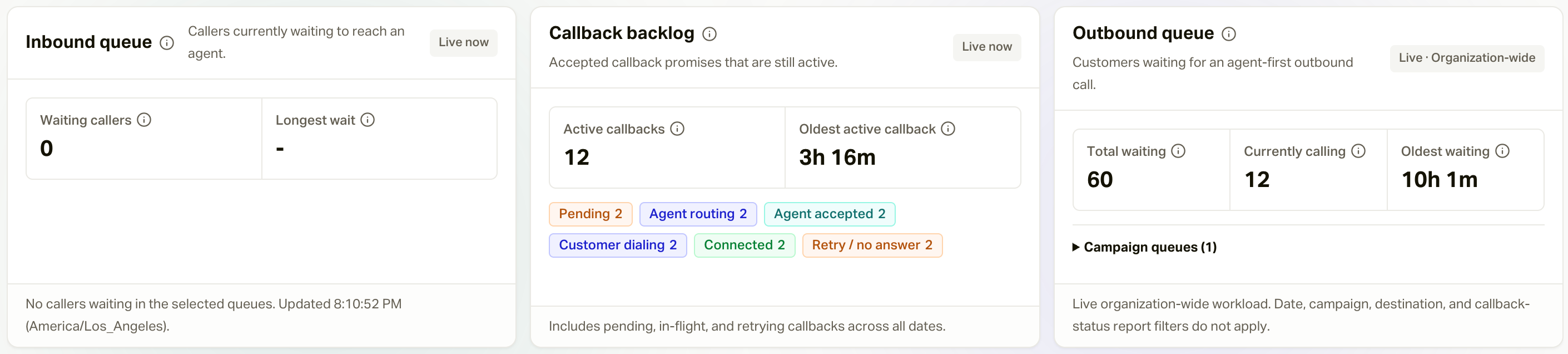
The outbound section shows:
* **Total waiting**: customers in `Awaiting call` across active or paused
outbound Agent Queue campaigns.
* **Currently calling**: customers whose campaign enrollment is Calling or In
progress.
* **Oldest waiting**: how long the oldest customer has been waiting in the
current queue.
* **Campaign queues**: waiting and calling counts for each active campaign,
plus paused campaigns that still have work in flight.
Select **View customers** on a campaign row to open the Customers list filtered
to that campaign and `Awaiting call` status. Normal customer permissions and
contact-information redaction still apply in that drill-down. The wallboard
summary itself contains no customer names, phone numbers, or other PHI.
`Awaiting call` is persisted campaign state, not a promise that the customer
will be dialed immediately. Agent availability, state licensing, source
restrictions, campaign and shared-pool capacity, business hours, and caller-ID
capacity are all rechecked before a call begins.
Inbound Callback Promises [#inbound-callback-promises]
When an eligible inbound caller accepts the callback offer on an Agent Queue
destination, the callback appears in the lower half of this tab. The live
status totals distinguish:
* Pending and agent routing
* Agent accepted
* Customer dialing and connected
* Retry / no answer
* Completed, expired, unreachable, and cancelled
The top metrics show callback queue depth, oldest pending age, offer acceptance,
completion before expiry, median and p95 wait, and broken promises. Use the
campaign, routing-pool, destination, status, and date filters to investigate a
specific flow. The hourly chart uses your organization's timezone.
The episode table joins the original inbound call to its callback attempts and
shows request time, expiry, attempts, last failure, campaign, destination, and
accepting agent. It intentionally excludes customer contact details.
An accepted callback is **At risk** when 15 minutes or less remain before its
expiry. **Overdue** means its expiry has passed while it remains active. Work
overdue promises first, then at-risk promises with no agent or repeated
failures.
If a callback reaches the customer but the agent closes careCycle before
submitting a disposition, the promise remains connected and waiting for agent
wrap-up. The agent is prompted to disposition that call again on the next
login, and the callback completes only after the disposition is saved.
Callback expiry is the earlier of the configured promise window or business
close minus the destination's closing buffer. The hourly self-healing sweep
expires overdue requests on its first run after that timestamp; it does not add
another grace hour.
Productivity [#productivity]
The Productivity tab is the retrospective: pick a date range (up to 90 days
back) and filter by agents, campaigns, and dispositions. Summary cards show
Agents, Total Calls, Logged-in Time, and Avg Efficiency; the per-agent table
breaks down logged-in, active, available, busy, and wrap-up time, including
Busy time by configured reason, call
counts, and average call length, with extra columns when you filter to
specific dispositions. **Export** downloads it all as CSV.
A second table, Dispositions by Campaign & Agent, shows the outcome mix per
person per campaign, which is where coaching conversations usually start.
Sources [#sources]
The Sources tab is the same source performance reporting documented in
[Source Tracking](/docs/guides/sources/source-tracking), placed here so floor
managers can watch vendor quality alongside the live board.
Configure the outbound queues and inbound callback behavior shown here.
The agent's side of presence and air status.
Outbound Agent Queue Queue [#outbound-agent-queue-queue]
The outbound section shows:
* **Total waiting**: customers in `Awaiting call` across active or paused
outbound Agent Queue campaigns.
* **Currently calling**: customers whose campaign enrollment is Calling or In
progress.
* **Oldest waiting**: how long the oldest customer has been waiting in the
current queue.
* **Campaign queues**: waiting and calling counts for each active campaign,
plus paused campaigns that still have work in flight.
Select **View customers** on a campaign row to open the Customers list filtered
to that campaign and `Awaiting call` status. Normal customer permissions and
contact-information redaction still apply in that drill-down. The wallboard
summary itself contains no customer names, phone numbers, or other PHI.
`Awaiting call` is persisted campaign state, not a promise that the customer
will be dialed immediately. Agent availability, state licensing, source
restrictions, campaign and shared-pool capacity, business hours, and caller-ID
capacity are all rechecked before a call begins.
Inbound Callback Promises [#inbound-callback-promises]
When an eligible inbound caller accepts the callback offer on an Agent Queue
destination, the callback appears in the lower half of this tab. The live
status totals distinguish:
* Pending and agent routing
* Agent accepted
* Customer dialing and connected
* Retry / no answer
* Completed, expired, unreachable, and cancelled
The top metrics show callback queue depth, oldest pending age, offer acceptance,
completion before expiry, median and p95 wait, and broken promises. Use the
campaign, routing-pool, destination, status, and date filters to investigate a
specific flow. The hourly chart uses your organization's timezone.
The episode table joins the original inbound call to its callback attempts and
shows request time, expiry, attempts, last failure, campaign, destination, and
accepting agent. It intentionally excludes customer contact details.
An accepted callback is **At risk** when 15 minutes or less remain before its
expiry. **Overdue** means its expiry has passed while it remains active. Work
overdue promises first, then at-risk promises with no agent or repeated
failures.
If a callback reaches the customer but the agent closes careCycle before
submitting a disposition, the promise remains connected and waiting for agent
wrap-up. The agent is prompted to disposition that call again on the next
login, and the callback completes only after the disposition is saved.
Callback expiry is the earlier of the configured promise window or business
close minus the destination's closing buffer. The hourly self-healing sweep
expires overdue requests on its first run after that timestamp; it does not add
another grace hour.
Productivity [#productivity]
The Productivity tab is the retrospective: pick a date range (up to 90 days
back) and filter by agents, campaigns, and dispositions. Summary cards show
Agents, Total Calls, Logged-in Time, and Avg Efficiency; the per-agent table
breaks down logged-in, active, available, busy, and wrap-up time, including
Busy time by configured reason, call
counts, and average call length, with extra columns when you filter to
specific dispositions. **Export** downloads it all as CSV.
A second table, Dispositions by Campaign & Agent, shows the outcome mix per
person per campaign, which is where coaching conversations usually start.
Sources [#sources]
The Sources tab is the same source performance reporting documented in
[Source Tracking](/docs/guides/sources/source-tracking), placed here so floor
managers can watch vendor quality alongside the live board.
Configure the outbound queues and inbound callback behavior shown here.
The agent's side of presence and air status.