# The Dashboard (/docs/guides/know-your-numbers/dashboard)
The **Dashboard** is the first thing you see when you log in. What's on it
depends on who you are:
* **Owners and Admins** get the **Home dashboard**: a board of metrics you can
rearrange, add to, and build your own charts for. That's most of this page.
* **Everyone else** (agents, managers, CSRs) gets the **agent dashboard**,
which is all about their own queue and numbers. See [Agent
dashboard](#the-agent-dashboard) below.
By default only Owners and Admins see the Home dashboard. If you want someone
else to have it, give them a custom role with dashboard access. See [Roles and
Permissions](/docs/guides/run-your-team/roles-and-permissions).
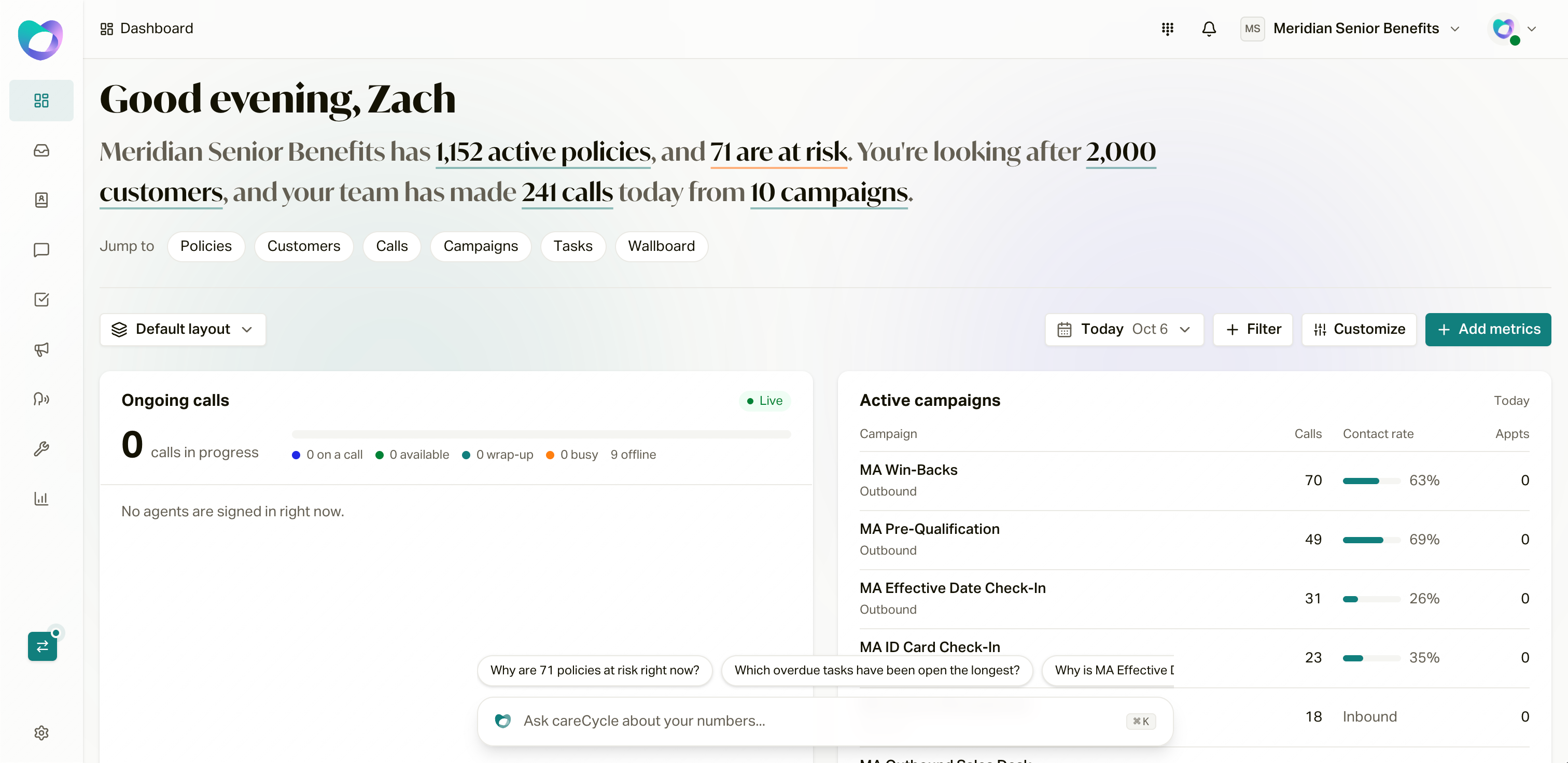 What's on Home [#whats-on-home]
Top to bottom, here's what you'll see:
1. **A greeting.** "Good morning" (or afternoon, or evening), plus a quick
sentence about your book, something like "\[Agency] has 4,210 active
policies, and 38 are at risk. You're looking after 3,900 customers, and
your team has made 212 calls today from 6 campaigns." Every number is a
link: "active policies" opens your Active policies, and "at risk" opens the
**At Risk** list on the Policies page.
2. **Jump to.** Quick links to **Policies**, **Customers**, **Calls**,
**Campaigns**, **Tasks**, and the **Wallboard**.
3. **A setup banner,** only if you don't have any campaigns yet: "Let's get
your campaigns dialing." Click **Create Campaign** to get going. Call and
campaign numbers fill in once your first campaign is live.
4. **The toolbar,** with your layout, dates, filters, **Customize**, and **Add
metrics**.
5. **Your widgets.** The actual numbers and charts.
6. **The Ask bar** at the bottom: "Ask careCycle about your numbers..." Type
a question and get an answer from your data. More on that
[below](#pin-charts-from-ask-carecycle).
You only see the numbers you have access to. If your role can't see policies,
for example, the policy widgets and the policy part of the greeting just don't
show up.
The default layout [#the-default-layout]
Until you change anything, Home shows five widgets:
| Widget | What it shows |
| ---------------------- | ----------------------------------------------------------------------------------------------------------------------------------------- |
| **Ongoing calls** | Calls happening right now, who's **On a call now**, and who's been **Busy the longest**. Click **Open wallboard** for the full live view. |
| **Active campaigns** | Each active campaign with its calls, contact rate, and appointments for your date range. Click a campaign to open it. |
| **Policies by status** | Your whole book by current status. Click a status to see those policies. |
| **Policies by type** | Your book split by Medicare Advantage, Supplement, Part D, and more. |
| **Active tasks** | Open tasks, what got done today, and rows for **Overdue**, **Due today**, **To do**, **In progress**, and **Open requirements**. |
The policy and task widgets always show your current numbers. They don't
change with the date range.
Date range and filters [#date-range-and-filters]
**Dates.** The date button defaults to **Today**. Click it to pick **Today**,
**Yesterday**, **Last 7 days**, **Last 30 days**, **Last 90 days**, **This
week**, **This month**, or **Last month**. You can also type a range (like
"90 days", "since Jan 1", or "9/1 - 9/15") or choose **Custom range...** and
pick days on a calendar. Two things to know:
* **The max is 90 days.**
* **Days follow your agency's time zone,** so "Today" means your agency's
today, not whatever time zone you're sitting in.
**Filters.** Click **Filter** to narrow things down by **Campaign**,
**Source**, **Agent**, or **Carrier**. You can pick more than one of each.
Campaigns are grouped into **Active**, **Paused**, and **Completed**, with the
most recently called first.
Not every widget cares about every filter. The toolbar only offers the date
range and filters that at least one widget on your board actually uses. So if
nothing on your board follows dates, you won't see the date button at all.
Your date range and filters reset to Today with no filters when you reload the
page. Your layout is what sticks.
Add metrics from the library [#add-metrics-from-the-library]
Click **Add metrics** to open the library. It has metrics from every part of
careCycle, grouped into sections:
| Section | Some of what's in there |
| ------------------------- | -------------------------------------------------------------------------------------------------------------------------------------------------------------------------------------------------- |
| **Policies** | Policies by status, Policies by type |
| **Live operations** | Ongoing calls |
| **Calls** | Total Calls, Customers Engaged, Avg Call Duration, Contact Rate, Total Transfers, Inbound / Outbound, Outbound voicemail rate, Call Volume, Call Dispositions, Transfer Metrics, Calls by Campaign |
| **Campaigns and leads** | Active campaigns, Available Leads, Leads In Distribution, Appointments Booked, Appointment Attendance, Leads by Source, Leads Created, Lead Status, Contact Rate by Source, Appointment Metrics |
| **Customers** | Total Customers, New This Period, Active Customers, High Intent, New Customers Over Time, Customers by Source, Customer Funnel |
| **Service and inquiries** | Total Inquiries, Avg Response Time, New Inquiries Over Time, Inquiries by Category, Inquiries by Status, Inquiries by Carrier |
| **Tasks** | Active tasks |
| **Created by your team** | Charts you and your team built with Ask careCycle |
You can search ("Search metrics") or narrow by type with **All types**,
**Charts**, **Numbers**, and **Tables and lists**.
Each card tells you what it **Follows** (like **Date range** and
**Campaigns**), or that it **Shows** **Current numbers** no matter what dates
you pick. It also shows its default width. Click **Add** and it goes right
onto your board. Anything already on your board says **Added**.
Create your own charts with Ask careCycle [#create-your-own-charts-with-ask-carecycle]
Don't see the number you want? Build it. In the library, click **Create your
own** (or **Describe a metric** if your board is empty), and describe what you
want in plain words. For example:
> Cancellations by reason, last 90 days
> Contact rate by lead source this month
> Appointments booked by campaign this week
Ask careCycle builds the chart from your data and shows you a preview first.
Nothing goes on your dashboard until you say so. From the preview you can:
* **Refine it** by typing in the chat, like "split by carrier." To change the
chart, you always just describe the change.
* **Pick a width:** **1 column**, **2 columns**, or **Full width**.
* **Name it.**
* **Share it** by checking "Share with your team so other admins can add it
from the library."
Click **Add to dashboard** and you're good to go. The chart **updates as your
data changes**. Ask careCycle picks the kind of chart that fits, and if you
want a different one (line, bar, area, pie, or a single number), just ask.
You can also type a search in the library that doesn't match anything and
click **Create "\[your search]" with Ask careCycle**. Same thing, one less
click.
Charts you build with Ask careCycle follow the date range when your question
is about one period, like "policies written this month." The chart's header
names the date it counts by, like **Submitted date**. Charts that compare
periods or cover a set span keep the dates you asked for. Ask charts don't use
the filters.
Sharing and deleting your charts [#sharing-and-deleting-your-charts]
Charts you build show up in the library under **Created by your team**. Each
one says who it belongs to: "Yours, shared with your team," "Yours, only you
can see it," or who shared it. On your own charts, click **Share with team**
or **Make private** to switch.
To get rid of a chart for good, use the delete button on its card. Heads up:
deleting a shared chart removes it from every dashboard it's on, including
your teammates'.
Pin charts from Ask careCycle [#pin-charts-from-ask-carecycle]
You don't have to start in the library. Anywhere you're using Ask careCycle
(the Ask bar on Home, the search bar at the top of the app, or Cmd/Ctrl+K),
you can ask a question, and if the answer comes back as a chart, hover over
it and click the pin (**Add to dashboard**). It lands on your Home board.
Ask careCycle also has a **Saved charts** tab with the charts you've saved and
the ones your team has shared.
Ask careCycle answers questions about your numbers and how things work. It
doesn't change anything in your account.
Make it yours [#make-it-yours]
Click **Customize** (on a computer, not your phone). The toolbar switches to
"Editing your layout," and now you can:
* **Drag** widgets around by their grip.
* **Change the width** of charts and tables (1 to 4 columns, depending on the
widget).
* **Stack** two single-number widgets into one spot (**Choose KPI to stack
with**).
* **Remove** a widget with the trash button.
When you're done, click **Save and finish**. **Cancel** throws away your
changes, and **Reset to default** puts the careCycle default back.
If you remove everything, you'll see "Build your dashboard" with buttons to
**Add metrics**, **Describe a metric**, or **Restore the default layout**.
Your layout vs the shared layout [#your-layout-vs-the-shared-layout]
The layout button on the left of the toolbar tells you which layout you're
looking at: **Your layout**, **Shared layout**, or **Default layout**. Click
it to see all three. Home shows the first one that exists:
1. **Your layout.** Only you see it. You get one as soon as you customize or
add a metric.
2. **Shared with all admins.** What admins see if they haven't saved their own.
3. **careCycle default.** Used until somebody saves a layout.
Layouts are saved to your account, so they follow you to any browser.
From that same menu:
* **Save for all admins** makes what you see now the shared layout. Admins
who already have their own layout keep theirs. You need the **Edit shared
dashboard** permission for this (Owners and Admins have it). Heads up: if
your layout has private Ask careCycle charts in it, they become visible to
your organization.
* **Reset my layout** deletes your layout so you see the shared one (or the
default) again.
The agent dashboard [#the-agent-dashboard]
Everyone without Home dashboard access gets the agent dashboard. It's built
around their day:
* **Action items** up top: overdue inquiries, overdue tasks, things due today,
and new inquiries.
* **Your upcoming appointments.**
* **Monthly numbers** (pick a month, defaults to **This Month**): **Customer
Connections**, **Talk Time**, **Inquiries Resolved**, and **Assigned Tasks
Completed**.
* **Today's queue:** **Priority Threads**, **In Progress Threads**, **Overdue
Tasks**, and **Overdue Inquiries**.
The full walkthrough for agents is in [Your Dashboard and
Tasks](/docs/guides/agents/your-dashboard-and-tasks).
Where the old stuff went [#where-the-old-stuff-went]
If you used the old dashboard with the Sales and Retention tabs, most of those
numbers are in the library now. A few moved:
* **Per-source numbers** live on the **Sources** page and **Wallboard >
Sources**. See [Source Tracking](/docs/guides/sources/source-tracking).
* **Live agent activity** is on the [Wallboard](/docs/guides/know-your-numbers/wallboard).
* **Call reporting and queues** are on **Calls > Overview** (**Call
Analytics** and **Queues & Callbacks**). See [Calls, Customers, and
Exports](/docs/guides/know-your-numbers/calls-customers-and-exports).
The live, right-now view of your floor.
Dig into the records behind the numbers, and export them.
Decide who sees the Home dashboard and Ask careCycle.
What's on Home [#whats-on-home]
Top to bottom, here's what you'll see:
1. **A greeting.** "Good morning" (or afternoon, or evening), plus a quick
sentence about your book, something like "\[Agency] has 4,210 active
policies, and 38 are at risk. You're looking after 3,900 customers, and
your team has made 212 calls today from 6 campaigns." Every number is a
link: "active policies" opens your Active policies, and "at risk" opens the
**At Risk** list on the Policies page.
2. **Jump to.** Quick links to **Policies**, **Customers**, **Calls**,
**Campaigns**, **Tasks**, and the **Wallboard**.
3. **A setup banner,** only if you don't have any campaigns yet: "Let's get
your campaigns dialing." Click **Create Campaign** to get going. Call and
campaign numbers fill in once your first campaign is live.
4. **The toolbar,** with your layout, dates, filters, **Customize**, and **Add
metrics**.
5. **Your widgets.** The actual numbers and charts.
6. **The Ask bar** at the bottom: "Ask careCycle about your numbers..." Type
a question and get an answer from your data. More on that
[below](#pin-charts-from-ask-carecycle).
You only see the numbers you have access to. If your role can't see policies,
for example, the policy widgets and the policy part of the greeting just don't
show up.
The default layout [#the-default-layout]
Until you change anything, Home shows five widgets:
| Widget | What it shows |
| ---------------------- | ----------------------------------------------------------------------------------------------------------------------------------------- |
| **Ongoing calls** | Calls happening right now, who's **On a call now**, and who's been **Busy the longest**. Click **Open wallboard** for the full live view. |
| **Active campaigns** | Each active campaign with its calls, contact rate, and appointments for your date range. Click a campaign to open it. |
| **Policies by status** | Your whole book by current status. Click a status to see those policies. |
| **Policies by type** | Your book split by Medicare Advantage, Supplement, Part D, and more. |
| **Active tasks** | Open tasks, what got done today, and rows for **Overdue**, **Due today**, **To do**, **In progress**, and **Open requirements**. |
The policy and task widgets always show your current numbers. They don't
change with the date range.
Date range and filters [#date-range-and-filters]
**Dates.** The date button defaults to **Today**. Click it to pick **Today**,
**Yesterday**, **Last 7 days**, **Last 30 days**, **Last 90 days**, **This
week**, **This month**, or **Last month**. You can also type a range (like
"90 days", "since Jan 1", or "9/1 - 9/15") or choose **Custom range...** and
pick days on a calendar. Two things to know:
* **The max is 90 days.**
* **Days follow your agency's time zone,** so "Today" means your agency's
today, not whatever time zone you're sitting in.
**Filters.** Click **Filter** to narrow things down by **Campaign**,
**Source**, **Agent**, or **Carrier**. You can pick more than one of each.
Campaigns are grouped into **Active**, **Paused**, and **Completed**, with the
most recently called first.
Not every widget cares about every filter. The toolbar only offers the date
range and filters that at least one widget on your board actually uses. So if
nothing on your board follows dates, you won't see the date button at all.
Your date range and filters reset to Today with no filters when you reload the
page. Your layout is what sticks.
Add metrics from the library [#add-metrics-from-the-library]
Click **Add metrics** to open the library. It has metrics from every part of
careCycle, grouped into sections:
| Section | Some of what's in there |
| ------------------------- | -------------------------------------------------------------------------------------------------------------------------------------------------------------------------------------------------- |
| **Policies** | Policies by status, Policies by type |
| **Live operations** | Ongoing calls |
| **Calls** | Total Calls, Customers Engaged, Avg Call Duration, Contact Rate, Total Transfers, Inbound / Outbound, Outbound voicemail rate, Call Volume, Call Dispositions, Transfer Metrics, Calls by Campaign |
| **Campaigns and leads** | Active campaigns, Available Leads, Leads In Distribution, Appointments Booked, Appointment Attendance, Leads by Source, Leads Created, Lead Status, Contact Rate by Source, Appointment Metrics |
| **Customers** | Total Customers, New This Period, Active Customers, High Intent, New Customers Over Time, Customers by Source, Customer Funnel |
| **Service and inquiries** | Total Inquiries, Avg Response Time, New Inquiries Over Time, Inquiries by Category, Inquiries by Status, Inquiries by Carrier |
| **Tasks** | Active tasks |
| **Created by your team** | Charts you and your team built with Ask careCycle |
You can search ("Search metrics") or narrow by type with **All types**,
**Charts**, **Numbers**, and **Tables and lists**.
Each card tells you what it **Follows** (like **Date range** and
**Campaigns**), or that it **Shows** **Current numbers** no matter what dates
you pick. It also shows its default width. Click **Add** and it goes right
onto your board. Anything already on your board says **Added**.
Create your own charts with Ask careCycle [#create-your-own-charts-with-ask-carecycle]
Don't see the number you want? Build it. In the library, click **Create your
own** (or **Describe a metric** if your board is empty), and describe what you
want in plain words. For example:
> Cancellations by reason, last 90 days
> Contact rate by lead source this month
> Appointments booked by campaign this week
Ask careCycle builds the chart from your data and shows you a preview first.
Nothing goes on your dashboard until you say so. From the preview you can:
* **Refine it** by typing in the chat, like "split by carrier." To change the
chart, you always just describe the change.
* **Pick a width:** **1 column**, **2 columns**, or **Full width**.
* **Name it.**
* **Share it** by checking "Share with your team so other admins can add it
from the library."
Click **Add to dashboard** and you're good to go. The chart **updates as your
data changes**. Ask careCycle picks the kind of chart that fits, and if you
want a different one (line, bar, area, pie, or a single number), just ask.
You can also type a search in the library that doesn't match anything and
click **Create "\[your search]" with Ask careCycle**. Same thing, one less
click.
Charts you build with Ask careCycle follow the date range when your question
is about one period, like "policies written this month." The chart's header
names the date it counts by, like **Submitted date**. Charts that compare
periods or cover a set span keep the dates you asked for. Ask charts don't use
the filters.
Sharing and deleting your charts [#sharing-and-deleting-your-charts]
Charts you build show up in the library under **Created by your team**. Each
one says who it belongs to: "Yours, shared with your team," "Yours, only you
can see it," or who shared it. On your own charts, click **Share with team**
or **Make private** to switch.
To get rid of a chart for good, use the delete button on its card. Heads up:
deleting a shared chart removes it from every dashboard it's on, including
your teammates'.
Pin charts from Ask careCycle [#pin-charts-from-ask-carecycle]
You don't have to start in the library. Anywhere you're using Ask careCycle
(the Ask bar on Home, the search bar at the top of the app, or Cmd/Ctrl+K),
you can ask a question, and if the answer comes back as a chart, hover over
it and click the pin (**Add to dashboard**). It lands on your Home board.
Ask careCycle also has a **Saved charts** tab with the charts you've saved and
the ones your team has shared.
Ask careCycle answers questions about your numbers and how things work. It
doesn't change anything in your account.
Make it yours [#make-it-yours]
Click **Customize** (on a computer, not your phone). The toolbar switches to
"Editing your layout," and now you can:
* **Drag** widgets around by their grip.
* **Change the width** of charts and tables (1 to 4 columns, depending on the
widget).
* **Stack** two single-number widgets into one spot (**Choose KPI to stack
with**).
* **Remove** a widget with the trash button.
When you're done, click **Save and finish**. **Cancel** throws away your
changes, and **Reset to default** puts the careCycle default back.
If you remove everything, you'll see "Build your dashboard" with buttons to
**Add metrics**, **Describe a metric**, or **Restore the default layout**.
Your layout vs the shared layout [#your-layout-vs-the-shared-layout]
The layout button on the left of the toolbar tells you which layout you're
looking at: **Your layout**, **Shared layout**, or **Default layout**. Click
it to see all three. Home shows the first one that exists:
1. **Your layout.** Only you see it. You get one as soon as you customize or
add a metric.
2. **Shared with all admins.** What admins see if they haven't saved their own.
3. **careCycle default.** Used until somebody saves a layout.
Layouts are saved to your account, so they follow you to any browser.
From that same menu:
* **Save for all admins** makes what you see now the shared layout. Admins
who already have their own layout keep theirs. You need the **Edit shared
dashboard** permission for this (Owners and Admins have it). Heads up: if
your layout has private Ask careCycle charts in it, they become visible to
your organization.
* **Reset my layout** deletes your layout so you see the shared one (or the
default) again.
The agent dashboard [#the-agent-dashboard]
Everyone without Home dashboard access gets the agent dashboard. It's built
around their day:
* **Action items** up top: overdue inquiries, overdue tasks, things due today,
and new inquiries.
* **Your upcoming appointments.**
* **Monthly numbers** (pick a month, defaults to **This Month**): **Customer
Connections**, **Talk Time**, **Inquiries Resolved**, and **Assigned Tasks
Completed**.
* **Today's queue:** **Priority Threads**, **In Progress Threads**, **Overdue
Tasks**, and **Overdue Inquiries**.
The full walkthrough for agents is in [Your Dashboard and
Tasks](/docs/guides/agents/your-dashboard-and-tasks).
Where the old stuff went [#where-the-old-stuff-went]
If you used the old dashboard with the Sales and Retention tabs, most of those
numbers are in the library now. A few moved:
* **Per-source numbers** live on the **Sources** page and **Wallboard >
Sources**. See [Source Tracking](/docs/guides/sources/source-tracking).
* **Live agent activity** is on the [Wallboard](/docs/guides/know-your-numbers/wallboard).
* **Call reporting and queues** are on **Calls > Overview** (**Call
Analytics** and **Queues & Callbacks**). See [Calls, Customers, and
Exports](/docs/guides/know-your-numbers/calls-customers-and-exports).
The live, right-now view of your floor.
Dig into the records behind the numbers, and export them.
Decide who sees the Home dashboard and Ask careCycle.