# Test Your Campaign (/docs/guides/getting-set-up/test-your-campaign)
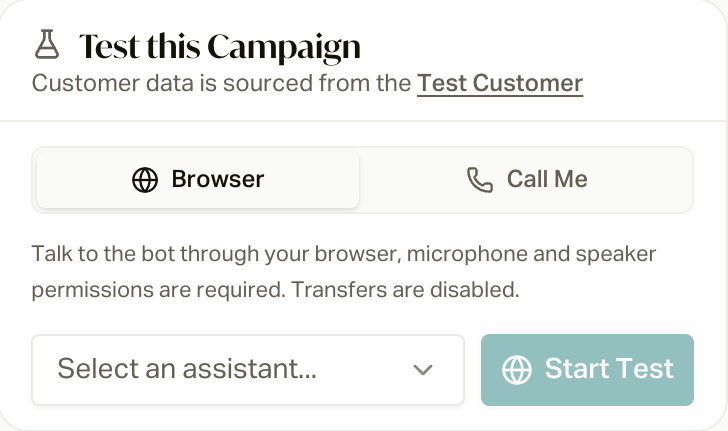
Every campaign's **Overview** tab has a **Test this Campaign** card, so you
can have the exact conversation your members will have before you go live.
Test calls use your **Test Customer** record for member data, and finished
tests show up on the Calls page like any other call, transcript and all.
 Two Ways to Test [#two-ways-to-test]
Talk to the AI right in your browser. You'll need to allow your mic and
speakers. You get a live transcript as you talk. Transfers are disabled in
browser tests, so use this one for the script, the tone, and how it
handles questions.
Press **Start Test**, talk, and press **End** when you're done.
The AI calls the phone number on your user profile over a real phone line,
so you get the full call flow, transfers included. If your profile doesn't
have a phone number, add one first.
Press **Call Me** and your phone rings in a few seconds.
If the campaign has more than one AI employee (say, a daytime one and an
after-hours one), pick which one to test from the **Select an assistant...**
dropdown first.
The Preflight Check [#the-preflight-check]
If the script needs member data your Test Customer doesn't have, the phone
test stops before dialing with **Missing required variables** and a list of
what's missing. Real members hit the same check when they're added to the
campaign, and they get skipped if they're missing it. So a failing preflight
usually points at a gap in your customer data, not just your test record.
To fix it, fill in the field on your customers (by re-importing, through your
CRM sync, or by hand). See the [Book of Business Field
Reference](/docs/guides/reference/book-of-business-fields) and [Custom
Fields](/docs/guides/reference/custom-fields). If members aren't getting
called, [Why Wasn't My Customer
Called?](/docs/guides/know-your-numbers/why-wasnt-my-customer-called) walks
through every check.
Try It in the Simulator Too [#try-it-in-the-simulator-too]
The **Assembly** tab has an **AI employee simulator**: a text chat with your
AI where you play the member. It never actually transfers anyone, and you can
coach it line by line (leave a **Coaching note** and click **Save coaching**).
It's also how you test script changes before they go live. See [Edit Your AI
with Assembly](/docs/guides/campaign-toolkit/employees#step-3-test-it-in-a-simulation).
Test a text-only campaign [#test-a-text-only-campaign]
Text-only campaigns (like the birthday or welcome texts) don't have an AI
employee, so there's no **Test this Campaign** card. Instead, run the real
thing on just yourself:
Make a customer record for yourself [#make-a-customer-record-for-yourself]
Add a customer with **your own cell number** (and a state or time zone),
or use one you already have. Fill in anything the texts use, like first
name and carrier.
Keep everyone else out [#keep-everyone-else-out]
First, check the **Overview** tab: the campaign should have **nobody in
it**. Anyone already added to a Draft campaign starts the moment you
activate, so if real members are waiting in this one, don't test here.
Create a second campaign from the same template just for testing instead.
Then, if the campaign has an automation, open its **Configuration > Enrollment Automations** editor,
click the automation, turn off **Active**, and click **Save Changes**, so
nobody else gets added while you test.
Add yourself and activate [#add-yourself-and-activate]
On the **Customers** page, find your record, click **Add to campaign**,
and pick the campaign. Then click **Activate** on the **Overview** tab.
Check your phone [#check-your-phone]
The first text goes out within a few minutes, as long as it's inside your
business hours (and 8 AM to 9 PM in your time zone). Later texts follow
the campaign's timing, so a "Day 3" text really does wait until day 3.
Put it back [#put-it-back]
When you're happy, turn the automation back on (or add your members) so
the campaign starts working for real.
Texts only send once your [SMS
registration](/docs/guides/stay-compliant/sms-and-rcs-registration) is done.
Want to test again later? You're "previously enrolled" now, so use
**Restart** on your record.
What to Listen For [#what-to-listen-for]
* **Does it sound like your agency?** If not, change the wording yourself in
the **Assembly** tab. Just tell it what you want different.
* **Do escalations do the right thing?** Trigger a transfer on a **Call Me**
test and make sure it rings the right people.
* **Are the member details right?** The AI should greet your Test Customer by
name and get their info right.
The setup this test belongs to.
Change the script, simulate it, and coach it.
Change what the AI does when scenarios come up.
What happens once you click Activate.
Two Ways to Test [#two-ways-to-test]
Talk to the AI right in your browser. You'll need to allow your mic and
speakers. You get a live transcript as you talk. Transfers are disabled in
browser tests, so use this one for the script, the tone, and how it
handles questions.
Press **Start Test**, talk, and press **End** when you're done.
The AI calls the phone number on your user profile over a real phone line,
so you get the full call flow, transfers included. If your profile doesn't
have a phone number, add one first.
Press **Call Me** and your phone rings in a few seconds.
If the campaign has more than one AI employee (say, a daytime one and an
after-hours one), pick which one to test from the **Select an assistant...**
dropdown first.
The Preflight Check [#the-preflight-check]
If the script needs member data your Test Customer doesn't have, the phone
test stops before dialing with **Missing required variables** and a list of
what's missing. Real members hit the same check when they're added to the
campaign, and they get skipped if they're missing it. So a failing preflight
usually points at a gap in your customer data, not just your test record.
To fix it, fill in the field on your customers (by re-importing, through your
CRM sync, or by hand). See the [Book of Business Field
Reference](/docs/guides/reference/book-of-business-fields) and [Custom
Fields](/docs/guides/reference/custom-fields). If members aren't getting
called, [Why Wasn't My Customer
Called?](/docs/guides/know-your-numbers/why-wasnt-my-customer-called) walks
through every check.
Try It in the Simulator Too [#try-it-in-the-simulator-too]
The **Assembly** tab has an **AI employee simulator**: a text chat with your
AI where you play the member. It never actually transfers anyone, and you can
coach it line by line (leave a **Coaching note** and click **Save coaching**).
It's also how you test script changes before they go live. See [Edit Your AI
with Assembly](/docs/guides/campaign-toolkit/employees#step-3-test-it-in-a-simulation).
Test a text-only campaign [#test-a-text-only-campaign]
Text-only campaigns (like the birthday or welcome texts) don't have an AI
employee, so there's no **Test this Campaign** card. Instead, run the real
thing on just yourself:
Make a customer record for yourself [#make-a-customer-record-for-yourself]
Add a customer with **your own cell number** (and a state or time zone),
or use one you already have. Fill in anything the texts use, like first
name and carrier.
Keep everyone else out [#keep-everyone-else-out]
First, check the **Overview** tab: the campaign should have **nobody in
it**. Anyone already added to a Draft campaign starts the moment you
activate, so if real members are waiting in this one, don't test here.
Create a second campaign from the same template just for testing instead.
Then, if the campaign has an automation, open its **Configuration > Enrollment Automations** editor,
click the automation, turn off **Active**, and click **Save Changes**, so
nobody else gets added while you test.
Add yourself and activate [#add-yourself-and-activate]
On the **Customers** page, find your record, click **Add to campaign**,
and pick the campaign. Then click **Activate** on the **Overview** tab.
Check your phone [#check-your-phone]
The first text goes out within a few minutes, as long as it's inside your
business hours (and 8 AM to 9 PM in your time zone). Later texts follow
the campaign's timing, so a "Day 3" text really does wait until day 3.
Put it back [#put-it-back]
When you're happy, turn the automation back on (or add your members) so
the campaign starts working for real.
Texts only send once your [SMS
registration](/docs/guides/stay-compliant/sms-and-rcs-registration) is done.
Want to test again later? You're "previously enrolled" now, so use
**Restart** on your record.
What to Listen For [#what-to-listen-for]
* **Does it sound like your agency?** If not, change the wording yourself in
the **Assembly** tab. Just tell it what you want different.
* **Do escalations do the right thing?** Trigger a transfer on a **Call Me**
test and make sure it rings the right people.
* **Are the member details right?** The AI should greet your Test Customer by
name and get their info right.
The setup this test belongs to.
Change the script, simulate it, and coach it.
Change what the AI does when scenarios come up.
What happens once you click Activate.