# How careCycle Fits Together (/docs/guides/concepts/how-carecycle-fits-together)
careCycle has a lot of features, but they all serve one shape: the life of a
member. If you understand that shape, every screen in the platform makes sense.
This page walks through it once, start to finish.
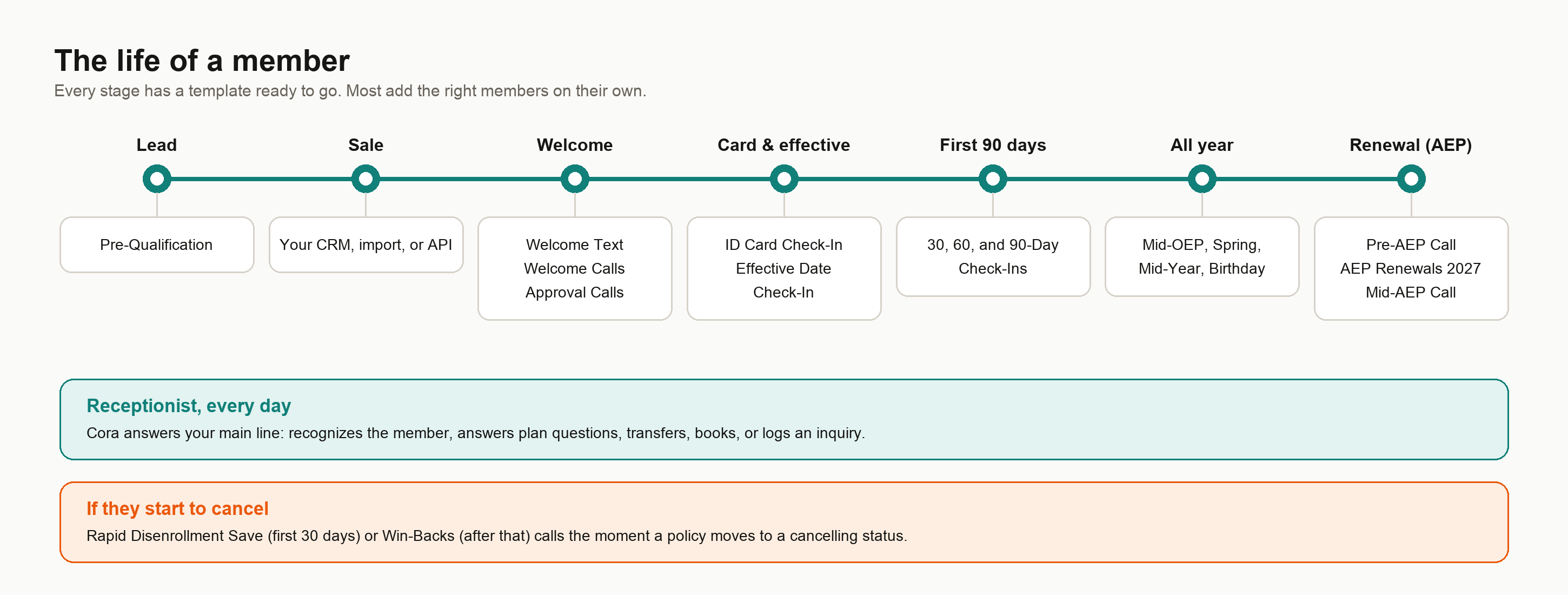 The Life of a Member [#the-life-of-a-member]
Meet Margaret. Today she's a lead. A year from now, she should be a member who
renews without shopping around. Here's what careCycle does at every step in
between. Each step below is a ready-made template in the [Template
Library](/docs/guides/template-library), so you're not building any of this
from scratch.
**A lead comes in.** Margaret fills out the form on your website asking for a
Medicare review. Once she's added to it, the
[Pre-Qualification](/docs/guides/template-library/medicare/pre-qualification)
campaign calls her back, asks a few quick eligibility questions, and warm
transfers her to a licensed agent. (Prefer your own agents on the phone? Run
it as an [Agent Queue campaign](/docs/guides/run-your-team/agent-queue-campaigns)
instead.)
**The sale happens.** Your agent enrolls Margaret. Her customer record and new
policy land in careCycle, from your CRM sync, a CSV import, or the API.
**The welcome goes out on its own.** On her enrollment date she gets the
[Welcome Text](/docs/guides/template-library/medicare/welcome-text). A day
later, [Welcome Calls](/docs/guides/template-library/medicare/welcome-calls)
picks her up: a quick thank-you text, then a call to welcome her, confirm her
carrier and start date, and get your number saved in her phone. Nobody had to remember to do this. Each template
comes with an **automation**, a rule that adds the right members on its own,
and these ones are based on her enrollment date. That's the single most
important idea in careCycle: the journey runs itself.
**Her application is approved.** The [Approval
Calls](/docs/guides/template-library/medicare/approval-calls) campaign gives
her the good news and explains what's next. This one doesn't add people on its
own, so you add members (or set up your own automation) when applications get
approved.
**Her card should be in the mail.** Two weeks after she enrolls, the [ID Card
Check-In](/docs/guides/template-library/medicare/id-card-check-in) asks if her
card showed up, and points her to the carrier's portal if it didn't.
**Her plan goes effective.** The [Effective Date
Check-In](/docs/guides/template-library/medicare/effective-date-check-in)
calls to let her know she's all set, mentions a couple of her plan's
benefits, and checks whether she has a regular doctor. The [30, 60, and
90-day check-ins](/docs/guides/template-library/medicare/30-day-check-in)
follow. If she has questions the AI can't answer, it transfers her to your
team, books an appointment with her agent, or raises an **Inquiry** for your
team to follow up on.
**She calls you in July.** Margaret calls your main number about a prescription
price. **Cora, your Receptionist**, answers, recognizes her, checks her plan
data, and answers on the spot. If it were a complaint, Cora would have
transferred her live to your team's **softphone**, with the right **script**
already on the agent's screen.
**Renewal season arrives.** On September 8 the [Pre-AEP
Call](/docs/guides/template-library/medicare/pre-aep-call) gives her a heads-up
that her agent's keeping an eye on next year's changes. [MA AEP Renewals
Outreach](/docs/guides/template-library/medicare/pre-aep-appointment-booking)
gets her on the phone with her agent (or on their calendar), [AEP Renewals
2027](/docs/guides/aep-2027) walks her through what's changing with her plan,
and the [Mid-AEP Call](/docs/guides/template-library/medicare/mid-aep-call) on
November 1 makes sure she's looked. Margaret stays, and her lifetime value
grows.
**If she ever starts to cancel.** The moment her policy moves to Future
Cancel, Terminated, or Cancelled, [Rapid Disenrollment
Save](/docs/guides/template-library/medicare/rapid-disenrollment-save) (in her
first 30 days) or [Win-Backs](/docs/guides/template-library/medicare/win-backs)
(after that) is on the phone trying to get her to your team. See [Save
Cancelling Members](/docs/guides/keep-your-members/save-cancelling-members).
At every step, your team sees the same record: her calls, transcripts,
policies, inquiries, appointments, and texts, all in one place. For the whole
first year laid out step by step, see [The Retention
Journey](/docs/guides/template-library/retention-journey).
The Six Concepts Behind the Story [#the-six-concepts-behind-the-story]
Six features power everything above. Each has its own guide, but here is how
they work together:
**Every conversation belongs to a campaign.** Each call and text Margaret
received came from a campaign, and every campaign is defined by a few basic
settings: who talks (AI or your agents), which direction (inbound or
outbound), and what job it does (tagged **Retention**, **Revenue**, or
**Receptionist**). Most campaigns start from a template. See [Campaigns
Explained](/docs/guides/concepts/campaigns-explained).
**Pulse sets the cadence.** Each campaign has a Pulse workflow that decides
when to call, when to text, how long to wait, and when to stop trying. See
[Pulse](/docs/guides/campaign-toolkit/pulse).
**Dispositions record how each call ended.** Every call gets an outcome, such
as No Answer, Transferred, Appointment Scheduled, or Do Not Call, and you can
define your own for the outcomes your business cares about. Pulse uses these
outcomes to decide what happens next. The AI sets them automatically; your
agents set them at wrap-up. See [Dispositions and
Routing](/docs/guides/campaign-toolkit/pulse/dispositions-and-routing).
**Automations decide who gets in.** They add customers to campaigns when
something happens (a policy is created or changes status) or when a date comes
up (days after their enrollment or effective date, a birthday, a fixed day each
year). They can also take people out. Templates come with their automations
already set up, and because everyone's dates move along the same timeline, the
campaigns line up into a journey on their own. See [Automations
Explained](/docs/guides/concepts/automations-explained).
**The Campaign Toolkit is shared.** Routing groups, calendar settings, and scripts are building blocks configured once and reused by
every campaign and by Cora. Change one and it changes everywhere it is used.
See the [Campaign Toolkit](/docs/guides/campaign-toolkit).
**Compliance is enforced on every channel.** TCPA calling hours, your business
hours and holidays, do-not-call and STOP suppression, and SMS registration are
enforced by the platform automatically, so a campaign cannot text before it is
registered or call outside legal hours. See [TCPA
Compliance](/docs/guides/stay-compliant/tcpa) and [SMS and RCS
Registration](/docs/guides/stay-compliant/sms-and-rcs-registration).
The Two Halves of the Platform [#the-two-halves-of-the-platform]
Everything in careCycle is either the AI doing work or your people doing work,
sharing one record.
* **The AI half**: Cora on the Receptionist page, Voice AI campaigns, Pulse,
and the **Assembly** tab, where you change what the AI says. Set its
escalations in **Configuration > Scenarios & escalations**.
* **The human half**: the Inbox for texts and follow-ups, the softphone and
dialer for calls, Tasks and Appointments for the to-do list, and the
Dashboard and Wallboard for keeping score.
The handoff points between the halves (transfers, inquiries, appointments) are
exactly the things you configure in Escalations and the Campaign
Toolkit.
Where to Go Next [#where-to-go-next]
Here is the natural reading order from this page:
See every ready-made campaign, with a brief that shows exactly what each
one says and does.
How the templates line up across a member's first year and beyond.
What happens after you click Activate, and what takes someone out.
Go one level deeper: the settings that define every campaign, and the
campaign lifecycle.
The step-by-step checklist that builds everything this page described.
Put Cora to work on your central number.
Master the shared building blocks: transfers, appointments, Pulse, and
Assembly.
The Life of a Member [#the-life-of-a-member]
Meet Margaret. Today she's a lead. A year from now, she should be a member who
renews without shopping around. Here's what careCycle does at every step in
between. Each step below is a ready-made template in the [Template
Library](/docs/guides/template-library), so you're not building any of this
from scratch.
**A lead comes in.** Margaret fills out the form on your website asking for a
Medicare review. Once she's added to it, the
[Pre-Qualification](/docs/guides/template-library/medicare/pre-qualification)
campaign calls her back, asks a few quick eligibility questions, and warm
transfers her to a licensed agent. (Prefer your own agents on the phone? Run
it as an [Agent Queue campaign](/docs/guides/run-your-team/agent-queue-campaigns)
instead.)
**The sale happens.** Your agent enrolls Margaret. Her customer record and new
policy land in careCycle, from your CRM sync, a CSV import, or the API.
**The welcome goes out on its own.** On her enrollment date she gets the
[Welcome Text](/docs/guides/template-library/medicare/welcome-text). A day
later, [Welcome Calls](/docs/guides/template-library/medicare/welcome-calls)
picks her up: a quick thank-you text, then a call to welcome her, confirm her
carrier and start date, and get your number saved in her phone. Nobody had to remember to do this. Each template
comes with an **automation**, a rule that adds the right members on its own,
and these ones are based on her enrollment date. That's the single most
important idea in careCycle: the journey runs itself.
**Her application is approved.** The [Approval
Calls](/docs/guides/template-library/medicare/approval-calls) campaign gives
her the good news and explains what's next. This one doesn't add people on its
own, so you add members (or set up your own automation) when applications get
approved.
**Her card should be in the mail.** Two weeks after she enrolls, the [ID Card
Check-In](/docs/guides/template-library/medicare/id-card-check-in) asks if her
card showed up, and points her to the carrier's portal if it didn't.
**Her plan goes effective.** The [Effective Date
Check-In](/docs/guides/template-library/medicare/effective-date-check-in)
calls to let her know she's all set, mentions a couple of her plan's
benefits, and checks whether she has a regular doctor. The [30, 60, and
90-day check-ins](/docs/guides/template-library/medicare/30-day-check-in)
follow. If she has questions the AI can't answer, it transfers her to your
team, books an appointment with her agent, or raises an **Inquiry** for your
team to follow up on.
**She calls you in July.** Margaret calls your main number about a prescription
price. **Cora, your Receptionist**, answers, recognizes her, checks her plan
data, and answers on the spot. If it were a complaint, Cora would have
transferred her live to your team's **softphone**, with the right **script**
already on the agent's screen.
**Renewal season arrives.** On September 8 the [Pre-AEP
Call](/docs/guides/template-library/medicare/pre-aep-call) gives her a heads-up
that her agent's keeping an eye on next year's changes. [MA AEP Renewals
Outreach](/docs/guides/template-library/medicare/pre-aep-appointment-booking)
gets her on the phone with her agent (or on their calendar), [AEP Renewals
2027](/docs/guides/aep-2027) walks her through what's changing with her plan,
and the [Mid-AEP Call](/docs/guides/template-library/medicare/mid-aep-call) on
November 1 makes sure she's looked. Margaret stays, and her lifetime value
grows.
**If she ever starts to cancel.** The moment her policy moves to Future
Cancel, Terminated, or Cancelled, [Rapid Disenrollment
Save](/docs/guides/template-library/medicare/rapid-disenrollment-save) (in her
first 30 days) or [Win-Backs](/docs/guides/template-library/medicare/win-backs)
(after that) is on the phone trying to get her to your team. See [Save
Cancelling Members](/docs/guides/keep-your-members/save-cancelling-members).
At every step, your team sees the same record: her calls, transcripts,
policies, inquiries, appointments, and texts, all in one place. For the whole
first year laid out step by step, see [The Retention
Journey](/docs/guides/template-library/retention-journey).
The Six Concepts Behind the Story [#the-six-concepts-behind-the-story]
Six features power everything above. Each has its own guide, but here is how
they work together:
**Every conversation belongs to a campaign.** Each call and text Margaret
received came from a campaign, and every campaign is defined by a few basic
settings: who talks (AI or your agents), which direction (inbound or
outbound), and what job it does (tagged **Retention**, **Revenue**, or
**Receptionist**). Most campaigns start from a template. See [Campaigns
Explained](/docs/guides/concepts/campaigns-explained).
**Pulse sets the cadence.** Each campaign has a Pulse workflow that decides
when to call, when to text, how long to wait, and when to stop trying. See
[Pulse](/docs/guides/campaign-toolkit/pulse).
**Dispositions record how each call ended.** Every call gets an outcome, such
as No Answer, Transferred, Appointment Scheduled, or Do Not Call, and you can
define your own for the outcomes your business cares about. Pulse uses these
outcomes to decide what happens next. The AI sets them automatically; your
agents set them at wrap-up. See [Dispositions and
Routing](/docs/guides/campaign-toolkit/pulse/dispositions-and-routing).
**Automations decide who gets in.** They add customers to campaigns when
something happens (a policy is created or changes status) or when a date comes
up (days after their enrollment or effective date, a birthday, a fixed day each
year). They can also take people out. Templates come with their automations
already set up, and because everyone's dates move along the same timeline, the
campaigns line up into a journey on their own. See [Automations
Explained](/docs/guides/concepts/automations-explained).
**The Campaign Toolkit is shared.** Routing groups, calendar settings, and scripts are building blocks configured once and reused by
every campaign and by Cora. Change one and it changes everywhere it is used.
See the [Campaign Toolkit](/docs/guides/campaign-toolkit).
**Compliance is enforced on every channel.** TCPA calling hours, your business
hours and holidays, do-not-call and STOP suppression, and SMS registration are
enforced by the platform automatically, so a campaign cannot text before it is
registered or call outside legal hours. See [TCPA
Compliance](/docs/guides/stay-compliant/tcpa) and [SMS and RCS
Registration](/docs/guides/stay-compliant/sms-and-rcs-registration).
The Two Halves of the Platform [#the-two-halves-of-the-platform]
Everything in careCycle is either the AI doing work or your people doing work,
sharing one record.
* **The AI half**: Cora on the Receptionist page, Voice AI campaigns, Pulse,
and the **Assembly** tab, where you change what the AI says. Set its
escalations in **Configuration > Scenarios & escalations**.
* **The human half**: the Inbox for texts and follow-ups, the softphone and
dialer for calls, Tasks and Appointments for the to-do list, and the
Dashboard and Wallboard for keeping score.
The handoff points between the halves (transfers, inquiries, appointments) are
exactly the things you configure in Escalations and the Campaign
Toolkit.
Where to Go Next [#where-to-go-next]
Here is the natural reading order from this page:
See every ready-made campaign, with a brief that shows exactly what each
one says and does.
How the templates line up across a member's first year and beyond.
What happens after you click Activate, and what takes someone out.
Go one level deeper: the settings that define every campaign, and the
campaign lifecycle.
The step-by-step checklist that builds everything this page described.
Put Cora to work on your central number.
Master the shared building blocks: transfers, appointments, Pulse, and
Assembly.