# How Campaigns Run (/docs/guides/concepts/how-campaigns-run)
This is the stuff we get asked about the most: "I turned my campaign on, so
when do people get called?" and "Why did this person stop getting calls?" Here's
how it all works behind the scenes.
Turning a campaign on [#turning-a-campaign-on]
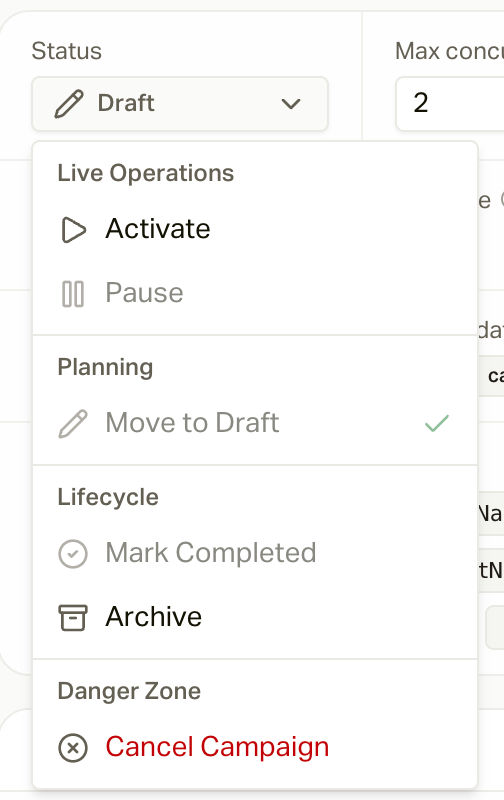
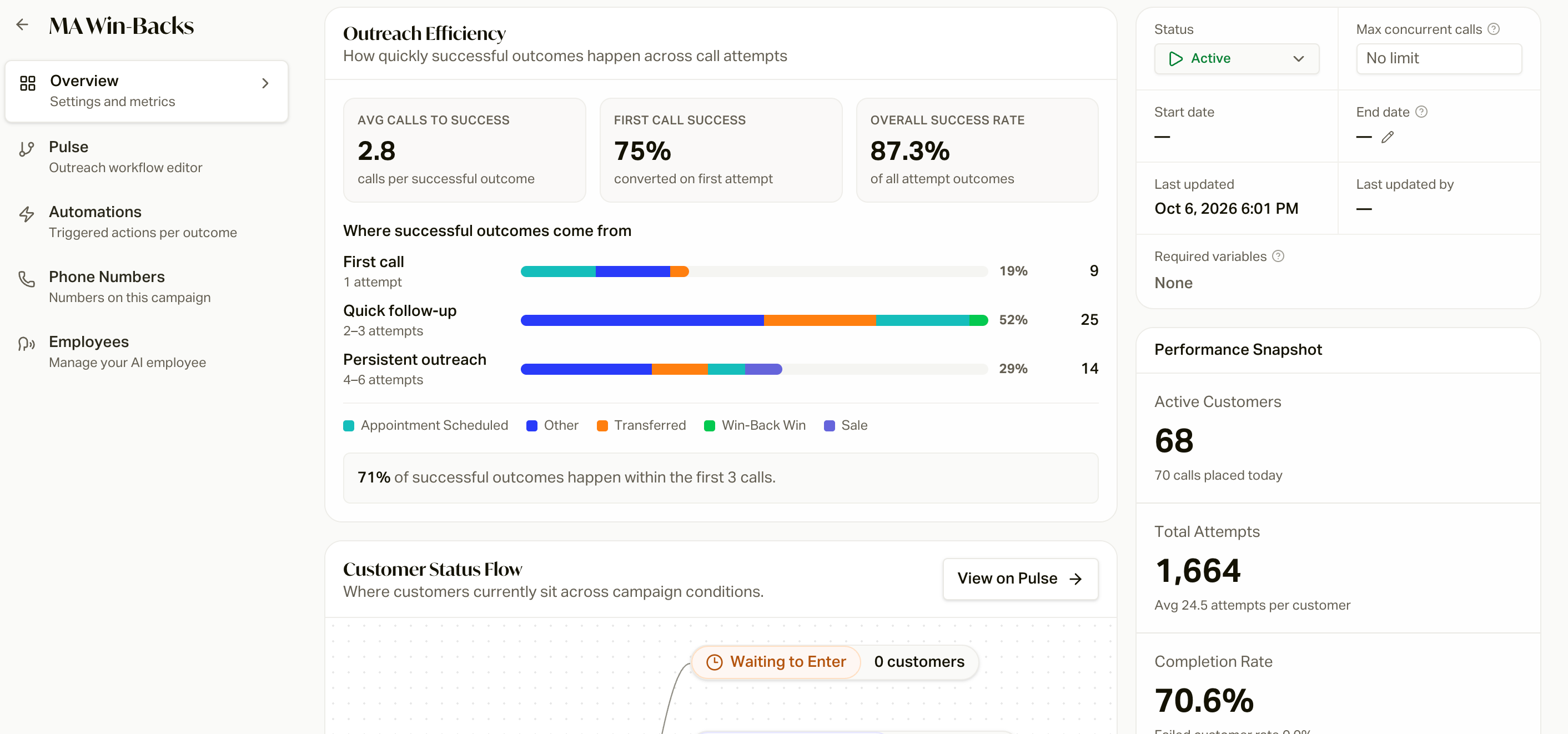 Open your campaign, click the status menu in the header, and pick
**Activate**. You'll get a quick confirmation (**Yes, activate campaign**), and
that's it. Your campaign is live.
If Activate doesn't go through, you'll see a message telling you what's
missing. The usual suspects:
* **No routing group or calendar picked** on the
campaign's escalations. Pick them and try again. See [Routing Groups](/docs/guides/campaign-toolkit/routing) and
[Calendars](/docs/guides/campaign-toolkit/calendars).
* **No phone number** to call from. Most campaigns call from your agency's
main number, so make sure you have one. If the campaign uses its own
numbers instead, add one in its **Configuration > Phone Numbers & Dialing
Rules** section (**Add Number**).
* **Billing.** Your account needs to be in good standing with a balance. If
it isn't, you see **Campaign can't start yet** with a **View billing**
button. Add credits or check your auto top-up, then activate again.
Once a campaign has been active, it can't go back to **Draft**. You can pause
it, though, as many times as you want.
How people get into a campaign [#how-people-get-into-a-campaign]
A campaign only calls the people who are enrolled in it. Only outbound
campaigns take enrollments: inbound campaigns, like your Receptionist, answer
the calls that come to them, so you can't add people to them. There are a few
ways in:
* **Automations.** Rules on the campaign's **Configuration > Enrollment Automations** editor that add people
when something happens (like a new policy) or on a schedule (like 24 hours
after their enrollment date). See [Automations
Explained](/docs/guides/concepts/automations-explained).
* **By hand.** From a customer's profile, or by selecting a bunch of customers
on the Customers page and using **Add to campaign**. See [Add Customers to a
Campaign](/docs/guides/campaign-toolkit/add-customers-to-a-campaign).
* **Imports.** When you upload a file, you can add everyone in it to a
campaign.
* **The API.** If you've got a developer, see the [Campaign API
guide](/docs/api-reference/campaign-enrollment/guide).
* **Special buttons.** Some features add people for you. For example, the
[Plan Crosswalk](/docs/guides/aep-2027/plan-crosswalk) has an
**Add to campaign** button that drops members into your AEP campaign by color.
Adding people to a Draft campaign [#adding-people-to-a-draft-campaign]
People you add **by hand** (from the Customers page or a profile) to a Draft
or Paused campaign just wait there safely, and get started as soon as you turn
it on.
Automations and imports are different. They line up the person's first call
or text right away. If the campaign is still a Draft when that step comes due,
it's dropped and the person is marked **Skipped** ("Campaign was not active").
Turning the campaign on later doesn't bring them back.
Templates come with their automations switched on, even though the campaign
starts as a Draft. Finish setup and activate quickly, or switch the automation
off in the **Configuration > Enrollment Automations** editor until you're ready. And only import into a
campaign that's already on.
Getting back in [#getting-back-in]
Each person can only be in a campaign once at a time, and once they've
finished it, its automations won't add them again. To run someone through a
second time, use **Restart** (from the Customers page or their profile).
People can be in as many *different* campaigns as you want at the same time.
Who gets skipped [#who-gets-skipped]
Some people get added but skipped right away, because we can't legally or
practically call them:
* **No phone number** on file.
* **No time zone or state** on file. We need one of these to know what time it
is for them.
* **Missing info the script needs.** If the campaign's script depends on a
field (like their carrier) and it's empty, we skip them instead of having an
awkward call.
* **Do Not Call** or suppressed numbers.
If someone's not getting called and you're not sure why, [Why Wasn't My
Customer Called?](/docs/guides/know-your-numbers/why-wasnt-my-customer-called)
walks through every check.
When people actually get called [#when-people-actually-get-called]
Two clocks have to line up before we reach out to anyone:
1. **Your business hours**, in your agency's time zone. These come from
[Business Hours and
Holidays](/docs/guides/answer-every-call/business-hours-and-holidays).
2. **8 AM to 9 PM in the member's time zone.** That's a legal rule (TCPA) and
it can't be turned off.
When both are open, things move fast:
* **Texts** usually go out within seconds.
* **Calls** usually start within a few minutes.
When either one is closed, nothing's lost. Everyone just waits, and goes out in
the first few minutes after you open. So if you activate at 7 PM, expect calls
to start the next morning.
Big lists ramp up [#big-lists-ramp-up]
If you add a few thousand people at once, they won't all get called in the
same minute. Each campaign runs a limited number of calls at a time (about 125
by default, less when you've got a bunch of campaigns running). You can set
your own number with **Concurrent Calls** in **Configuration > Phone Numbers &
Dialing Rules**. Texts
don't count against that limit.
Your Pulse sets the pace after that [#your-pulse-sets-the-pace-after-that]
The first step happens as soon as someone's eligible. After that, your
[Pulse](/docs/guides/campaign-toolkit/pulse) decides everything: how long to
wait between calls, when to text, and when to give up. If your Pulse starts
with a Wait step, that wait happens first.
Scheduled automations run overnight [#scheduled-automations-run-overnight]
Automations based on a date (like a birthday, a day of the year, or "X days
after" something) check once a night, overnight Pacific time. Anyone they add
gets called once your hours open the next day. Automations based on an event
(like a new policy) run within seconds.
What takes someone out of a campaign [#what-takes-someone-out-of-a-campaign]
People leave a campaign when they hit an **Exit** step in your Pulse, but a
few things end their journey early, automatically.
A good outcome ends the journey [#a-good-outcome-ends-the-journey]
When the AI gets the job done on a call, we stop calling them. These outcomes
end the journey right away, marked as completed:
* **Appointment Scheduled**
* **Transferred**
* **Inquiry Raised**
* **Inquiry Resolved** and **Inquiry Unresolved**
That's why you won't see these on your Pulse call steps. You don't have to
route them anywhere, they're handled for you. The idea is simple: if someone
booked or talked to your team, the last thing you want is the next call in the
cadence going out the following morning.
Booking an appointment ends every campaign [#booking-an-appointment-ends-every-campaign]
If a member books an appointment, from any campaign, an inbound call, a booking
link, or your team booking it for them, we end **all** of their active
campaign journeys. They've got a time on the books with you, so every other
campaign backs off.
That covers the campaigns they're in when they book. If they're added to a
campaign afterward (by an automation or a restart), it can still reach them
before the appointment. To stop that, turn on **Hold outreach around
appointments** under **Settings > Workspace > General**. Then, for an
appointment starting in the next 7 days, other campaigns' calls and texts
wait until 48 hours after it ends. See [Organization
Settings](/docs/guides/reference/organization-settings#general).
Do Not Call and bad numbers [#do-not-call-and-bad-numbers]
If a member asks to be taken off the list, the number turns out to be
invalid, or the person who answers says it's the wrong number, they're
stopped right away. Do Not Call members also won't get any
appointment callbacks.
Exit automations [#exit-automations]
You can also set up an automation that **removes** people instead of adding
them. On the **Configuration > Enrollment Automations** editor, choose **Remove from Campaigns** as the
action, then pick when it fires:
* **Time In Campaign:** after someone's been in for a certain number of days.
* **Policy Status Changed:** for example, take people out of Win-Backs when
their policy goes back to **Active**.
You choose whether they're removed from **All Active Campaigns** or **Specific
Campaigns**, and whether they're marked **Completed** or **Failed**. Some
templates come with exit automations already set up; those remove the person
from every active campaign.
Changing someone's status yourself [#changing-someones-status-yourself]
On the Customers page, select people and click **Set status**, or click a
campaign badge on a customer's profile. Setting them to **Cancelled**,
**Completed**, or **Failed** stops their journey right away. See [Add
Customers to a Campaign](/docs/guides/campaign-toolkit/add-customers-to-a-campaign#stopping-or-removing-people).
Suppressed numbers [#suppressed-numbers]
Adding a phone number to your [suppression
list](/docs/guides/phone-numbers/suppress-unwanted-callers) cancels that
person's active outbound campaigns. Taking them off the list doesn't restart
anything.
Everything else follows your Pulse [#everything-else-follows-your-pulse]
Outcomes like **No Answer**, **Voicemail**, or **Not Interested** go wherever your Pulse sends them. Usually that's a retry text, a
wait, and another call, or an Exit. See [Dispositions and
Routing](/docs/guides/campaign-toolkit/pulse/dispositions-and-routing).
Pausing and stopping [#pausing-and-stopping]
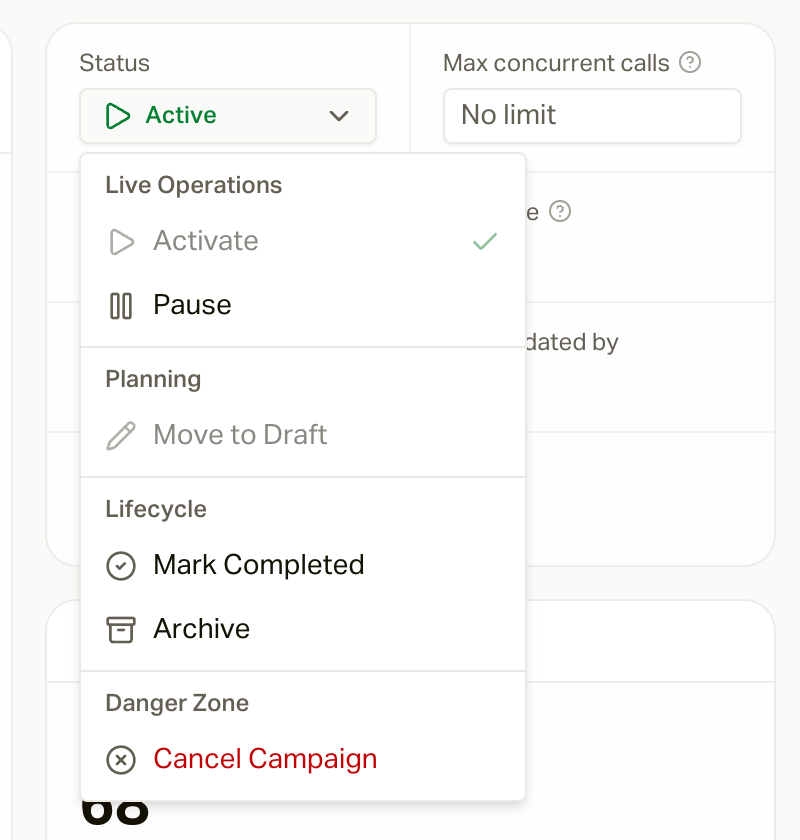
**Pause** from the status menu in the campaign header whenever you need to. Calls already in
progress finish normally, and everyone else holds their spot. When you
**Activate** again, they pick up where they left off.
 People you add while a campaign is paused can take up to an hour to get going
after you turn it back on.
If a campaign has an **End date** (set on the **Overview** tab), it's marked
**Completed** automatically on that date and stops contacting people.
**Completed**, **Archived**, and **Cancelled** are permanent. Any automations
that add people to the campaign are switched off. Anyone still
in the campaign is stopped, and turning it back on isn't an option. If you
just need a break, pause instead.
What a campaign is made of.
Build the cadence: calls, texts, waits, and exits.
Troubleshoot one specific person.