# Automations Explained (/docs/guides/concepts/automations-explained)
Automations watch your data and act when a customer matches. Campaign and task
automations share one set of triggers and filters, so the same event or date can
drive outreach and follow-up work. Their actions remain separate.
Manage campaign automations on a campaign's **Configuration > Enrollment Automations** editor. Manage task
automations from the **Automations** button on the **Tasks** page.
The Two Actions [#the-two-actions]
Campaign automations do one of two things when they fire:
* **Enroll into a campaign**: add the matching customer to a target campaign.
* **Remove from campaign(s)**: take the customer out of outreach, with a final
status of **Completed** or **Failed**, scoped to any active campaign or
specific campaigns. This is your safety
valve: one exit automation can stop everything for a customer the moment a
condition is met.
Task automations create one or more task templates. Each template controls the
task title, description, tags, priority, and due offset. The task is assigned to
the member assigned to the customer. If the customer has no assigned member,
task creation is skipped.
Behind the scenes careCycle files enrollment automations into two categories:
**entry** (triggered by data, like a new policy) and **intra** (triggered by
another campaign completing or failing). You never pick the category; it
follows from the trigger you choose, and intra automations are what chain
campaigns together.
The Triggers [#the-triggers]
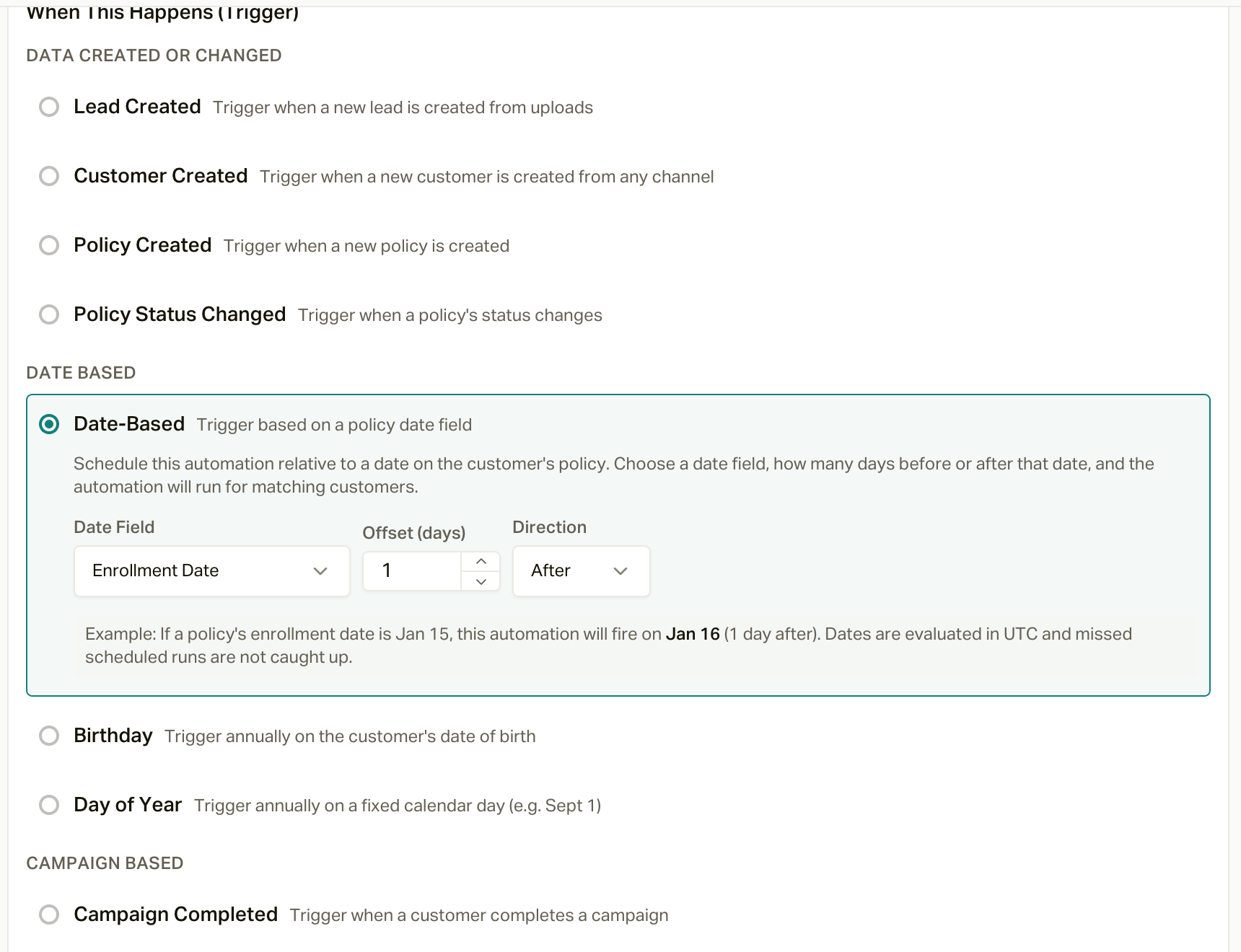 Triggers come in four families, exactly as the builder groups them:
**Data created or changed**: Lead Created, Customer Created, Policy Created,
and Policy Status Changed (with one or more From and To statuses; an empty side
means any status). These fire within seconds of the change, which is what
makes speed-to-lead and save calls automatic. A couple of things worth knowing:
* **Lead Created** and **Customer Created** fire for leads that come in
through your [lead sources](/docs/guides/sources) (the leads API). They
don't fire for customers you import or create in the app.
* **Policy Status Changed** fires when an **existing** policy's status
changes, whether that's from an import, a CRM sync, the API, or someone
editing it in the app. A brand-new policy that arrives already in a status
only fires **Policy Created**.
**Date based**: Date-Based (a policy date like Effective Date or Renewal
Date, offset by up to 365 days before or after), Birthday (annually on the
customer's date of birth, with an optional "At age" so you can target exactly
the 65th), and Day of Year (a fixed calendar day, like September 1).
**Campaign based**: Campaign Completed and Campaign Failed (watch a source
campaign and act on its outcome) and Time In Campaign (after a customer has
been in a campaign N days, most useful for exits).
**Task based**: Task Completed (when a task with a chosen tag is marked Done or
Cancelled, with an optional linked-policy status restriction).
The same trigger choices are available for campaign and task automations.
`customer_field_changed` remains supported for existing automations but is not
currently shown in the builder. The retired `policy_changed` value is rejected
for new campaign automations.
The Filters [#the-filters]
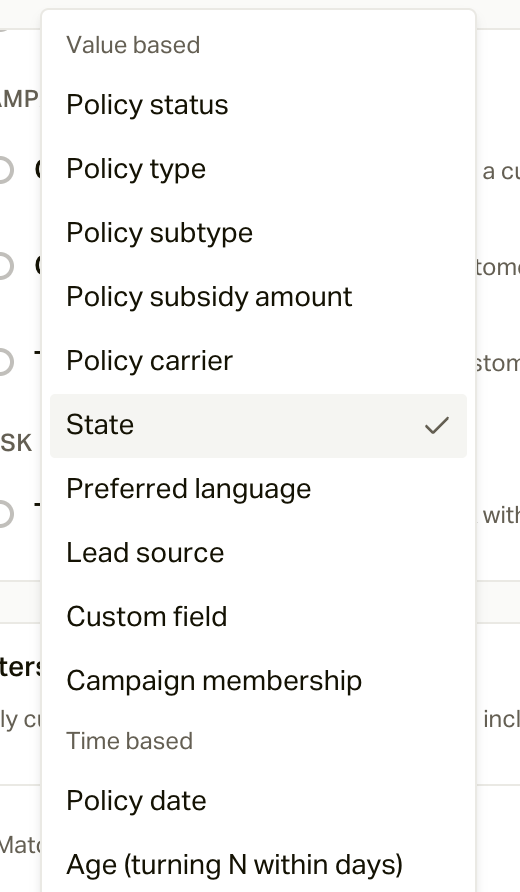
Campaign and task automations use the same filters. Leave them empty and the
automation applies to everyone the trigger matches; add conditions and choose
whether they **Match ALL** or **Match ANY**. You
can filter on policy status, type, subtype, subsidy amount, carrier, and dates;
customer state, language, and age; lead source; custom fields; and campaign
membership.
Triggers come in four families, exactly as the builder groups them:
**Data created or changed**: Lead Created, Customer Created, Policy Created,
and Policy Status Changed (with one or more From and To statuses; an empty side
means any status). These fire within seconds of the change, which is what
makes speed-to-lead and save calls automatic. A couple of things worth knowing:
* **Lead Created** and **Customer Created** fire for leads that come in
through your [lead sources](/docs/guides/sources) (the leads API). They
don't fire for customers you import or create in the app.
* **Policy Status Changed** fires when an **existing** policy's status
changes, whether that's from an import, a CRM sync, the API, or someone
editing it in the app. A brand-new policy that arrives already in a status
only fires **Policy Created**.
**Date based**: Date-Based (a policy date like Effective Date or Renewal
Date, offset by up to 365 days before or after), Birthday (annually on the
customer's date of birth, with an optional "At age" so you can target exactly
the 65th), and Day of Year (a fixed calendar day, like September 1).
**Campaign based**: Campaign Completed and Campaign Failed (watch a source
campaign and act on its outcome) and Time In Campaign (after a customer has
been in a campaign N days, most useful for exits).
**Task based**: Task Completed (when a task with a chosen tag is marked Done or
Cancelled, with an optional linked-policy status restriction).
The same trigger choices are available for campaign and task automations.
`customer_field_changed` remains supported for existing automations but is not
currently shown in the builder. The retired `policy_changed` value is rejected
for new campaign automations.
The Filters [#the-filters]
Campaign and task automations use the same filters. Leave them empty and the
automation applies to everyone the trigger matches; add conditions and choose
whether they **Match ALL** or **Match ANY**. You
can filter on policy status, type, subtype, subsidy amount, carrier, and dates;
customer state, language, and age; lead source; custom fields; and campaign
membership.
 For a policy-scoped trigger, policy filters inspect only the policy that caused
the event. This includes Policy Created, Policy Status Changed, Date-Based, and
a Task Completed event linked to a policy. Other triggers evaluate policy
filters against all of the customer's policies and match when any policy
qualifies.
How Often an Automation Fires [#how-often-an-automation-fires]
Automations are built to never double up on someone:
* **Date-based triggers** (Date-Based, Birthday, Day of Year) check once a
night and only pick up people whose date is **today**. They don't go back
and catch dates that already passed. Birthday and Day of Year check again
every year, but only add people who haven't been through the campaign yet
(see the next point).
* **Policy Created** and **Policy Status Changed** fire once per policy, per
automation, ever. If the same policy makes the same change twice, the
second time doesn't count.
* **Once someone finishes a campaign, its automations won't add them again.**
Use **Restart** if you want them to go through it a second time.
* **Time In Campaign** is the one that catches up: anyone already past the
number of days gets picked up on the next nightly run.
An automation can add people to a campaign that's still a **Draft**. If their
first call or text comes due before you activate, it's dropped and they're
marked **Skipped**, for good. Templates create their automations switched on,
so finish setup and activate quickly, or disable the automation until you're
ready.
Why This Is the Journey [#why-this-is-the-journey]
Put the pieces together and the lifecycle runs itself: a member enrolls and a
date-based automation sends the welcome text the next day and the welcome
call the day after that; another sends the
effective date check-in; 30, 60, and 90 days
later the check-ins go out; and every year the calendar touches and birthday
text keep you in front of them. A policy moves to Future Cancel, and a status
automation gets a save call going within minutes. An exit automation retires
anyone who should no longer be contacted. Nobody has to remember to do any of
it, which is the point.
Our templates come with these automations built in. See [The Retention
Journey](/docs/guides/template-library/retention-journey) for how they line
up.
Seven ready-to-build recipes, step by step.
The complete reference: every trigger, filter, and operator.
The templates and automations that run a member's first year.
For a policy-scoped trigger, policy filters inspect only the policy that caused
the event. This includes Policy Created, Policy Status Changed, Date-Based, and
a Task Completed event linked to a policy. Other triggers evaluate policy
filters against all of the customer's policies and match when any policy
qualifies.
How Often an Automation Fires [#how-often-an-automation-fires]
Automations are built to never double up on someone:
* **Date-based triggers** (Date-Based, Birthday, Day of Year) check once a
night and only pick up people whose date is **today**. They don't go back
and catch dates that already passed. Birthday and Day of Year check again
every year, but only add people who haven't been through the campaign yet
(see the next point).
* **Policy Created** and **Policy Status Changed** fire once per policy, per
automation, ever. If the same policy makes the same change twice, the
second time doesn't count.
* **Once someone finishes a campaign, its automations won't add them again.**
Use **Restart** if you want them to go through it a second time.
* **Time In Campaign** is the one that catches up: anyone already past the
number of days gets picked up on the next nightly run.
An automation can add people to a campaign that's still a **Draft**. If their
first call or text comes due before you activate, it's dropped and they're
marked **Skipped**, for good. Templates create their automations switched on,
so finish setup and activate quickly, or disable the automation until you're
ready.
Why This Is the Journey [#why-this-is-the-journey]
Put the pieces together and the lifecycle runs itself: a member enrolls and a
date-based automation sends the welcome text the next day and the welcome
call the day after that; another sends the
effective date check-in; 30, 60, and 90 days
later the check-ins go out; and every year the calendar touches and birthday
text keep you in front of them. A policy moves to Future Cancel, and a status
automation gets a save call going within minutes. An exit automation retires
anyone who should no longer be contacted. Nobody has to remember to do any of
it, which is the point.
Our templates come with these automations built in. See [The Retention
Journey](/docs/guides/template-library/retention-journey) for how they line
up.
Seven ready-to-build recipes, step by step.
The complete reference: every trigger, filter, and operator.
The templates and automations that run a member's first year.