# Edit Your Pulse with an LLM (/docs/guides/campaign-toolkit/pulse/edit-your-pulse-with-an-llm)
The Pulse editor is great for adding a call here or a text there. But when you
want to do something bigger, like stretch a one-week cadence out to two weeks,
all that dragging and dropping gets tedious fast.
Good news: you can hand that work to an LLM like Claude or ChatGPT and get a
great head start in a couple of minutes.
How it works [#how-it-works]
Export your Pulse [#export-your-pulse]
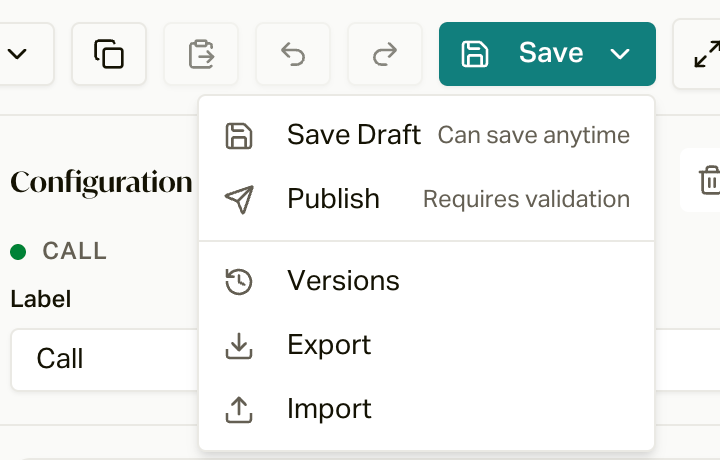
Open the Pulse editor from **Configuration > Pulse** (click **Open Pulse**). Open the **Save** menu, then **Export**. That
downloads a JSON file to your computer, named after your Pulse.
 Give it to your LLM [#give-it-to-your-llm]
Open Claude, ChatGPT, or whichever one you like, upload the file, and
explain what you want. More on what to say [below](#what-to-tell-it).
Download the new file [#download-the-new-file]
When it's done, it'll hand you back an updated JSON file, usually with a
rundown of what it changed. Read that rundown, it's a quick way to catch
anything you didn't ask for.
Import it [#import-it]
Back in the Pulse editor, open the **Save** menu, then **Import**, and choose the
new file. Review what it found (more on that [below](#reviewing-the-import))
and click **Import & replace**.
Tidy up and check it [#tidy-up-and-check-it]
Click **Cleanup** on the canvas to auto-arrange everything, then give it a
once-over. Make sure the validation badge says **Valid**.
Publish [#publish]
Click **Save**, then **Publish**.
What to tell it [#what-to-tell-it]
Describe the pattern you've got and the change you want, in plain English. You
don't need to be super specific. Here's roughly what I said in the video:
> I've shared a JSON file of a pulse cadence with you. This covers the cadence
> we use to reach out to our members for win-back calls. You'll see there's a
> pattern of sending SMSs after calls to folks we weren't able to contact, then
> waiting a day or two before we try again. I want to extend this pulse so it
> lasts 14 days, maybe by adding two or three more days' worth of contacts,
> without overwhelming the customer with calls and texts. Can you help with
> this?
It came back with calls on days 7, 9, 11, and 14, each with a heads-up text
before the call and a follow-up text if we couldn't reach them. Exactly the
pattern I already had, just longer.
A few other things it's great for:
* **Auditing your texts.** Ask it to tighten up your messaging, or check every
text for a certain tone.
* **Rewording in bulk.** "Make every follow-up text sound more casual" or
"don't use em dashes in any of the texts."
* **Explaining a Pulse.** Upload one and ask "walk me through what happens to
someone in this cadence." Handy for a template you didn't build.
- **Tell it to keep the same structure.** Ask it to follow the patterns
already in the file (same kinds of steps, same naming) instead of
inventing new ones.
- **Every call needs a wait before the next call.** careCycle requires at
least 5 minutes between calls, and you'll usually want a day or more.
- **Keep your routing.** If your Pulse branches on tags (like the [AEP
campaign](/docs/guides/aep-2027) does), tell it
not to touch the routing step.
Reviewing the import [#reviewing-the-import]
Before anything changes, the import shows you a summary of what's in the file:
how many blocks, connections, calls, and texts. Then it checks the file
against your campaign.
Dispositions [#dispositions]
Every call step routes on dispositions (the outcome of the call). If the file
references one that isn't on your campaign, you'll see it here with a choice
to **Drop** it or **Remap to** something your campaign does have.
* **Not on Campaign**: the disposition doesn't exist on this campaign. Remap
it to the closest match, or drop it.
* **Handled Automatically**: outcomes like **Transferred**, **Appointment
Scheduled**, and **Inquiry Raised**. These end the journey on their own, so
dropping them is totally fine. See [How Campaigns
Run](/docs/guides/concepts/how-campaigns-run#what-takes-someone-out-of-a-campaign).
* **Grouped**: part of a group like No Contact or Bad Contact. These get
remapped to their group for you.
Dropping a disposition just leaves that output empty. Nothing else about the
flow changes.
SMS templates [#sms-templates]
If your texts use saved templates, the import matches them up by ID or by
name. If it can't find one, it'll either keep the text as a custom message or
ask you to pick a template after you import.
Good to know [#good-to-know]
* **Importing replaces your whole canvas.** But it isn't saved until you
click **Save Draft** or **Publish**, and you can undo it.
* **New steps can land in weird spots.** LLMs aren't great at laying things
out, so new blocks sometimes stack on top of each other or an Exit doesn't
move down. **Cleanup** fixes most of it. Then check that every last step
still connects to an Exit.
* **Check the validation badge.** It tells you if anything's disconnected or
missing. Hover it to see exactly what.
* **Publishing affects people already in the campaign.** New customers get the
new version right away. People already in the Pulse switch over between
steps. If you want them moved over now, check **Move in-progress customers
to this version** when you publish.
* **You can always go back.** **Save > Versions** lists every version you've
published, with a **Restore** button on each.
* **Images don't carry over.** Pictures attached to texts are removed on
import, so you'll need to re-add them.
What every block in the editor does.
How call outcomes decide where someone goes next.