# Escalations (/docs/guides/campaign-toolkit/assistant-behaviors)
Escalations (also called Assistant Behaviors) are where you decide what the AI actually *does* when a
member's situation calls for action: hand them to your team, book an
appointment, or log an inquiry for follow-up. Open a Voice AI campaign or the
pinned Receptionist, then **Configuration > Scenarios & escalations**. Review
the AI employee in **Assembly**. Human Agent Queue wrap-up and routing settings
belong to the shared routing group instead.
Reading the Table [#reading-the-table]
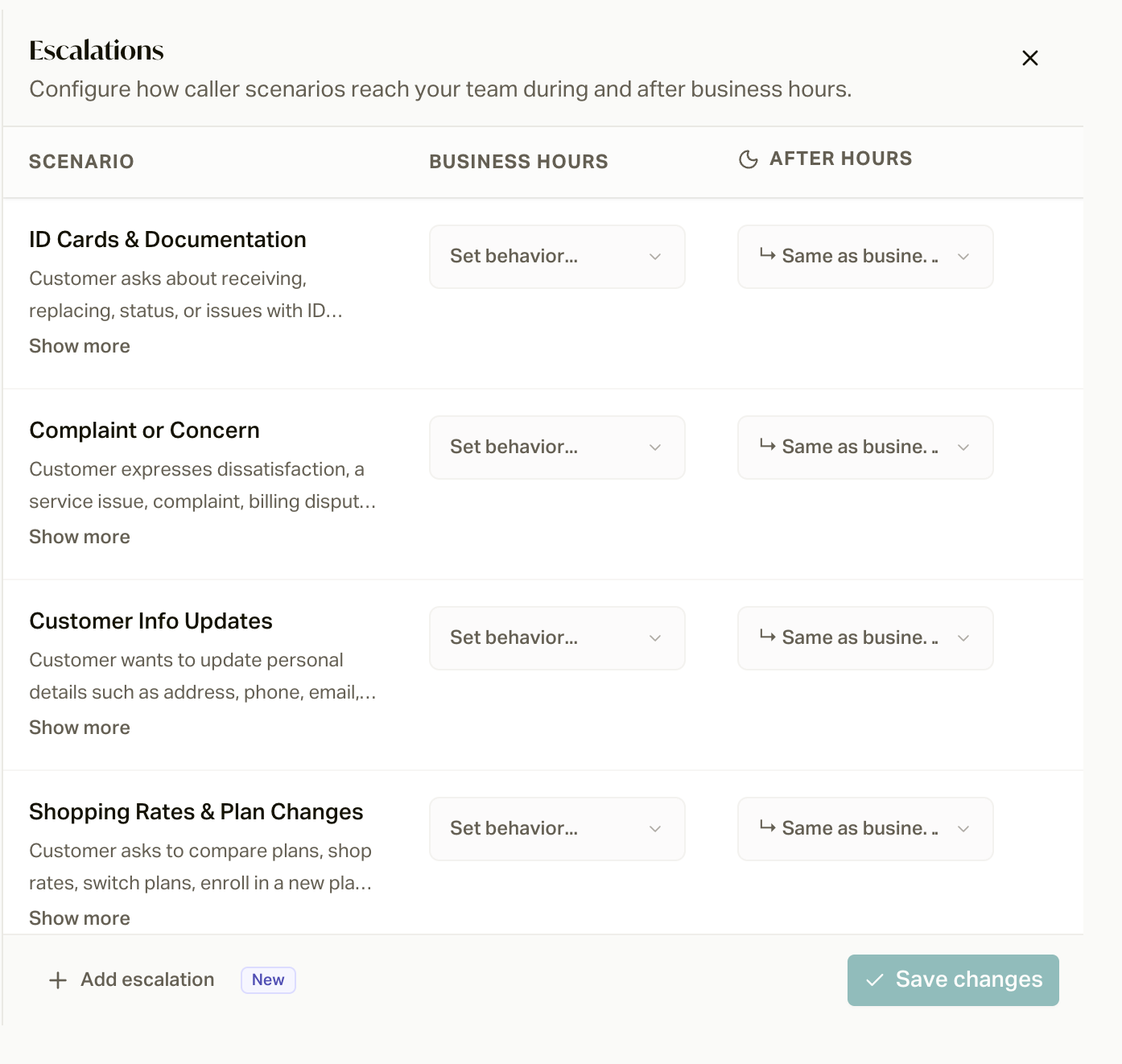 Three columns: **Scenario**, **Business Hours**, and **After Hours**. Each
scenario row is a member situation the AI recognizes; the two behavior columns
say what to do about it, by time of day.
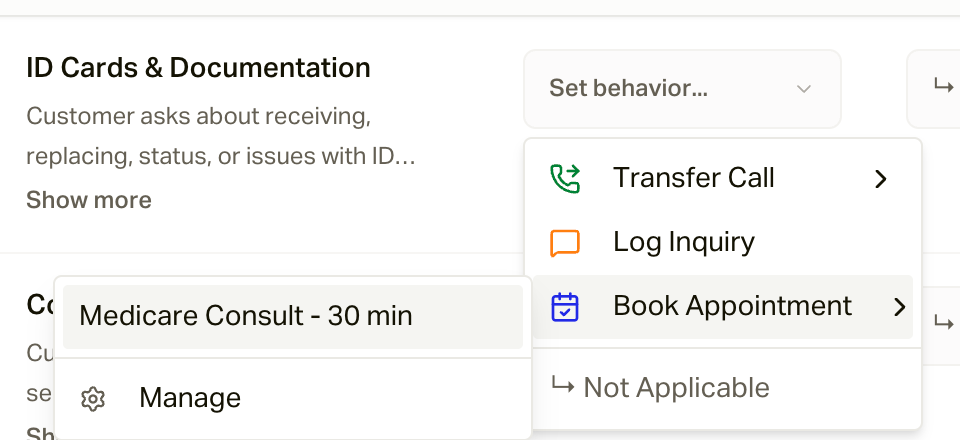
Click a behavior cell to choose:
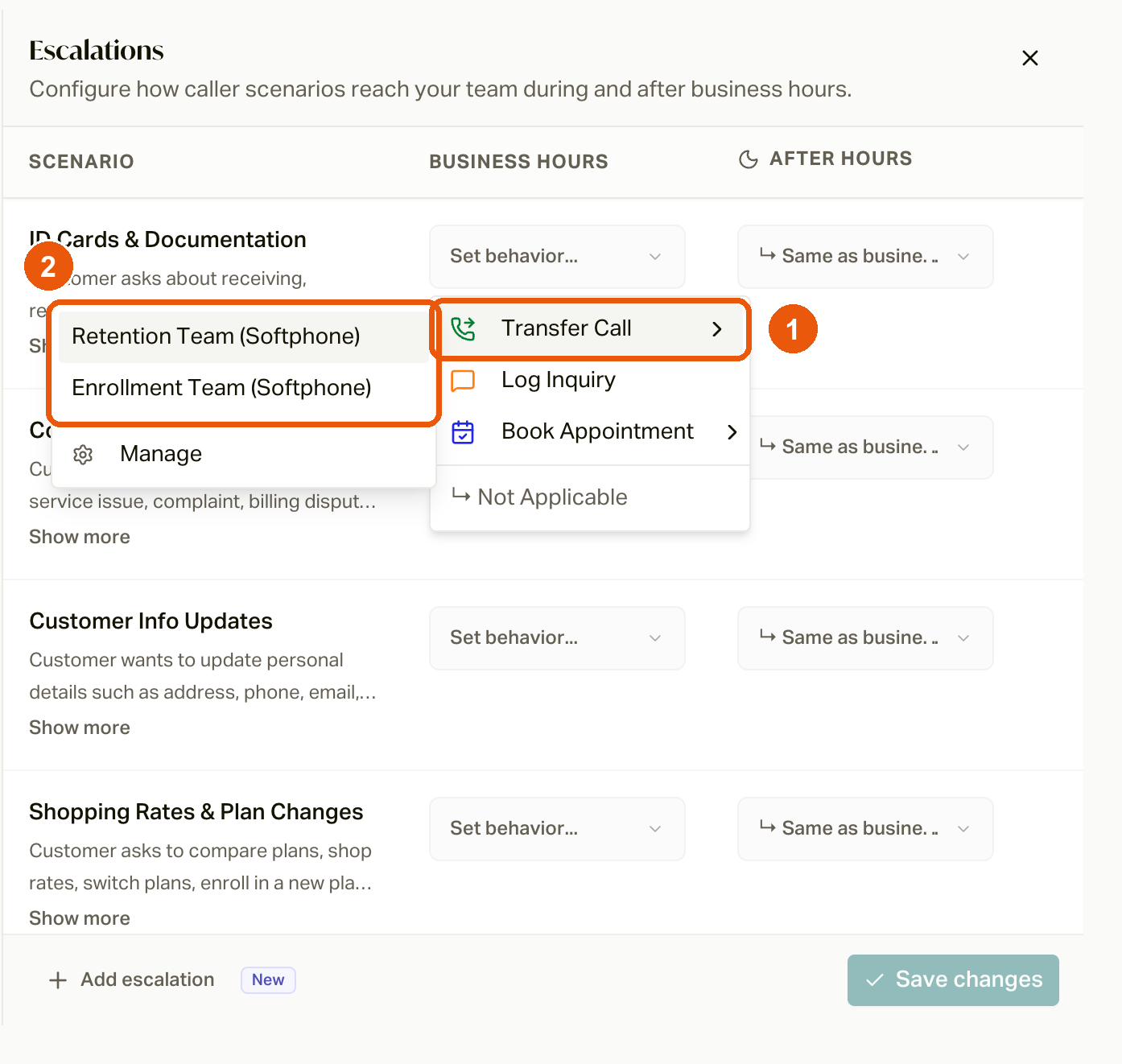
* **Transfer Call**: opens a submenu of your routing groups; pick where
this scenario routes. A **Manage** shortcut opens the destination editor
right there.
* **Book Appointment**: a submenu of your calendars, with the
same Manage shortcut.
* **Log Inquiry**: no configuration needed; the AI captures the question for
your team.
Three columns: **Scenario**, **Business Hours**, and **After Hours**. Each
scenario row is a member situation the AI recognizes; the two behavior columns
say what to do about it, by time of day.
Click a behavior cell to choose:
* **Transfer Call**: opens a submenu of your routing groups; pick where
this scenario routes. A **Manage** shortcut opens the destination editor
right there.
* **Book Appointment**: a submenu of your calendars, with the
same Manage shortcut.
* **Log Inquiry**: no configuration needed; the AI captures the question for
your team.
 Options gray out until something exists to point at (no destinations means no
Transfer Call), and some scenarios deliberately allow only certain behaviors.
Business Hours vs After Hours [#business-hours-vs-after-hours]
The After Hours column defaults to **Same as business hours**, with one
built-in rule: after-hours behaviors never offer Transfer Call, because there
is nobody to answer. So when a scenario transfers during the day, you choose
its overnight fallback explicitly, typically Log Inquiry or Book Appointment.
That is how "complaints reach a human at 2 PM and become a logged inquiry at
2 AM" is configured: one row, two columns.
Your [operating
hours](/docs/guides/answer-every-call/business-hours-and-holidays) are what
flip the switch between the two columns.
Scenarios [#scenarios]
Scenarios describe situations the employee should recognize. Use **Add
escalation** to select a shared scenario and configure its campaign action.
Review recognition wording and examples separately from the selected action and
target. Removing an assignment does not delete its shared scenario definition.
See the [scenario reference](/docs/guides/reference/default-dispositions-and-scenarios).
Changes in campaign Configuration join its header **Save** action. Independent
editors follow their own displayed save behavior. Shared scenario definitions,
routing groups, and calendars have separate ownership and can affect other
campaigns. After-hours assignments and disabled replacements should be reviewed
explicitly before applying.
If you're editing your AI in [Assembly](/docs/guides/campaign-toolkit/employees)
at the same time, apply any open proposals first: saving escalations marks
unapplied proposals as outdated.
Campaigns that use Transfer Call or Book Appointment can't be activated until
every one of those rows points at a destination or calendar.
Where Transfer Call behaviors point.
Where Book Appointment behaviors point.
Change what the AI says, test it, and coach it.
Behaviors in the setup flow, with recommended starting points.
Options gray out until something exists to point at (no destinations means no
Transfer Call), and some scenarios deliberately allow only certain behaviors.
Business Hours vs After Hours [#business-hours-vs-after-hours]
The After Hours column defaults to **Same as business hours**, with one
built-in rule: after-hours behaviors never offer Transfer Call, because there
is nobody to answer. So when a scenario transfers during the day, you choose
its overnight fallback explicitly, typically Log Inquiry or Book Appointment.
That is how "complaints reach a human at 2 PM and become a logged inquiry at
2 AM" is configured: one row, two columns.
Your [operating
hours](/docs/guides/answer-every-call/business-hours-and-holidays) are what
flip the switch between the two columns.
Scenarios [#scenarios]
Scenarios describe situations the employee should recognize. Use **Add
escalation** to select a shared scenario and configure its campaign action.
Review recognition wording and examples separately from the selected action and
target. Removing an assignment does not delete its shared scenario definition.
See the [scenario reference](/docs/guides/reference/default-dispositions-and-scenarios).
Changes in campaign Configuration join its header **Save** action. Independent
editors follow their own displayed save behavior. Shared scenario definitions,
routing groups, and calendars have separate ownership and can affect other
campaigns. After-hours assignments and disabled replacements should be reviewed
explicitly before applying.
If you're editing your AI in [Assembly](/docs/guides/campaign-toolkit/employees)
at the same time, apply any open proposals first: saving escalations marks
unapplied proposals as outdated.
Campaigns that use Transfer Call or Book Appointment can't be activated until
every one of those rows points at a destination or calendar.
Where Transfer Call behaviors point.
Where Book Appointment behaviors point.
Change what the AI says, test it, and coach it.
Behaviors in the setup flow, with recommended starting points.