# Handle Inquiries (/docs/guides/answer-every-call/handle-inquiries)
An inquiry is one of the escalations your AI can use on a call (the others
are transferring the call and booking an appointment). When a member asks
something that needs a real person, the AI logs it as an inquiry so your team
can follow up, without anyone having to be free right that second.
When you open an inquiry, you see the member's question right next to their
customer and policy info, so you've got everything you need to answer it.
When Inquiries Help [#when-inquiries-help]
Inquiries are great for:
* Questions that matter but aren't urgent
* Times your team isn't around for live transfers or appointments
* Quick questions that need a human to double-check (like whether a specific
doctor is in-network)
Where Inquiries Show Up [#where-inquiries-show-up]
AI-logged inquiries aren't assigned to a specific person. They land in two
places your whole team can see:
* **The Inbox.** A new or unresolved inquiry puts that customer in the
**Priority** lane. Once it's pending resolution or has an appointment
scheduled, they move to **In Progress**, and when everything's handled,
**Done**. See [Your Inbox](/docs/guides/agents/your-inbox).
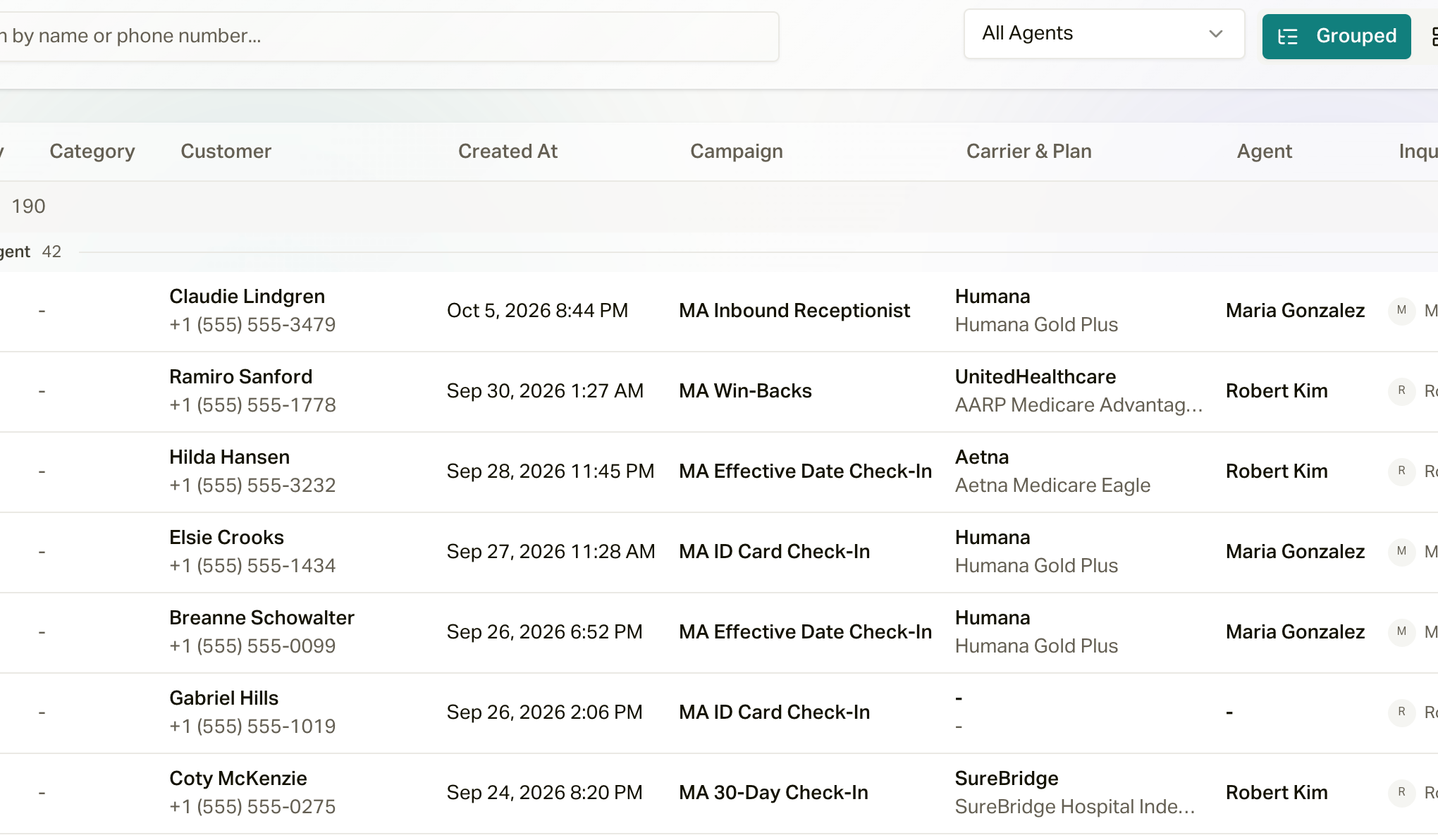
* **The Inquiries page.** Every inquiry in one list, with **Export** to pull
them into a CSV (if your role allows it).
 The customer's assigned agent also gets a **New Inquiry Raised** notification,
by email or in the app depending on their [notification
settings](/docs/guides/reference/organization-settings#notifications). That's
one more reason to set up [customer
assignments](/docs/guides/getting-set-up/assign-customers-to-agents).
Resolving an Inquiry [#resolving-an-inquiry]
Open the inquiry from the Inbox and you've got two ways to close it out:
Type your answer (or paraphrase it), and careCycle sends an AI employee to
call the member back and tell them. If they don't pick up, the callback
workflow handles retries and texts.
[Automate Inquiry Callbacks](/docs/guides/answer-every-call/automate-callbacks)
For trickier stuff where you'd rather talk to the member yourself, call
them right from the Inbox, then mark it resolved and jot down what you
told them. The call is recorded and transcribed, so you, your team, and
your AI employees can look back on it later.
Set Inquiry Priority [#set-inquiry-priority]
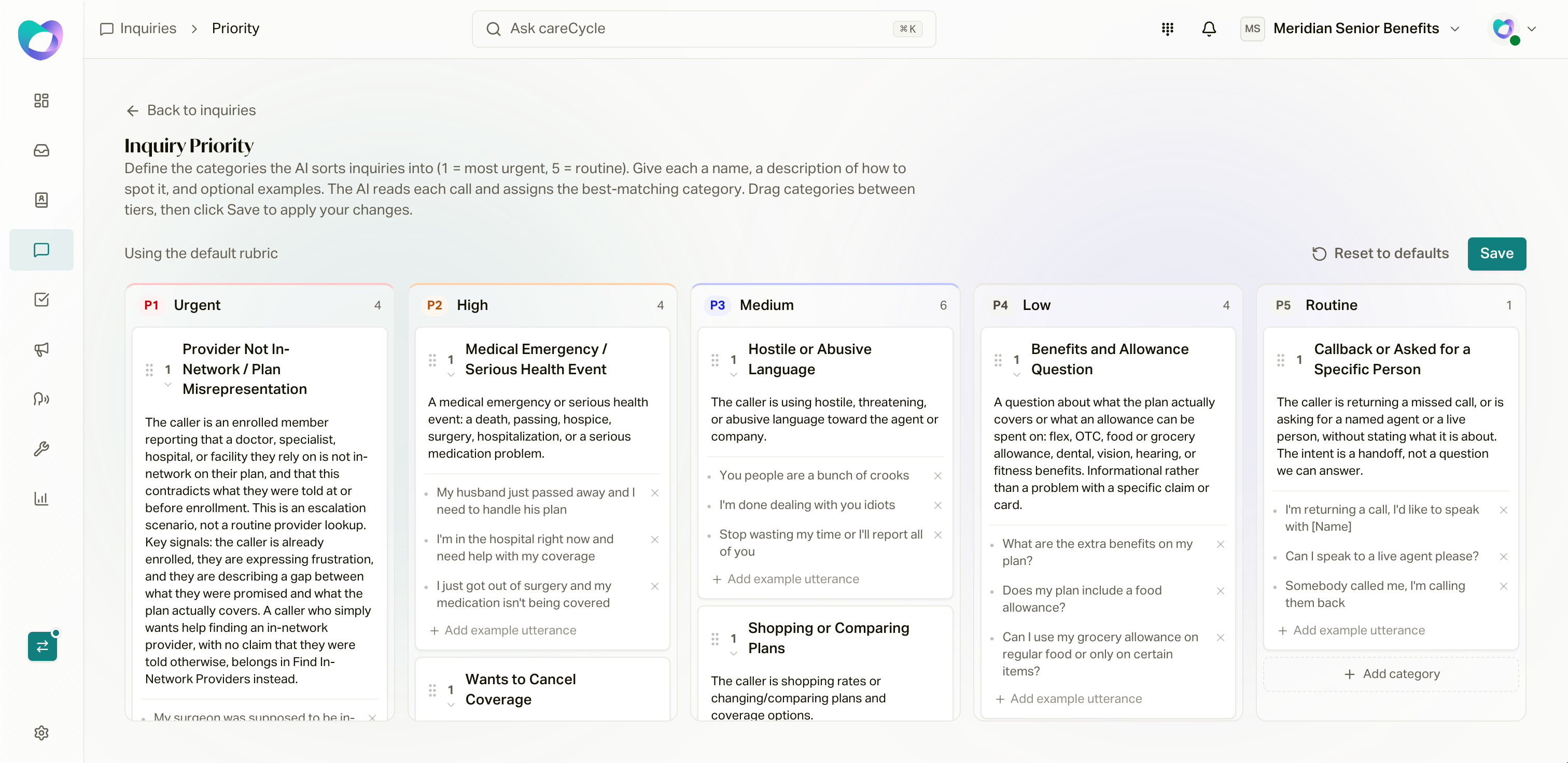
Not every inquiry is equally urgent, and you get to decide the ranking. On the
**Inquiries** page, click **Priority rules** to open **Inquiry Priority**. It's
a board with five tiers:
1. **Urgent**
2. **High**
3. **Medium**
4. **Low**
5. **Routine**
Each tier holds **categories**. A category has a name, a description of when
to use it (**Choose this category when...**), and optional example lines from
a member. After every call, the AI reads the inquiry and matches it to a
category, and that sets its priority.
careCycle comes with a default set. For example, a member who's upset or wants
to file a complaint lands in Urgent, someone who wants to cancel or has a
billing problem lands in High, and a general benefits question lands in Low.
To make it yours:
* **Drag** categories between tiers (or use the arrows to move one up or down
inside a tier).
* Click **Add category** to add your own.
* Click **Save**. Nothing changes until you do.
The top of the page tells you whether you're **Using your custom rubric** or
**Using the default rubric**. **Reset to defaults** clears your changes and
puts you back on ours, which keeps getting better over time.
The customer's assigned agent also gets a **New Inquiry Raised** notification,
by email or in the app depending on their [notification
settings](/docs/guides/reference/organization-settings#notifications). That's
one more reason to set up [customer
assignments](/docs/guides/getting-set-up/assign-customers-to-agents).
Resolving an Inquiry [#resolving-an-inquiry]
Open the inquiry from the Inbox and you've got two ways to close it out:
Type your answer (or paraphrase it), and careCycle sends an AI employee to
call the member back and tell them. If they don't pick up, the callback
workflow handles retries and texts.
[Automate Inquiry Callbacks](/docs/guides/answer-every-call/automate-callbacks)
For trickier stuff where you'd rather talk to the member yourself, call
them right from the Inbox, then mark it resolved and jot down what you
told them. The call is recorded and transcribed, so you, your team, and
your AI employees can look back on it later.
Set Inquiry Priority [#set-inquiry-priority]
Not every inquiry is equally urgent, and you get to decide the ranking. On the
**Inquiries** page, click **Priority rules** to open **Inquiry Priority**. It's
a board with five tiers:
1. **Urgent**
2. **High**
3. **Medium**
4. **Low**
5. **Routine**
Each tier holds **categories**. A category has a name, a description of when
to use it (**Choose this category when...**), and optional example lines from
a member. After every call, the AI reads the inquiry and matches it to a
category, and that sets its priority.
careCycle comes with a default set. For example, a member who's upset or wants
to file a complaint lands in Urgent, someone who wants to cancel or has a
billing problem lands in High, and a general benefits question lands in Low.
To make it yours:
* **Drag** categories between tiers (or use the arrows to move one up or down
inside a tier).
* Click **Add category** to add your own.
* Click **Save**. Nothing changes until you do.
The top of the page tells you whether you're **Using your custom rubric** or
**Using the default rubric**. **Reset to defaults** clears your changes and
puts you back on ours, which keeps getting better over time.
 Choosing What Becomes an Inquiry [#choosing-what-becomes-an-inquiry]
Which situations the AI logs as inquiries (instead of transferring or
booking) is set in your escalations:
* **For a campaign:** open the campaign's **Assembly** tab and click
**Escalations**. See [Escalations](/docs/guides/campaign-toolkit/assistant-behaviors).
* **For your Receptionist:** on the **Receptionist** page. See [Configure Your
Receptionist](/docs/guides/getting-set-up/configure-your-receptionist).
Log Inquiry doesn't need anything else set up, so it's a safe default for any
situation you're not ready to transfer or book yet.
Set up how the AI calls members back with your answer.
Decide what the AI does in each situation.
How inquiries, tasks, and texts reach your team.
Choosing What Becomes an Inquiry [#choosing-what-becomes-an-inquiry]
Which situations the AI logs as inquiries (instead of transferring or
booking) is set in your escalations:
* **For a campaign:** open the campaign's **Assembly** tab and click
**Escalations**. See [Escalations](/docs/guides/campaign-toolkit/assistant-behaviors).
* **For your Receptionist:** on the **Receptionist** page. See [Configure Your
Receptionist](/docs/guides/getting-set-up/configure-your-receptionist).
Log Inquiry doesn't need anything else set up, so it's a safe default for any
situation you're not ready to transfer or book yet.
Set up how the AI calls members back with your answer.
Decide what the AI does in each situation.
How inquiries, tasks, and texts reach your team.