# Working a Call (/docs/guides/agents/working-a-call)
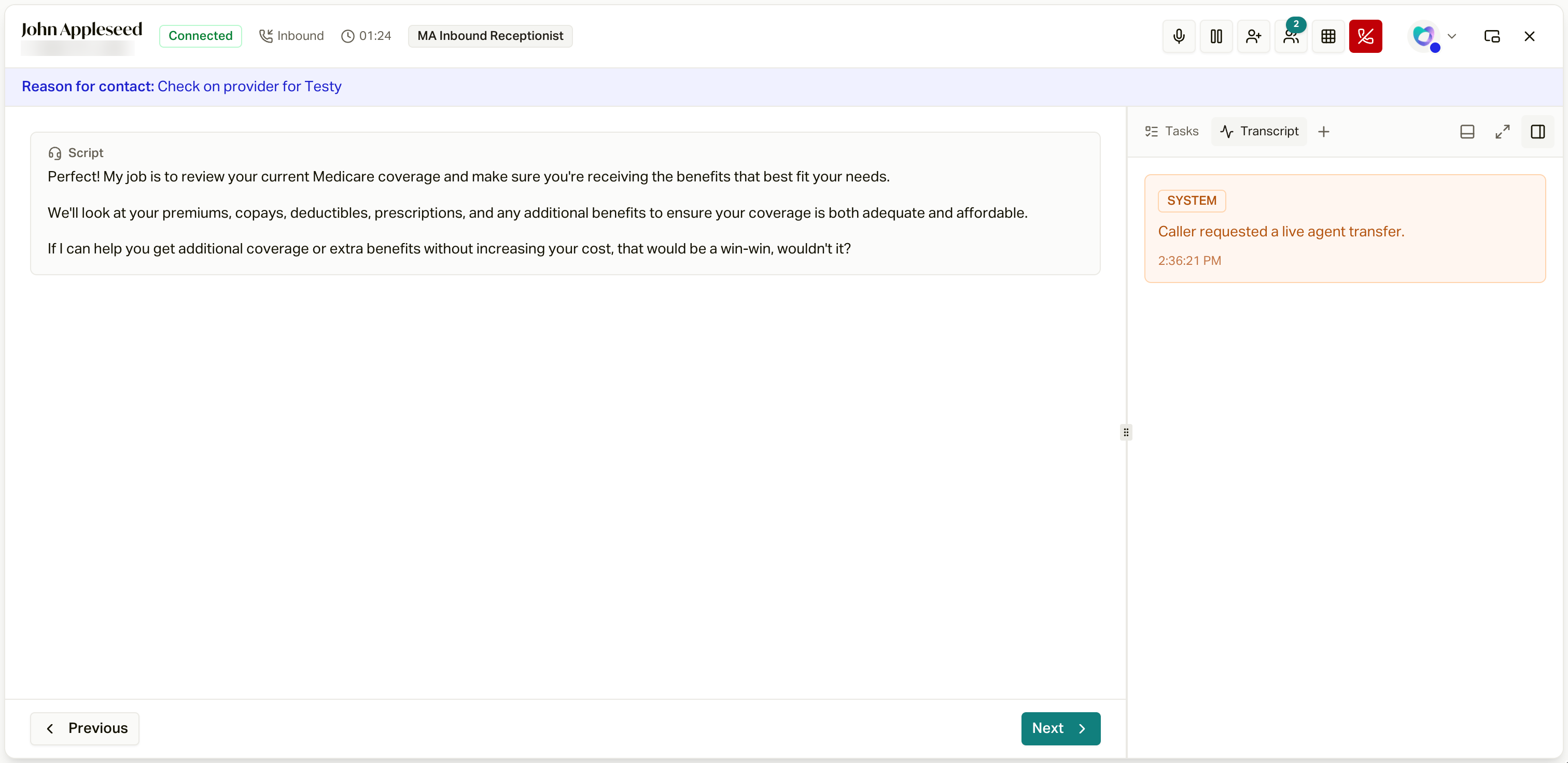
When a call connects, careCycle opens the call workspace: the script and form
for this call in the center, with everything else you might need one keystroke
away.
 The Header [#the-header]
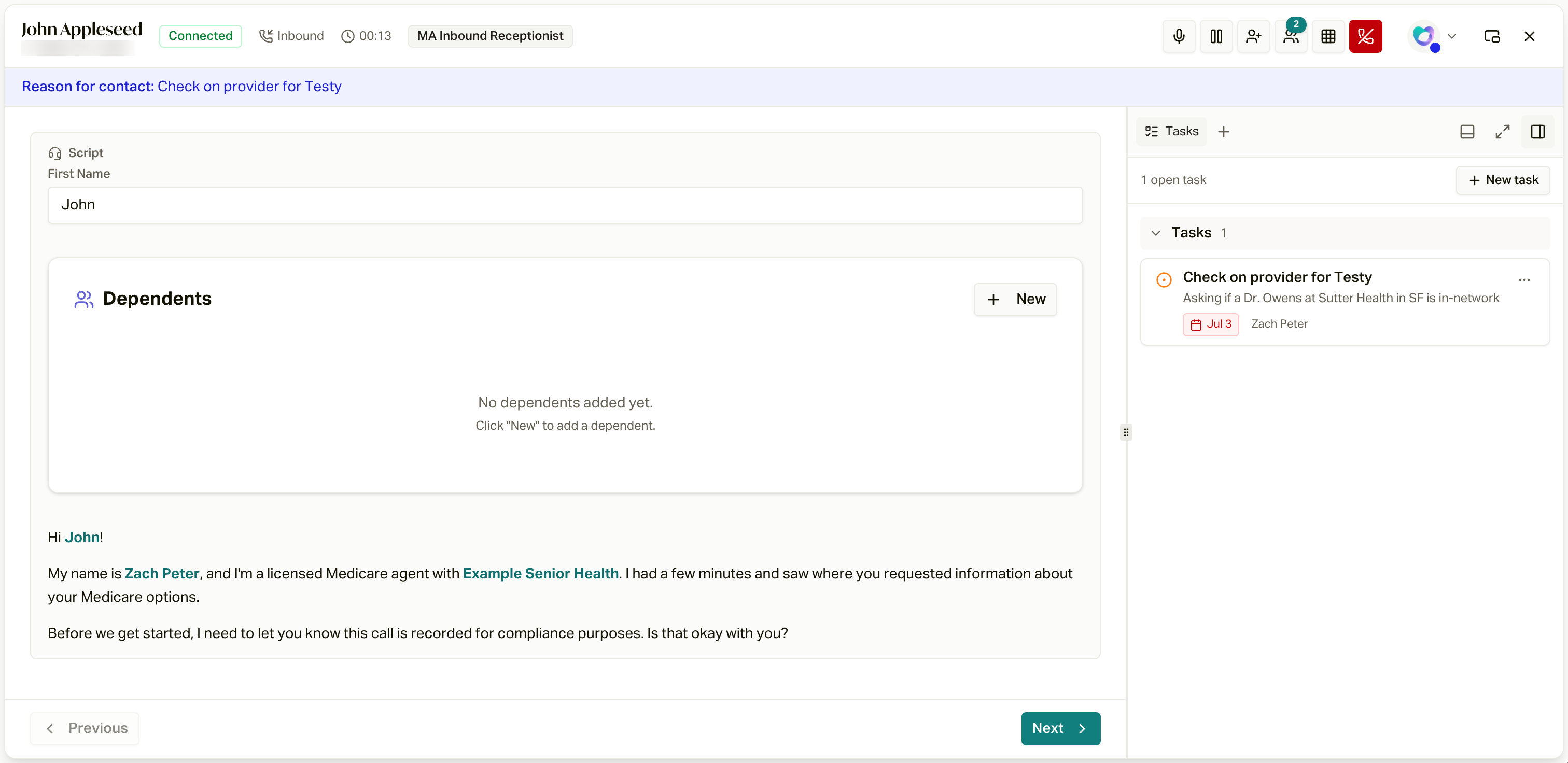
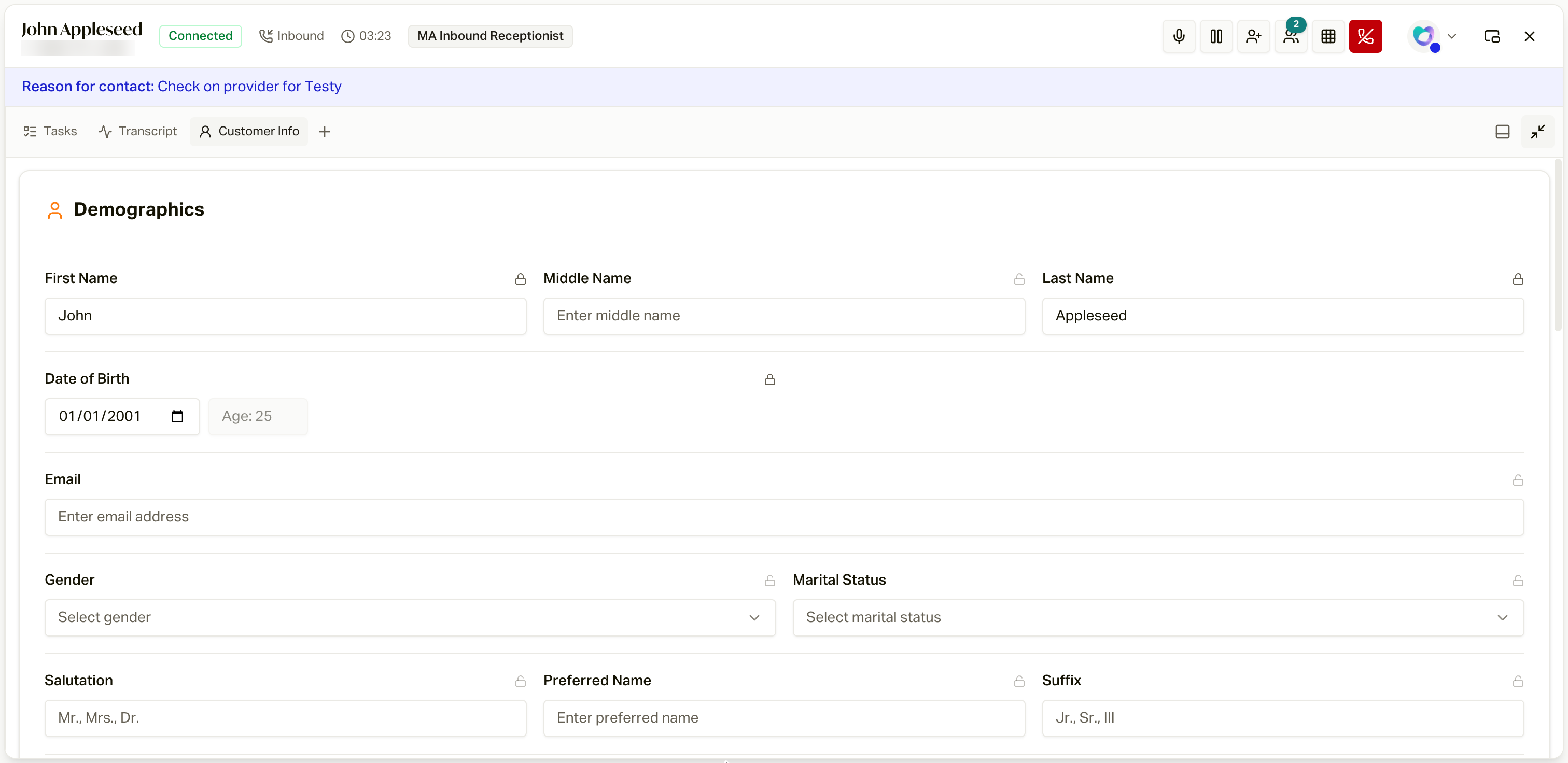
The top of the workspace shows who you are talking to, the connection status,
and a running call timer, alongside your call controls:
The Header [#the-header]
The top of the workspace shows who you are talking to, the connection status,
and a running call timer, alongside your call controls:
 From left to right:
* **Mute / Unmute**
* **Hold / Resume** (not available during a private transfer consult)
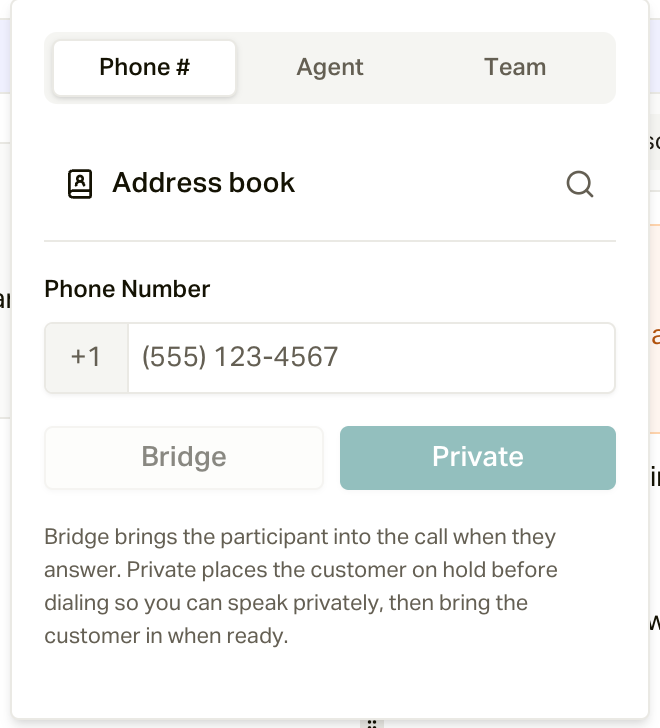
* **Add someone to this call**: a phone number (with your address book of
carriers and Medicaid lines), another agent, or a team. Pick **Bridge** to
bring them straight in, or **Private** to put the customer on hold, talk
first, then bring the customer in.
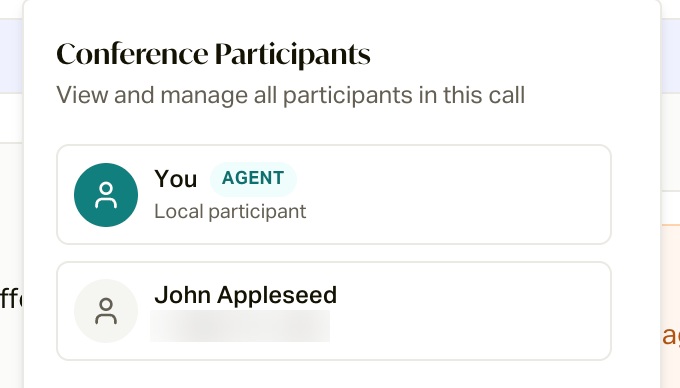
* **Participants**: everyone on the call right now.
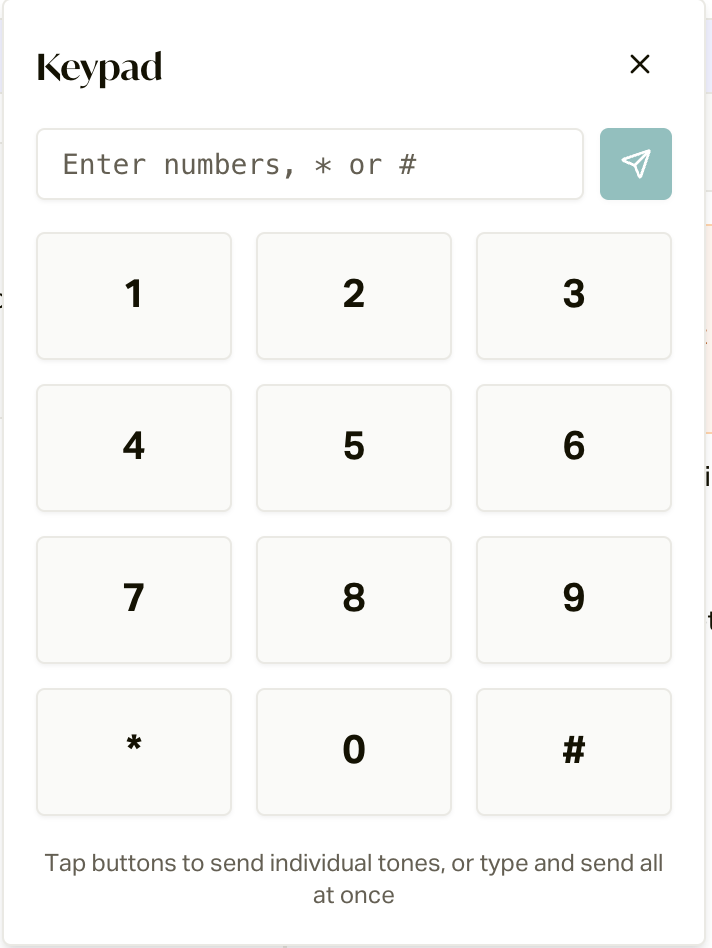
* **Keypad**, for IVR menus. Tap keys one at a time, or type a string and
send it all at once.
* **Hang up** (if you started a private transfer, bring the customer back in
or cancel the transfer first)
Next to your avatar, **Pop out script** opens the script in its own small
floating window and takes you back to the app, so you can keep reading while
you look something up. The **X** in the corner does not end the call either:
it returns you to the app with the call still connected.
If the call came from a member with an open task, a **Reason for contact**
banner under the header tells you why before you say a word.
From left to right:
* **Mute / Unmute**
* **Hold / Resume** (not available during a private transfer consult)
* **Add someone to this call**: a phone number (with your address book of
carriers and Medicaid lines), another agent, or a team. Pick **Bridge** to
bring them straight in, or **Private** to put the customer on hold, talk
first, then bring the customer in.
* **Participants**: everyone on the call right now.
* **Keypad**, for IVR menus. Tap keys one at a time, or type a string and
send it all at once.
* **Hang up** (if you started a private transfer, bring the customer back in
or cancel the transfer first)
Next to your avatar, **Pop out script** opens the script in its own small
floating window and takes you back to the app, so you can keep reading while
you look something up. The **X** in the corner does not end the call either:
it returns you to the app with the call still connected.
If the call came from a member with an open task, a **Reason for contact**
banner under the header tells you why before you say a word.
 The Script [#the-script]
If a script is assigned to this call, it renders in the center, one section
at a time with **Previous** and **Next**:
* **Script cards** (marked with a headset icon) are what you say, with the
member's details already filled into the wording.
* **Fields** are what you capture. Required fields are marked, and Next will
not advance until they are filled. Everything you type saves to the
customer's record continuously; there is no submit button to forget.
* **Smart blocks** handle the structured stuff: address lookup with
autocomplete, prescriptions, provider search by name or NPI, dependents, and
policies.
While you talk, the AI listens to the transcript and fills fields for you; a
small "Updating script from the conversation..." pill appears when it
does. It only ever fills empty fields: anything the record already knew, or
anything you typed yourself, is locked against AI changes.
Some forms branch: answers in one section decide which section comes next, so
just keep following Next.
The Script [#the-script]
If a script is assigned to this call, it renders in the center, one section
at a time with **Previous** and **Next**:
* **Script cards** (marked with a headset icon) are what you say, with the
member's details already filled into the wording.
* **Fields** are what you capture. Required fields are marked, and Next will
not advance until they are filled. Everything you type saves to the
customer's record continuously; there is no submit button to forget.
* **Smart blocks** handle the structured stuff: address lookup with
autocomplete, prescriptions, provider search by name or NPI, dependents, and
policies.
While you talk, the AI listens to the transcript and fills fields for you; a
small "Updating script from the conversation..." pill appears when it
does. It only ever fills empty fields: anything the record already knew, or
anything you typed yourself, is locked against AI changes.
Some forms branch: answers in one section decide which section comes next, so
just keep following Next.
 The Panels [#the-panels]
Everything else about the member lives in panels. Click **+** to add one:
The Panels [#the-panels]
Everything else about the member lives in panels. Click **+** to add one:
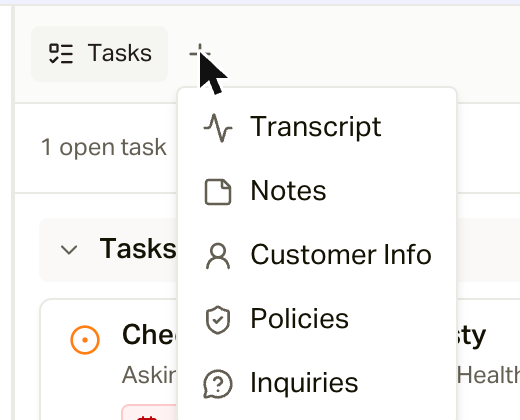 There are six, and each has a keyboard shortcut (Option on a Mac, Alt on
Windows):
| Shortcut | Panel | What's in it |
| -------- | ----------------- | ---------------------------------------------------------------------------------------- |
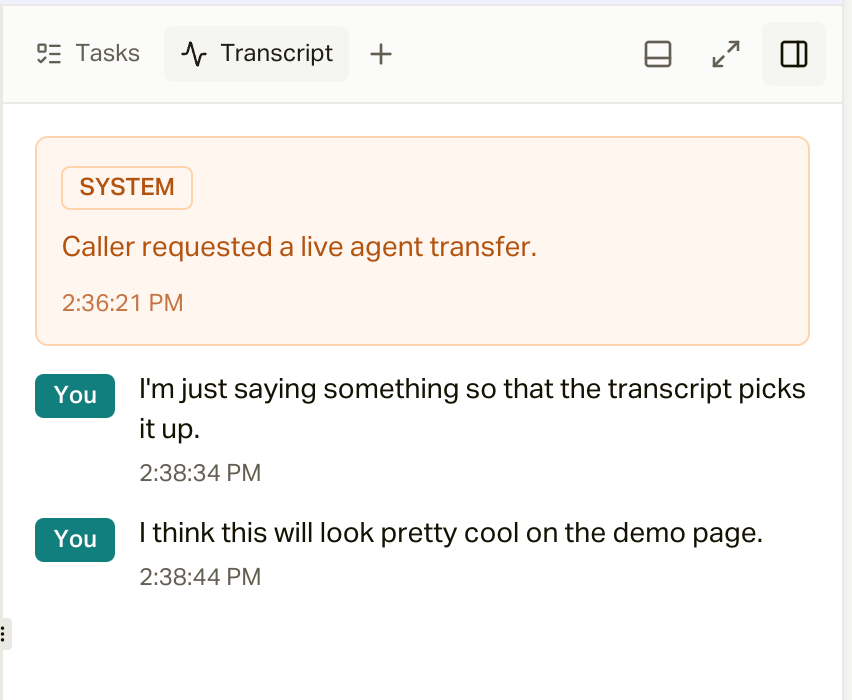
| ⌥1 | **Transcript** | The live conversation, with your lines marked "You" and the AI's handoff note at the top |
| ⌥2 | **Notes** | Call notes. They save to the customer's Inbox thread so the whole team sees them |
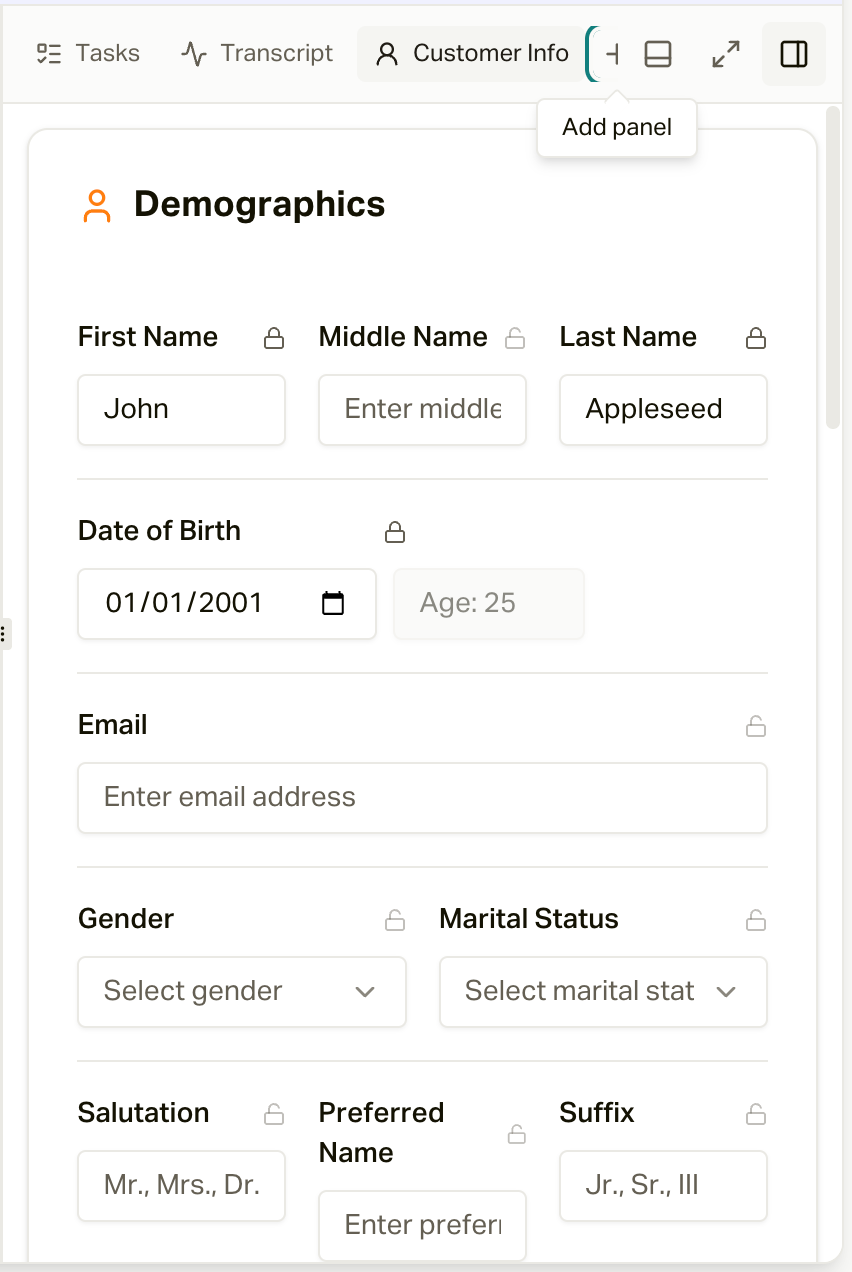
| ⌥3 | **Customer Info** | The editable demographics, address, financial, and dependents cards |
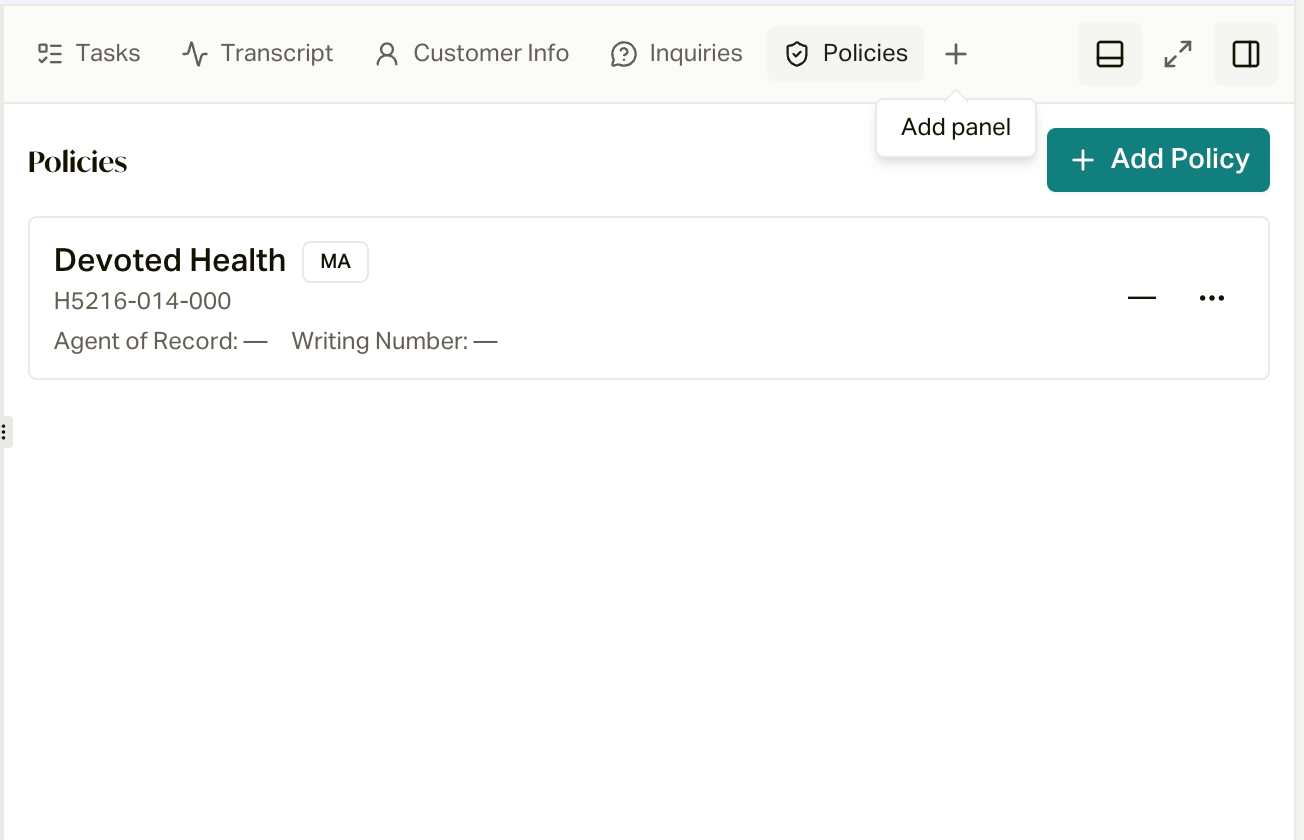
| ⌥4 | **Policies** | The member's policies, with **Add Policy** |
| ⌥5 | **Tasks** | Open tasks for this member, with **New task** |
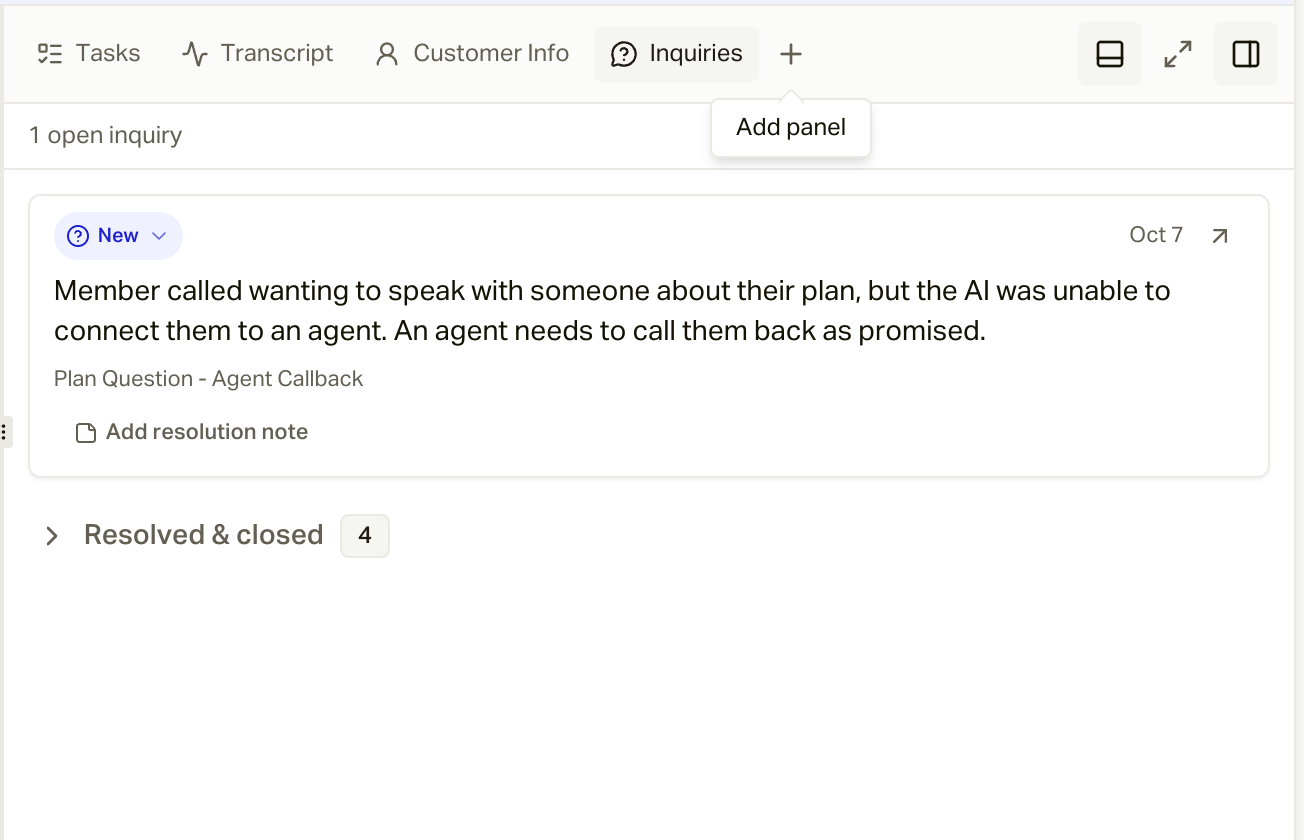
| ⌥6 | **Inquiries** | Open and resolved inquiries, with a spot to add a resolution note |
Press a shortcut to open a closed panel (it opens focused). If the panel is
already open but not focused, the shortcut jumps to it. If it's focused, the
shortcut closes it.
There are six, and each has a keyboard shortcut (Option on a Mac, Alt on
Windows):
| Shortcut | Panel | What's in it |
| -------- | ----------------- | ---------------------------------------------------------------------------------------- |
| ⌥1 | **Transcript** | The live conversation, with your lines marked "You" and the AI's handoff note at the top |
| ⌥2 | **Notes** | Call notes. They save to the customer's Inbox thread so the whole team sees them |
| ⌥3 | **Customer Info** | The editable demographics, address, financial, and dependents cards |
| ⌥4 | **Policies** | The member's policies, with **Add Policy** |
| ⌥5 | **Tasks** | Open tasks for this member, with **New task** |
| ⌥6 | **Inquiries** | Open and resolved inquiries, with a spot to add a resolution note |
Press a shortcut to open a closed panel (it opens focused). If the panel is
already open but not focused, the shortcut jumps to it. If it's focused, the
shortcut closes it.
 Arrange it your way [#arrange-it-your-way]
Set the workspace up however you like to work. careCycle remembers your
layout and sizes for the next call.
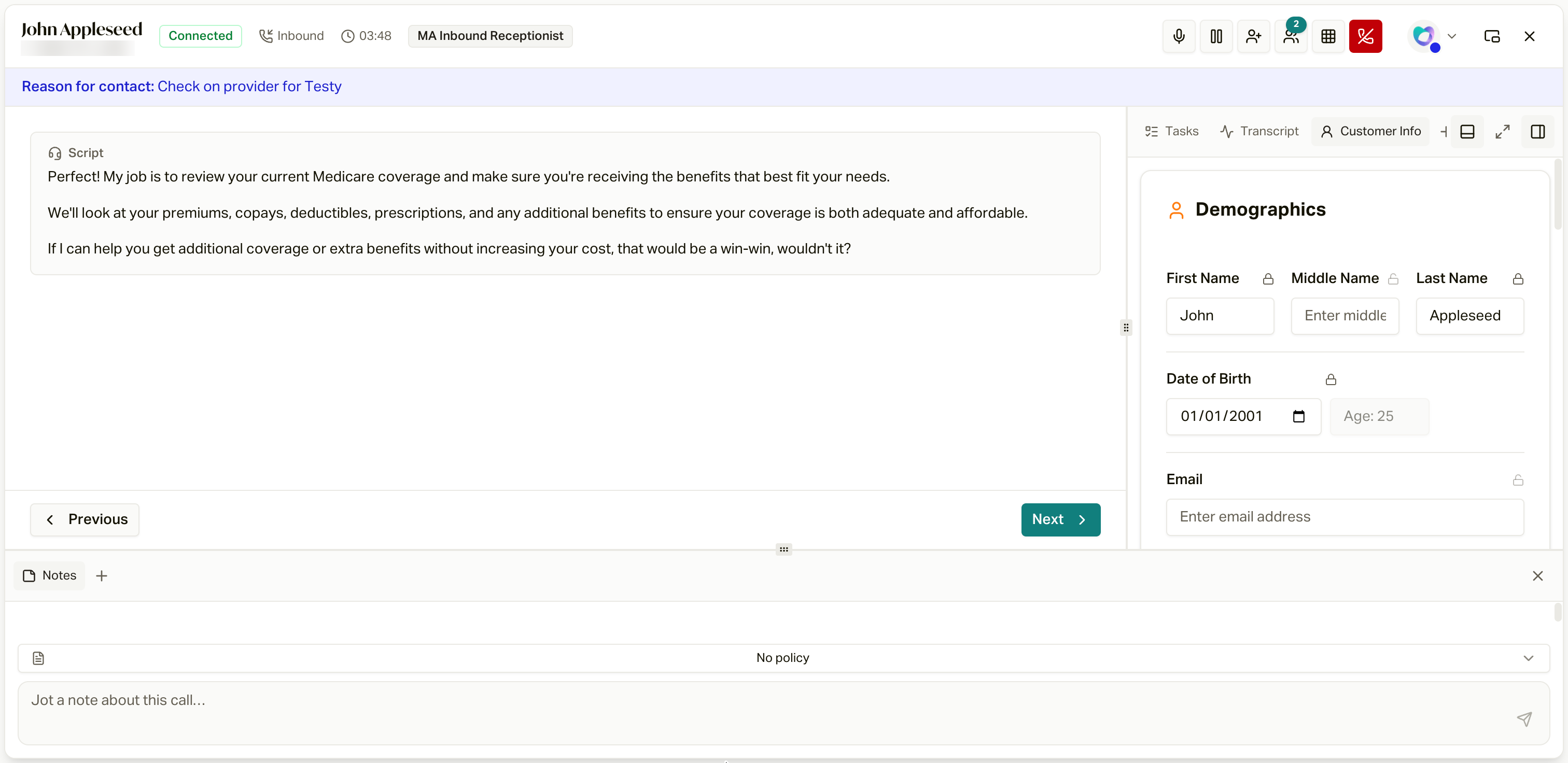
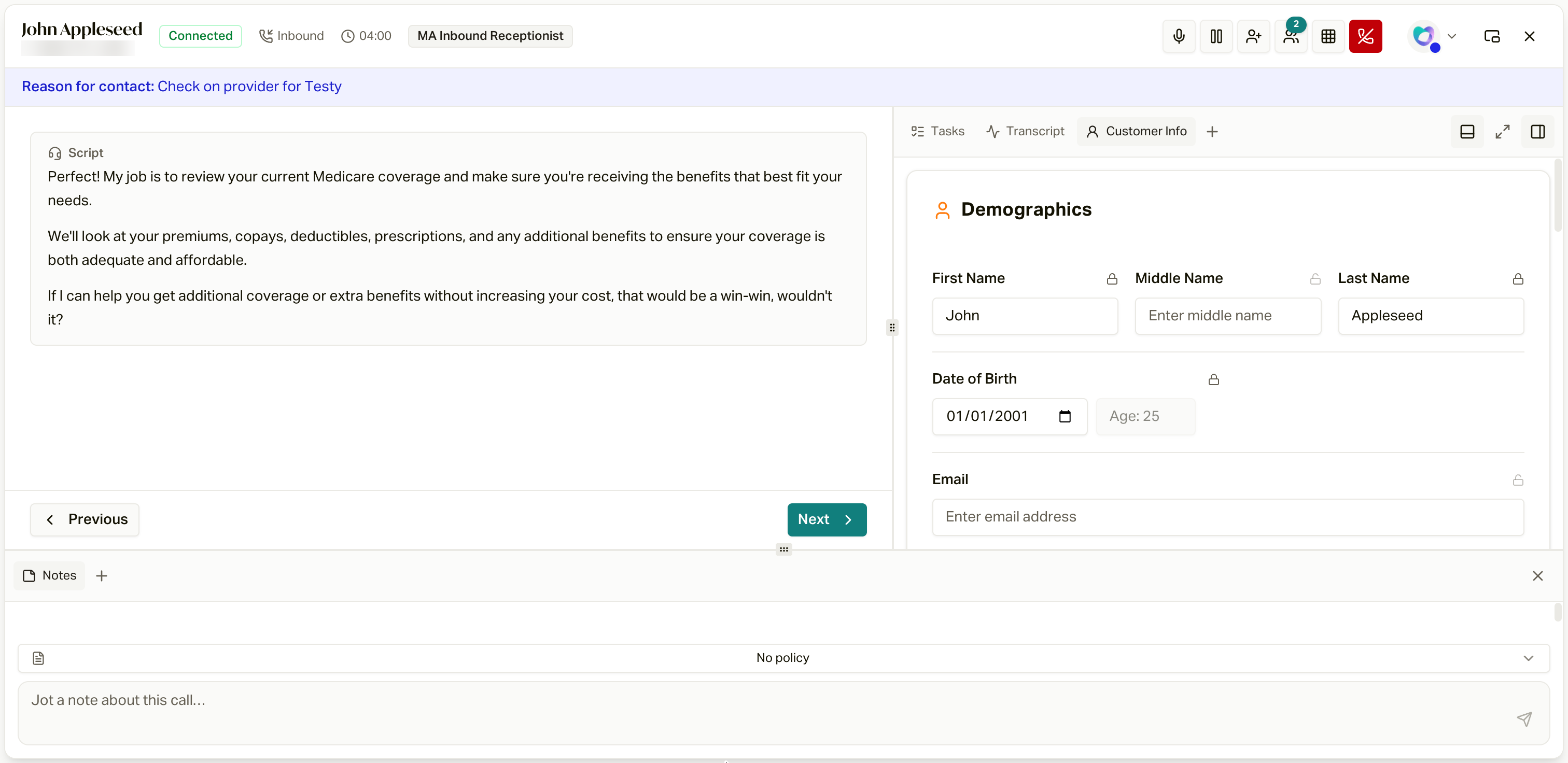
* **Resize**: drag the handle between the form and the panels to make either
side wider.
* **Dock at the bottom**: click the bottom-panel icon in the panel bar to open
a full-width area under the form, then add a panel there (or drag a tab
down into it). Notes works great down there.
* **Rearrange**: drag panel tabs to reorder them, move them between the side
and the bottom, or stack two in the sidebar.
* **Expand**: the expand icon makes the panel area take over the workspace.
Click it again to shrink it back.
Arrange it your way [#arrange-it-your-way]
Set the workspace up however you like to work. careCycle remembers your
layout and sizes for the next call.
* **Resize**: drag the handle between the form and the panels to make either
side wider.
* **Dock at the bottom**: click the bottom-panel icon in the panel bar to open
a full-width area under the form, then add a panel there (or drag a tab
down into it). Notes works great down there.
* **Rearrange**: drag panel tabs to reorder them, move them between the side
and the bottom, or stack two in the sidebar.
* **Expand**: the expand icon makes the panel area take over the workspace.
Click it again to shrink it back.
 When the call ends, the [wrap-up
banner](/docs/guides/agents/wrap-up-and-dispositions) takes over.
Closing out the call you just finished.
For managers: how these forms are built.
When the call ends, the [wrap-up
banner](/docs/guides/agents/wrap-up-and-dispositions) takes over.
Closing out the call you just finished.
For managers: how these forms are built.