# Making and Taking Calls (/docs/guides/agents/making-and-taking-calls)
Your softphone lives in the top bar, so you can make and take calls from any
page in careCycle.
Your Availability [#your-availability]
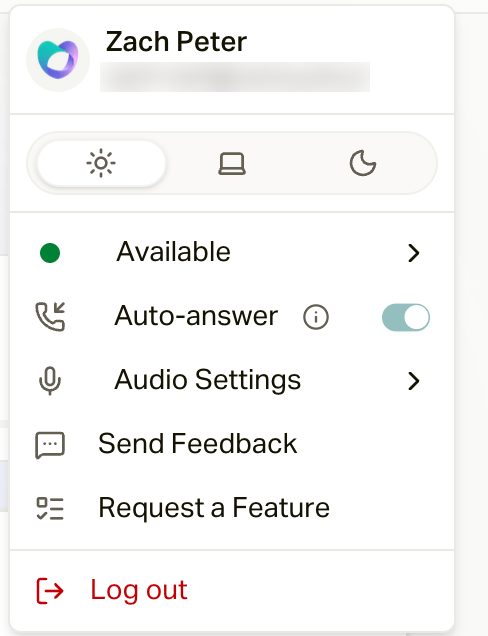
Your presence controls whether campaigns and transfers can ring you. Set it
from your avatar menu (top right) under **Connection status**:
* **Available** (green): you can receive calls.
* **Busy** (amber): temporarily off the phones. Your organization may provide
named reasons such as Break, Lunch, Meeting, or Coaching. A timed reason
returns you to Available automatically; a reason without a timer remains
active until you or a supervisor changes it. Organizations that have not
configured reasons use the standard duration choices.
* **On Call** and **Wrap Up** are set for you automatically during and after
calls.
The same menu has an **Auto Answer** toggle that picks up incoming calls for
you; your avatar shows a small phone badge while it is on. Your organization
may enforce Auto Answer, in which case you cannot disable it. See [Agent
Availability and Auto-Answer](/docs/guides/run-your-team/agent-availability-and-auto-answer)
for timer safety and recommended configurations.
 The **call sources pill** next to your avatar shows where your calls come
from: "On air - N" when campaigns can ring you, with a popover listing each
campaign as Live, Paused, or Off air. While you are on a call, wrapping up, or
busy, sources pause automatically and resume the moment you are available.
The colored dot on the platform status badge (far left of that cluster) is
careCycle's system status. Your presence is the dot on
your avatar.
Dialing Out [#dialing-out]
Click the keypad icon (**Dial a number**) in the top bar. Type or click a
10-digit number and press the green call button, or press Enter. The dial pad
also has an **address book** for carrier and Medicaid lines, so calling a
carrier on a member's behalf never means hunting for the number.
You can also call directly from a conversation with the phone button in the
Inbox thread header. One call at a time: if you are already on a call, the
dialer reminds you to finish it first.
Every call you make by hand shows your agency's main number. There's no
personal number per agent, and that's on purpose: members recognize one
number, and when they call it back, careCycle routes them to the right place.
See [Which Number Your Calls Come
From](/docs/guides/phone-numbers/which-number-your-calls-come-from).
Answering Incoming Calls [#answering-incoming-calls]
When a call comes in, a card appears with the caller's name and number, and
the campaign or routing group associated with the call:
* **Regular inbound**: **Answer** or **Decline**.
* **Warm transfer** (Cora or a campaign is handing you a caller): **Claim** or
**Pass**. After claiming, you may see a **Warm Transfer Summary** of the
conversation so far; press **Start Call** when you are ready, or Pass it
back.
* **Transfer from a teammate**: the card names the agent and shows their
transfer note, plus whether it is a private consult or a bridge.
Only eligible Available agents enter the routing sequence, and careCycle rings
them one at a time. The destination can allow 5 to 30 seconds for each agent
and 10 to 120 seconds for the overall sequence. The overall timer can end the
sequence before every eligible agent is tried. With Auto Answer, the timers are
normally invisible because an available agent accepts immediately. They remain
active as failure protection if the browser is disconnected or Auto Answer
cannot complete. Otherwise, the countdown bar shows the time to accept, claim,
or connect. If it runs out, the call passes to the next eligible agent or
proceeds to fallback.
Campaign administrators can review the complete routing behavior in
[Agent Queue Operations](/docs/guides/run-your-team/agent-queue-campaigns)
and [Routing](/docs/guides/campaign-toolkit/routing).
The **call sources pill** next to your avatar shows where your calls come
from: "On air - N" when campaigns can ring you, with a popover listing each
campaign as Live, Paused, or Off air. While you are on a call, wrapping up, or
busy, sources pause automatically and resume the moment you are available.
The colored dot on the platform status badge (far left of that cluster) is
careCycle's system status. Your presence is the dot on
your avatar.
Dialing Out [#dialing-out]
Click the keypad icon (**Dial a number**) in the top bar. Type or click a
10-digit number and press the green call button, or press Enter. The dial pad
also has an **address book** for carrier and Medicaid lines, so calling a
carrier on a member's behalf never means hunting for the number.
You can also call directly from a conversation with the phone button in the
Inbox thread header. One call at a time: if you are already on a call, the
dialer reminds you to finish it first.
Every call you make by hand shows your agency's main number. There's no
personal number per agent, and that's on purpose: members recognize one
number, and when they call it back, careCycle routes them to the right place.
See [Which Number Your Calls Come
From](/docs/guides/phone-numbers/which-number-your-calls-come-from).
Answering Incoming Calls [#answering-incoming-calls]
When a call comes in, a card appears with the caller's name and number, and
the campaign or routing group associated with the call:
* **Regular inbound**: **Answer** or **Decline**.
* **Warm transfer** (Cora or a campaign is handing you a caller): **Claim** or
**Pass**. After claiming, you may see a **Warm Transfer Summary** of the
conversation so far; press **Start Call** when you are ready, or Pass it
back.
* **Transfer from a teammate**: the card names the agent and shows their
transfer note, plus whether it is a private consult or a bridge.
Only eligible Available agents enter the routing sequence, and careCycle rings
them one at a time. The destination can allow 5 to 30 seconds for each agent
and 10 to 120 seconds for the overall sequence. The overall timer can end the
sequence before every eligible agent is tried. With Auto Answer, the timers are
normally invisible because an available agent accepts immediately. They remain
active as failure protection if the browser is disconnected or Auto Answer
cannot complete. Otherwise, the countdown bar shows the time to accept, claim,
or connect. If it runs out, the call passes to the next eligible agent or
proceeds to fallback.
Campaign administrators can review the complete routing behavior in
[Agent Queue Operations](/docs/guides/run-your-team/agent-queue-campaigns)
and [Routing](/docs/guides/campaign-toolkit/routing).
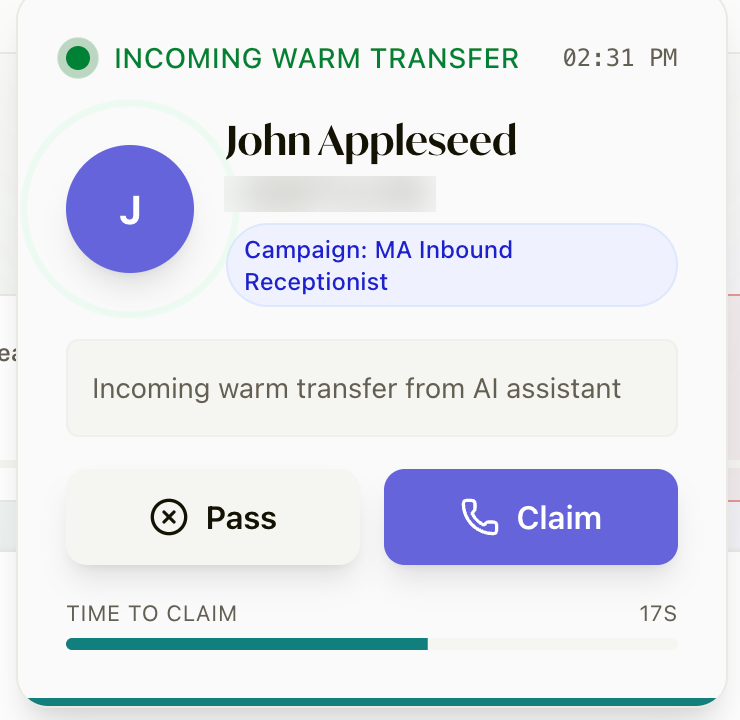 Claim it before the **Time to claim** bar runs out, or it passes to the next
agent (or to the destination's fallback). If the destination is set to **Wait
for operator**, claiming shows you the **Warm Transfer Summary** (what the
caller needs, written by the AI) with a **Start Call** button and a **Connect
within** timer. Read it, then press Start Call to talk to the caller.
Auto Answer accepts warm transfers for you. You skip the card and the summary
screen and land straight in the call workspace, already connected. The
handoff summary is still at the top of your transcript.
Answering drops you into the [call workspace](/docs/guides/agents/working-a-call).
The workspace you land in when the call connects.
Call the customer straight from their conversation.
Claim it before the **Time to claim** bar runs out, or it passes to the next
agent (or to the destination's fallback). If the destination is set to **Wait
for operator**, claiming shows you the **Warm Transfer Summary** (what the
caller needs, written by the AI) with a **Start Call** button and a **Connect
within** timer. Read it, then press Start Call to talk to the caller.
Auto Answer accepts warm transfers for you. You skip the card and the summary
screen and land straight in the call workspace, already connected. The
handoff summary is still at the top of your transcript.
Answering drops you into the [call workspace](/docs/guides/agents/working-a-call).
The workspace you land in when the call connects.
Call the customer straight from their conversation.