# AEP Renewals 2027 (/docs/guides/aep-2027)
It's that time of year when plans drop, things get crazy, and you're left
trying to make sense of it all. This year, careCycle is here to help you book
those appointments and get in front of the people who need you most.
Here's the idea. We check your whole Medicare book against next year's plans
(that's the [Plan Crosswalk](/docs/guides/aep-2027/plan-crosswalk)).
Then the **AEP Renewals 2027** campaign calls your members, tells each one
what's actually changing with *their* plan, and gets them on the phone with
your team or on your calendar.
TL;DR [#tldr]
1. **[Request your crosswalk](#request-your-crosswalk)** from the **Plan
Crosswalk** tab on the Policies page. We'll reach out to get you set up.
2. **[Wait for "Your crosswalk is in"](#look-over-your-results)** in the
sidebar, then look over who needs a call.
3. **[Click Add to campaign](#click-add-to-campaign)** on your results. This
creates your AEP Renewals 2027 campaign and fills in everything the AI
needs.
4. **[Set up your escalations](#setting-up-your-escalations)**: where
transfers go and which calendar gets booked.
5. **[Review the cadence](#the-cadence)**, the texts, and the voicemails.
6. **[Click Activate](#activate)** and you're good to go!
Jump to [#jump-to]
| If you want to... | Go to |
| --------------------------------------------- | -------------------------------------------------------------------------- |
| Follow the full setup, step by step | [Getting started](#getting-started) |
| Understand Red, Yellow, and Green | [How it works](#how-it-works) |
| See what the AI says on calls | [What the campaign says](#what-the-campaign-says) |
| Set up transfers, appointments, and inquiries | [Setting up your escalations](#setting-up-your-escalations) |
| See when calls and texts go out | [The cadence](#the-cadence) |
| Know when calls start after you activate | [What happens after you activate](#what-happens-after-you-activate) |
| Get a quick answer | [Common questions](#common-questions) |
| Read every script, text, and voicemail | [Campaign Brief](/docs/guides/aep-2027/campaign-brief) |
| Dig into the crosswalk data | [Plan Crosswalk](/docs/guides/aep-2027/plan-crosswalk) |
| Use your own crosswalk data | [Bring Your Own Crosswalk](/docs/guides/aep-2027/bring-your-own-crosswalk) |
This guide assumes your account is set up: your team is invited, your business
hours are in, and your book is imported. If you're brand new, start with [Set
Up Your Agency](/docs/guides/getting-set-up) and come back here.
Already have plan change data from somewhere else? You can still use the AEP
Renewals 2027 campaign, it just takes a little more setup. See [Bring Your Own
Crosswalk](/docs/guides/aep-2027/bring-your-own-crosswalk).
Getting started [#getting-started]
Sign in [#sign-in]
Head to [app.carecycle.ai](https://app.carecycle.ai). You'll need to be
an **Owner** or **Admin** to request the crosswalk.
Request your crosswalk [#request-your-crosswalk]
Click the **Plans are changing** card at the bottom left of the sidebar,
or go to **Policies** and click the **Plan Crosswalk** tab. Then click
**Request your 2027 crosswalk**.
The crosswalk is billed at **$1 per Medicare member** we check. We'll
reach out within one business day to get you set up.
Look over your results [#look-over-your-results]
When your crosswalk is ready, the sidebar card changes to **Your
crosswalk is in**. Click it to see who needs a call, why, and what's
happening to their plan. See [reading your
results](/docs/guides/aep-2027/plan-crosswalk#reading-your-results).
Click Add to campaign [#click-add-to-campaign]
On your results page, click **Add to campaign**. Pick the colors you want
to call and confirm. Red and Yellow are checked by default. We'd recommend
checking **Green** too: a quick "your plan looks good" check-in keeps you
top of mind during AEP, and the AI won't push anyone who's happy.
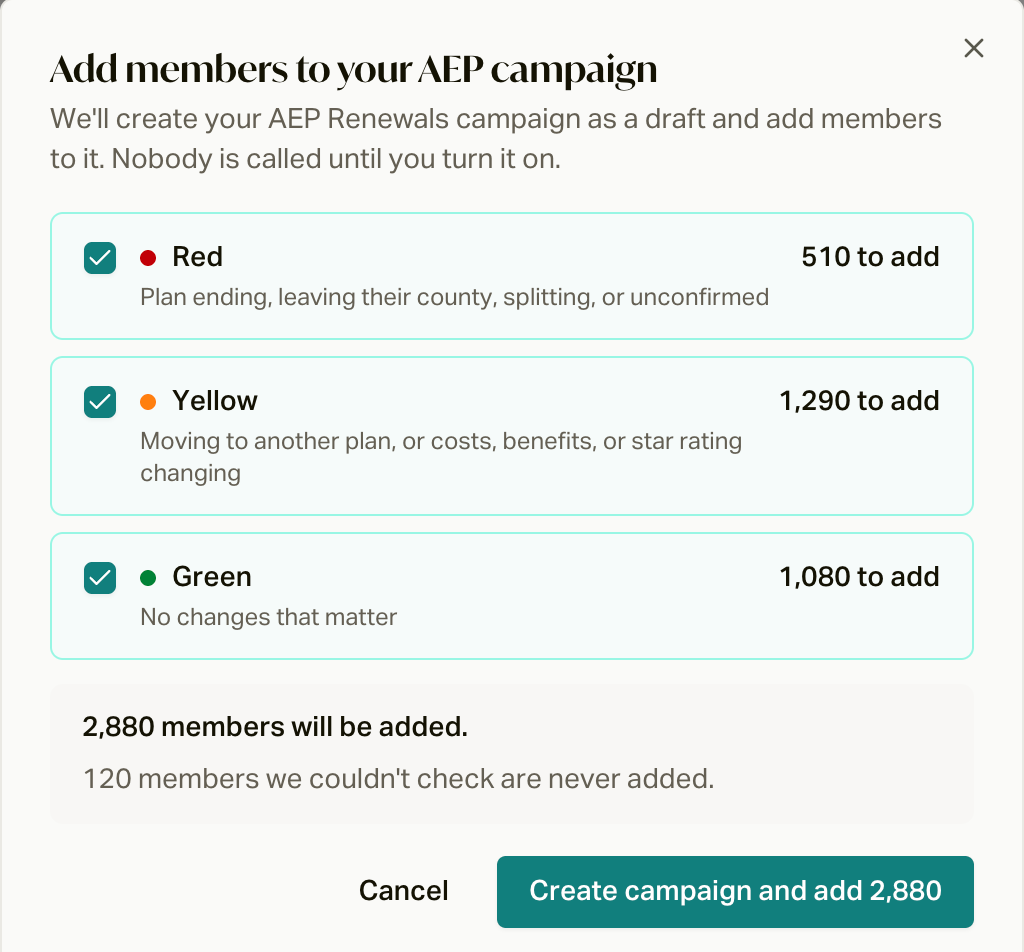 This does three things at once: it creates your **AEP Renewals 2027**
campaign as a draft, adds those members to it, and writes each member's
plan changes onto their record so the AI knows what to say. Nobody gets
called yet.
Review the script [#review-the-script]
Open the campaign from **Campaigns** and go to the **Assembly** tab. Ask
careCycle to walk you through the call and make any tweaks you want. See
the [Campaign Brief](/docs/guides/aep-2027/campaign-brief) for everything
it says, and [Edit Your AI with
Assembly](/docs/guides/campaign-toolkit/assembly) for how to change it.
Set up your escalations [#set-up-your-escalations]
In **Assembly > Escalations**, pick where transfers
go and which calendar appointments get booked on. The campaign can't be
turned on until you do. See [setting up your
escalations](#setting-up-your-escalations).
Review the cadence [#review-the-cadence]
Check **Configuration > Pulse** (click **Open Pulse**) to see when we call and text each color. See [the
cadence](#the-cadence) below.
Activate [#activate]
Go to the **Overview** tab, open the status menu, and click **Activate**.
During your business hours, calls start within a few minutes. See [what
happens after you activate](#what-happens-after-you-activate).
How it works [#how-it-works]
Every member you add gets a color from the crosswalk, and the color decides
both the path they go down and the conversation they get.
| Color | Who's in it | What the AI is going for |
| ---------- | ----------------------------------------------------------------- | ----------------------------------------------------------------- |
| **Red** | Plan ending, leaving their county, splitting, or unconfirmed | Get them to an agent now, because they *have* to pick a new plan. |
| **Yellow** | Moving to a new plan, or costs, benefits, or star rating changing | Get them to an agent to walk through what's changing. |
| **Green** | No changes that matter | A friendly check-in. If they're happy, it wraps up. No pushing. |
The happy path is the same for everybody: the AI tells the member what's
changing, offers to connect them with one of your licensed agents right now,
and if they're busy (or nobody's free), books a time for your team to call
them back.
How the AI knows what to say [#how-the-ai-knows-what-to-say]
When you click **Add to campaign**, we fill in two fields on every member:
**Plan Changes 2027** (a one or two sentence summary) and **Plan Changes 2027
Details** (every change we found). The AI reads both before every call. For
example:
> Starting January 1, 2027, the monthly premium for your plan, Sunshine
> Advantage (HMO), is going up from $0 to $38.
It picks its opener based on that summary, then uses the details to answer
questions. It always sticks to the main change in one plain sentence, never
reads plan codes or lists of numbers out loud, and leaves plan comparisons,
doctors, and drugs to your licensed agents. See [what gets written to your
members](/docs/guides/aep-2027/plan-crosswalk#what-gets-written-to-your-members)
for every version of the summary.
What the campaign says [#what-the-campaign-says]
Here's the short version. The AI opens with "Hi this is Alex calling about your
Humana Medicare Plan. Is Linda Taylor available?" Then, based on the member's
plan summary, it tells them their plan is ending, that there are notable
changes coming, or (for Green) that things look steady. From there it offers
to connect them with one of your licensed agents right now, and if they're
busy, it books a time on your calendar.
The campaign comes with three AI employees (daytime calls, after-hours calls,
and appointment callbacks), plus texts between calls and a voicemail on every
call.
Every opener, objection, text, and voicemail, and exactly when each one goes
out for Red, Yellow, and Green.
Setting up your escalations [#setting-up-your-escalations]
Escalations are what the AI *does* during the call. This campaign uses three,
and the first two have to be set up before you can turn it on.
Transfers: where calls go [#transfers-where-calls-go]
When a member says yes to talking with someone, the AI transfers them to a
**routing group**. That could be a single number, a group of agents on
the careCycle softphone, or a smarter routing setup that sends each member to
their own agent.
1. Open the **Assembly** tab, then click **Escalations** (top right).
2. Find the scenarios set to **Transfer Call** and pick your routing group.
3. Click **Save Changes**.
Don't have a routing group yet? Click **Manage** in the menu to make one, or
read [Routing](/docs/guides/campaign-toolkit/routing).
Set up a fallback on your routing group. If nobody picks up, the AI can
book an appointment instead of losing the call.
Appointments: your calendar [#appointments-your-calendar]
When a member's busy, the AI books a callback on a **calendar**.
That's where you set which days and hours are open, how long
each slot is, and how many people can book the same time. Your calendar
also decides who makes the call at the booked time: the AI
(**Phone Call (AI agent)**), which calls the member and transfers them to your
team, or your agent (**Phone Call (agent-initiated)**), who gets a prompt to
dial them from the softphone. If you go with the AI, the calendar needs
a routing group too.
Same place: **Assembly > Escalations**, pick your calendar
on the **Book Appointment** rows, then **Save Changes**. See
[Calendars](/docs/guides/campaign-toolkit/calendars) to build one.
AEP is busy. Limit your calendar's date range to the enrollment window and make
sure you've got enough slots for the volume you're about to call.
Inquiries: who follows up [#inquiries-who-follows-up]
If the AI can't book or transfer, or a member has a question it can't answer,
it logs an **inquiry** for your team. Each inquiry lands in your
[Inbox](/docs/guides/agents/your-inbox) and on the **Inquiries** page, and the
member's assigned agent gets a notification.
So the big thing here is making sure every member actually *has* an assigned
agent. That's what [Customer
Assignments](/docs/guides/getting-set-up/assign-customers-to-agents) are for
(**Settings > Customers > Customer Assignments**). Members without one
still show up on the Inquiries page, but nobody gets pinged about them.
You can also tell the AI which inquiries matter most. On the **Inquiries**
page, click **Priority Rules** to sort situations from Urgent to Routine. See
[Handle Inquiries](/docs/guides/answer-every-call/handle-inquiries).
The cadence [#the-cadence]
The campaign's Pulse sends each member down their color's path, based on the
`AEP 2027 plan changes` tag the crosswalk gave them.
| | Red | Yellow | Green |
| ------------ | -------- | ------- | ------- |
| **Calls** | Up to 12 | Up to 8 | 2 |
| **Texts** | Up to 12 | Up to 9 | 5 |
| **Runs for** | 64 days | 64 days | 54 days |
Red is the most persistent, mixing calls and texts and picking up to every
other day in the final stretch before December 7. Yellow is spaced out more.
Green is mostly texts with two light-touch calls. The [Campaign
Brief](/docs/guides/aep-2027/campaign-brief#the-cadence) has every step, word
for word.
A few things happen automatically, no matter what the cadence says:
* **On December 8**, the day after open enrollment closes, everyone still in
the campaign is taken out, so nothing goes out after AEP ends.
* **If the AI books an appointment, transfers the call, or logs an inquiry**,
the member's journey ends right there. They won't get the next call.
* **Booking an appointment ends every campaign** that member is in, not just
this one.
* **If they ask to be taken off the list**, they're stopped right away.
Want to change the cadence? Open **Configuration > Pulse**, click **Open Pulse**, and edit the Pulse. You can edit it by hand,
or have an AI like Claude or ChatGPT do the heavy lifting. See [Edit Your Pulse
with an LLM](/docs/guides/campaign-toolkit/pulse/edit-your-pulse-with-an-llm).
Keep the color routing intact. The Pulse decides who goes where by reading the
three `AEP 2027 plan changes` tags, so if you rebuild it, make sure Red,
Yellow, and Green each still have a branch.
What happens after you activate [#what-happens-after-you-activate]
Everyone you added starts right away, as long as you're inside your business
hours and it's between 8 AM and 9 PM for the member. Texts go out within
seconds and calls start within a few minutes. Outside those hours, everyone
waits and goes out as soon as you open.
Big lists ramp up instead of all firing at once. If you want to control how
many calls run at the same time, review **Concurrent Calls** under
**Configuration > Phone Numbers & Dialing Rules**.
For the full picture, see [How Campaigns Run](/docs/guides/concepts/how-campaigns-run).
Common questions [#common-questions]
Open the **Assembly** tab and tell careCycle what you want in plain
English. It'll propose the change, you can test it in a simulation, and
then apply it. See [Edit Your AI with
Assembly](/docs/guides/campaign-toolkit/assembly).
Same place. Ask careCycle in the **Assembly** tab, for example "only offer
the transfer to Red members" or "offer an appointment first instead of a
transfer," and it'll rework the call to match. You can also change which
situations transfer under **Assembly > Escalations**.
In **Assembly > Escalations**, pick a different routing group on
the **Transfer Call** rows and click **Save Changes**. To change who a
group rings, edit it in [Routing](/docs/guides/campaign-toolkit/routing).
In **Configuration > Pulse**, click **Open Pulse**. Add or remove calls, change the waits, or rewrite
the texts. See [Pulse](/docs/guides/campaign-toolkit/pulse) and [Edit Your
Pulse with an
LLM](/docs/guides/campaign-toolkit/pulse/edit-your-pulse-with-an-llm).
We'd say yes. They don't technically need anything, but a quick "your plan
looks good, any questions?" call keeps you top of mind during AEP and
sometimes turns up someone who wants to shop anyway. The AI won't push
them. Green is unchecked by default, so check it when you click **Add to
campaign**.
Yep. Click **Add to campaign** again from your crosswalk and pick more
colors. If we re-run your crosswalk, use the newest one: anyone whose
color changed gets moved to their new path automatically.
On the **Plan Crosswalk** tab under **Policies**, and in the ZIP you get
from **Download Call Lists**. Each member's summary is also on their
customer profile in the **Plan Changes 2027** fields. See [Plan
Crosswalk](/docs/guides/aep-2027/plan-crosswalk).
The usual reasons: no phone number, no time zone or state on file, they're
on Do Not Call, or it's outside your hours. See [Why Wasn't My Customer
Called?](/docs/guides/know-your-numbers/why-wasnt-my-customer-called)
Everything in your crosswalk data, and what we write to your members.
Every script, text, and voicemail, by color.
When calls start, and what takes people out of a campaign.